Memberships: FAQ
Updated August 7, 2026
Answers to common questions about Fourthwall Memberships
Access and account
How do I access the members' (customer-facing) area on my website?
From your homepage, click "Members Only" in the main navigation menu or the account icon in the header. You should be automatically logged in with your admin account, allowing you to experience your members-only hub from the perspective of your customers. Your account will automatically display a "Verified" badge in the comments section, and you'll be able to delete comments.
If you're not automatically logged in or visiting your Memberships site from a different device, you can:
- Sign in using the same login modal as your customers (yourshopname.com/supporters).
- Enter the email address associated with your admin account.
- Click outside of the input field. "Log in with Fourthwall" will appear, and you will be redirected to a Fourthwall login page.
- Log in as you would to your Fourthwall dashboard.
Once logged in, you'll be taken to the Memberships area.
How do I add a "Verified" badge next to my account?
A "Verified" badge is displayed automatically for all admin accounts.
Can I customize the verified checkmark badge?
Yes. You can change the badge label, badge colors, username color, and choose which recipient group sees the badge. Go to Memberships > Settings > Badges to configure these options.
Billing and payments
When will my customers be billed for their subscription?
Members are charged when they sign up and each month (or year) on the same date. For example, if they subscribe on October 3, their next payment will be on November 3. If they subscribed annually on October 3, 2022, their next payment would be October 3, 2023.
Can I change the next payment date for a member's subscription?
No. Subscription billing dates are fixed based on the original signup date. If a member subscribed on the 3rd, they will always be billed on the 3rd.
How many times will a past-due member be billed before they lose membership access?
A past-due member will lose access to their membership immediately after the first failed payment. However, the system will retry the payment charge four times within three weeks to regain membership access!
How do I see how much each member is paying per month (including custom amounts above the minimum)?
The main Members list does not display per-member payment amounts inline, but you can view each member's exact subscription charges through the refund flow. Go to Memberships > Members, click the member's name, then open the three-dot menu in the top-right and choose Issue a refund. The refund modal lists every past subscription charge with its date and amount, labeled "Membership charge", which includes any custom amount the member chose to pay above the tier minimum. If you only want to review the amounts, close the modal without confirming a refund.
If you'd like per-member payment amounts to appear directly on the Members list, share that feedback with support@fourthwall.com.
Tier management
Can I hide a tier?
Yes! You can unpublish a tier at any time. This will mean the tier is no longer publicly visible on your site, and no new members will be able to subscribe.
To unpublish a tier:
-
Go to Memberships > Perks & tiers.
-
Click the Settings icon on a selected tier.
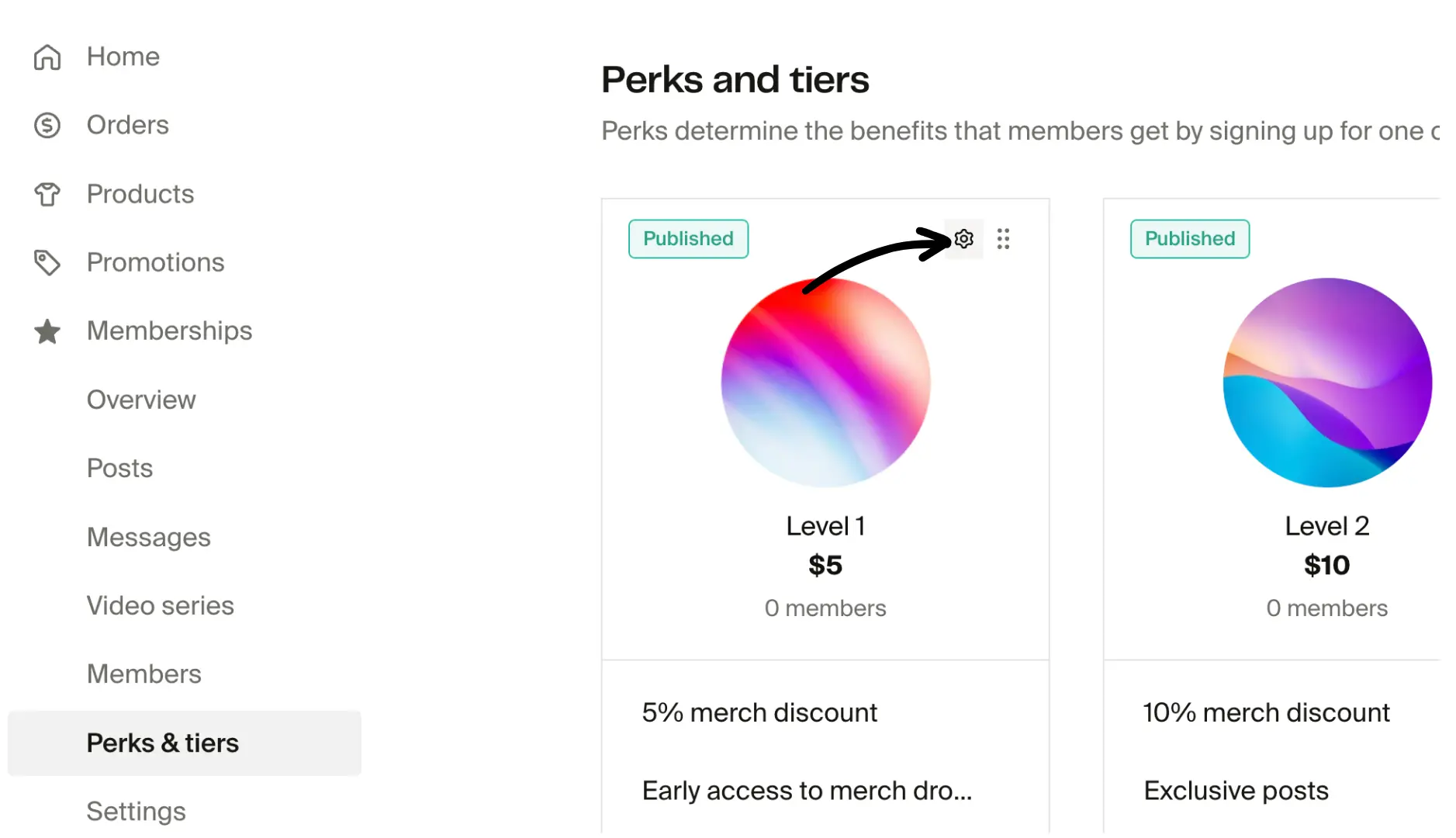
- Choose Unpublish tier.

The tier will remain active for currently subscribed members. You can republish the tier again at any time by clicking the "Publish tier" option on an unpublished tier.
How do I change the price of a tier?
You can only change the price of a tier if there are no active members subscribed to that tier. To change the price of a tier with active members, you can unpublish it, create a new tier with an updated price, and let your members know about the change so they can switch over to the new tier via their Billing tab. Once there are no longer any active members on the old tier, you can delete it permanently.
If you need help, feel free to reach out to support@fourthwall.com.
Can I delete a tier with active members?
Currently, it's only possible to delete a tier that has no active members.
How can I add or update a tier's description?
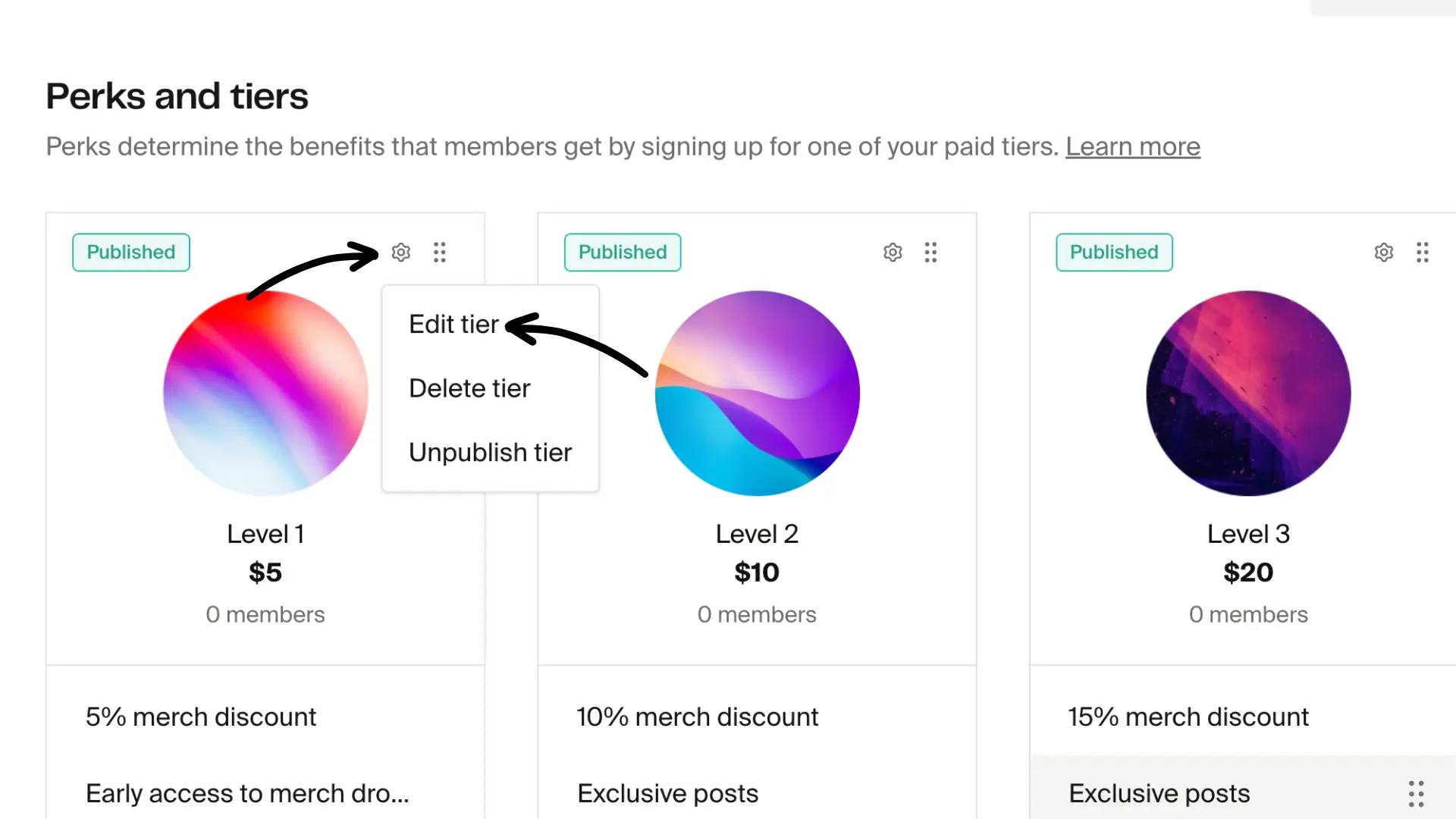
When you add a new tier, you have the option to include a description to give context for your customers. If you skipped or missed adding one and wanted to update it, you can do so by going to Memberships > Perks & tiers and clicking the gear icon (settings) > Edit tier.
Customization and themes
Will my site's customization settings carry over if I decide to install the Oasis theme?
Your shop logo, navigation menu, and social links will automatically transfer over when you enable the Oasis theme (or any other new theme). However, further customizations, such as text, fonts, and colors, will need to be applied to the new theme. Your previous themes and customizations are always available for you to reference or reactivate at any point in Site design > Theme.
Why can't I find the Tiers section in my Theme editor?
You're likely using an outdated theme. For full Membership support, install or update to the Oasis theme for full Memberships compatibility. For more information about theme updates, visit this article.
The Oasis theme is stuck in the installation process or is missing sections. What should I do?
You'll need to reset your theme. To do that:
-
Locate the Oasis theme in the Theme tab.
-
Click the three-dot icon > choose Reset to default.
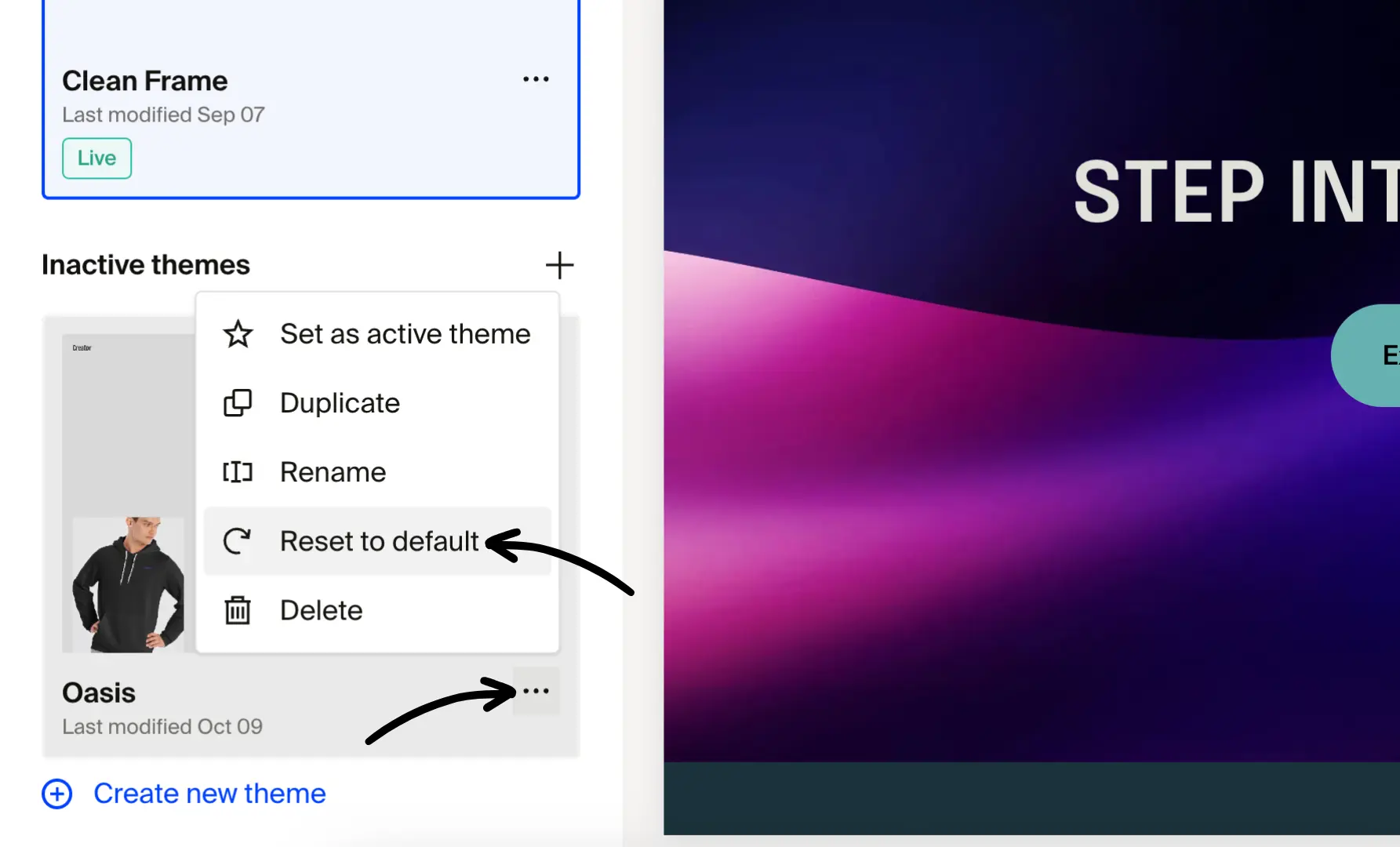
- In the modal window, click Reset to default settings.
Caution: This action cannot be reversed.
How do I add a video background to the hero section?
To include a video background on your website, use the "Video with text overlay" section available in the Theme Editor (currently supported only on Oasis, Lively Classic & Freestyle themes).
Products and discounts
Can I offer exclusive discounts only for members?
Yes! You can create members-only promotions (e.g., 20% off) for all products or for specific products. Check out this article for more information on how to set up members-only discounts.
Can I have products available only for members?
Yes! You can configure certain products to be available only for your members. Check out this article for more information on how to set up members-only products.
Posts and content
Can I add custom subtitles to video posts?
Yes. When you upload a video post, you can add custom subtitle files. Subtitles support a 1-hour delay, so you can release a post and have subtitles appear up to one hour later for additional editing time.
Can customers share my posts on social media?
Yes. Each post includes a Share icon that lets customers copy a direct link or share the post to X (formerly Twitter) and Facebook. Shared links include preview metadata so posts display correctly in social feeds.
Can I make posts visible to everyone, not just members?
Yes. When creating or editing a post, set the Viewable by option to Everyone. This makes the post publicly accessible to all visitors, not just members.
Does the video player support closed captions?
Yes. The video player auto-generates closed captions in English. Captions are created automatically after you upload a video post, so no manual transcription is needed.
Can I embed a Vimeo livestream with live chat?
Yes. When you embed a Vimeo livestream in a post, the live chat feature is supported. Your customers can participate in the chat during the stream directly from your membership feed.
Can I filter feed results by multiple tags at once?
Yes. You can apply multiple tags as filters on your membership feed. This advanced multi-tag filtering lets you and your customers narrow down results to find specific content quickly.
Can I customize how posts appear in my memberships feed (e.g., as a grid instead of a single column)?
No. The Memberships Feed layout can't currently be customized, so posts always display in a single column. A few features help with presentation and content discovery instead:
- Gallery Posts: Add multiple images to a single post and they lay out in an automatic grid within that post.
- Post Tags: Tag your posts so supporters can filter the feed by tag and find the content they want faster.
If an Instagram-style grid across your whole feed matters to you, send a feature request to support@fourthwall.com so the team can gauge interest.
Analytics and insights
Where can I see the membership-related profits?
Your profits are included in the Memberships > Memberships profit chart of the Analytics tab. Click Full Report to access the detailed version of the report.
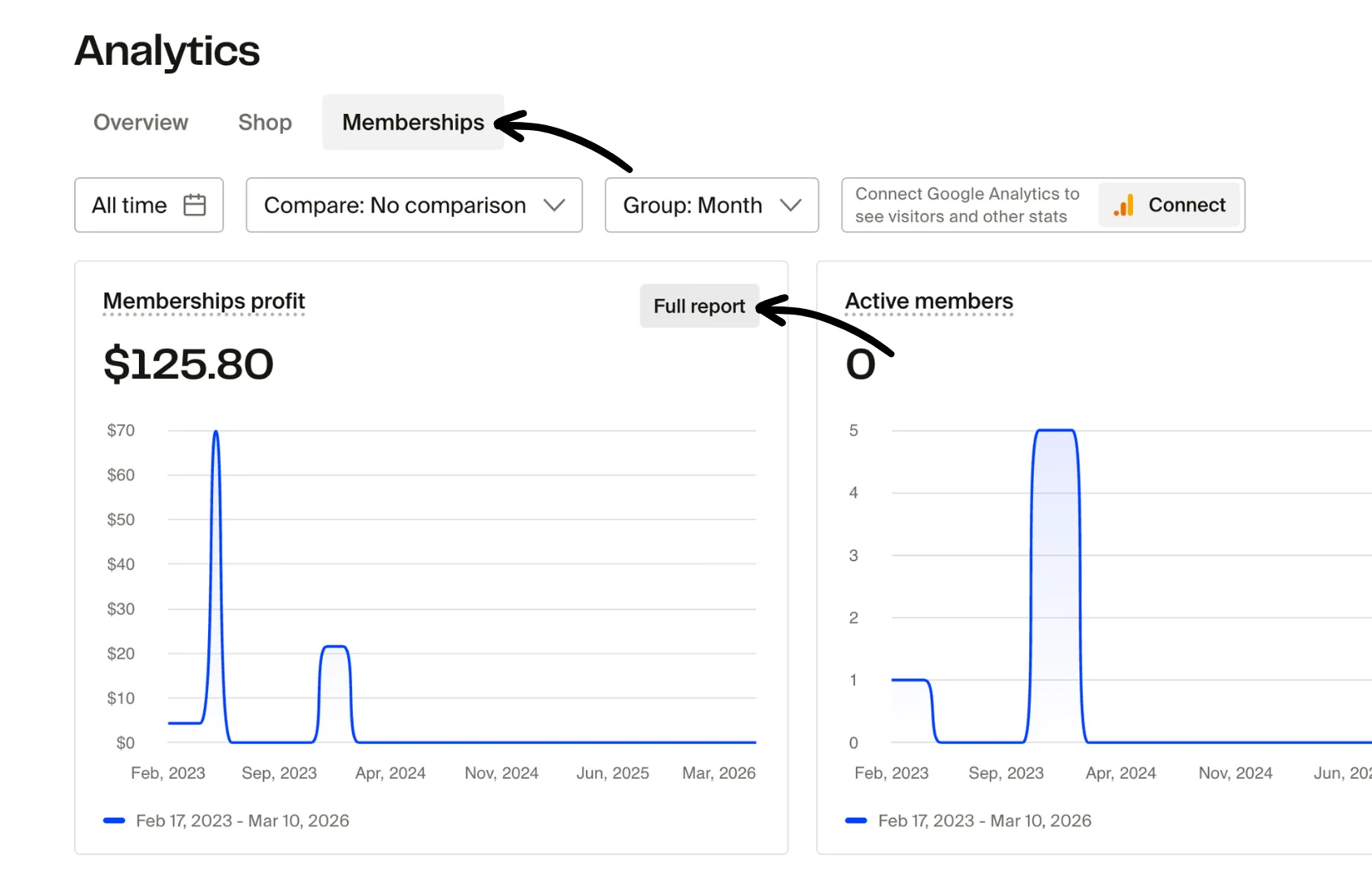
You can find other membership-related reports here as well.