Engage your Twitch community with on-stream merch and membership gifts
Enabling this feature makes your products and memberships giftable while you’re live. The FourthwallHQ bot automatically announces and manages the giveaway process, making the experience seamless and fun for you and your community.
This article will walk you through enabling Twitch gifting for your shop. It will outline the steps for setting up stream alerts, show you where to view your gift purchases and redemptions on your dashboard, and provide tips and best practices for maximizing the use of this feature.
Twitch gifting setup
1. To begin setting up gifting, go to Apps > Twitch gifting.
2. Click Connect under the Fourthwall chatbot and authorize the connection to your Twitch account.
Note: If you use StreamElements, we recommend connecting through their chatbot for better control of gifting events.
3. Once connected, check Allow products to be gifted while I’m live on Twitch (must be enabled for gifting to work).
4. Scroll down to the Giveaway entry limit section and select the amount of time the chat will have to enter the gifting (the default time is 60 seconds). You can adjust this according to your preference or the dynamics of your chat.
You are now ready to start using Twitch Gifting. The option to gift products and one-month memberships will appear on your site the next time you are live.
Additional giveaway settings
Choose how extra shipping costs are covered
The cost of average domestic shipping is included in the cost paid by the gifter at the time of purchase. However, differences (positive or negative) may occur between this average estimated cost and the actual shipping cost calculated at the time of redemption, especially if the gift recipient selects international shipping. You can choose how you want any extra shipping costs (on top of the average paid by the gifter) to be covered:
- By the gift recipient
- By you
- By you, but only up to a specified amount per order
Choose which products are available for gifting
You can decide whether to make all of your products available for gifting or only specific products. This setting will determine which products include an option to “Gift this product” while you’re livestreaming.
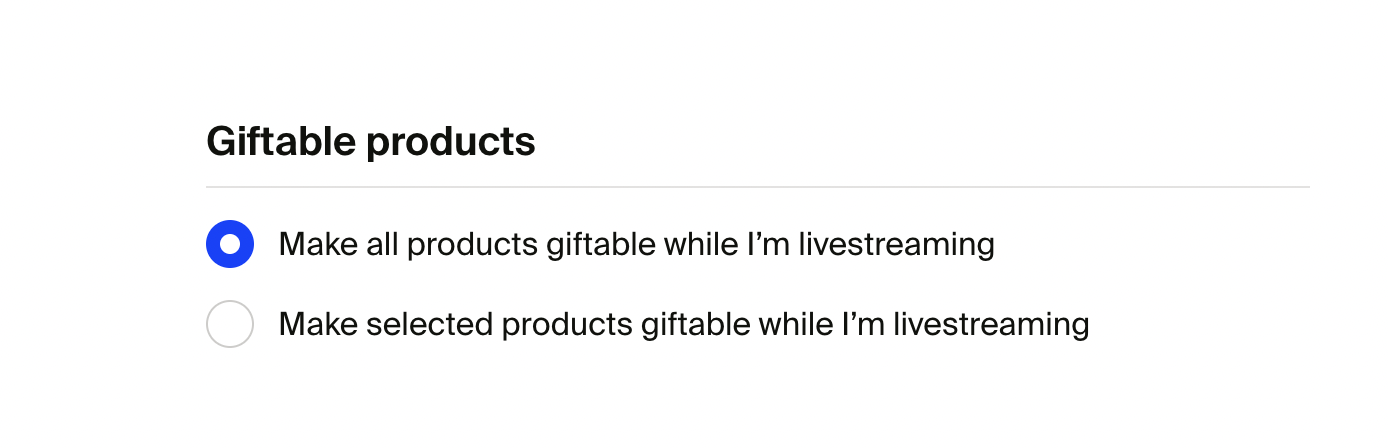
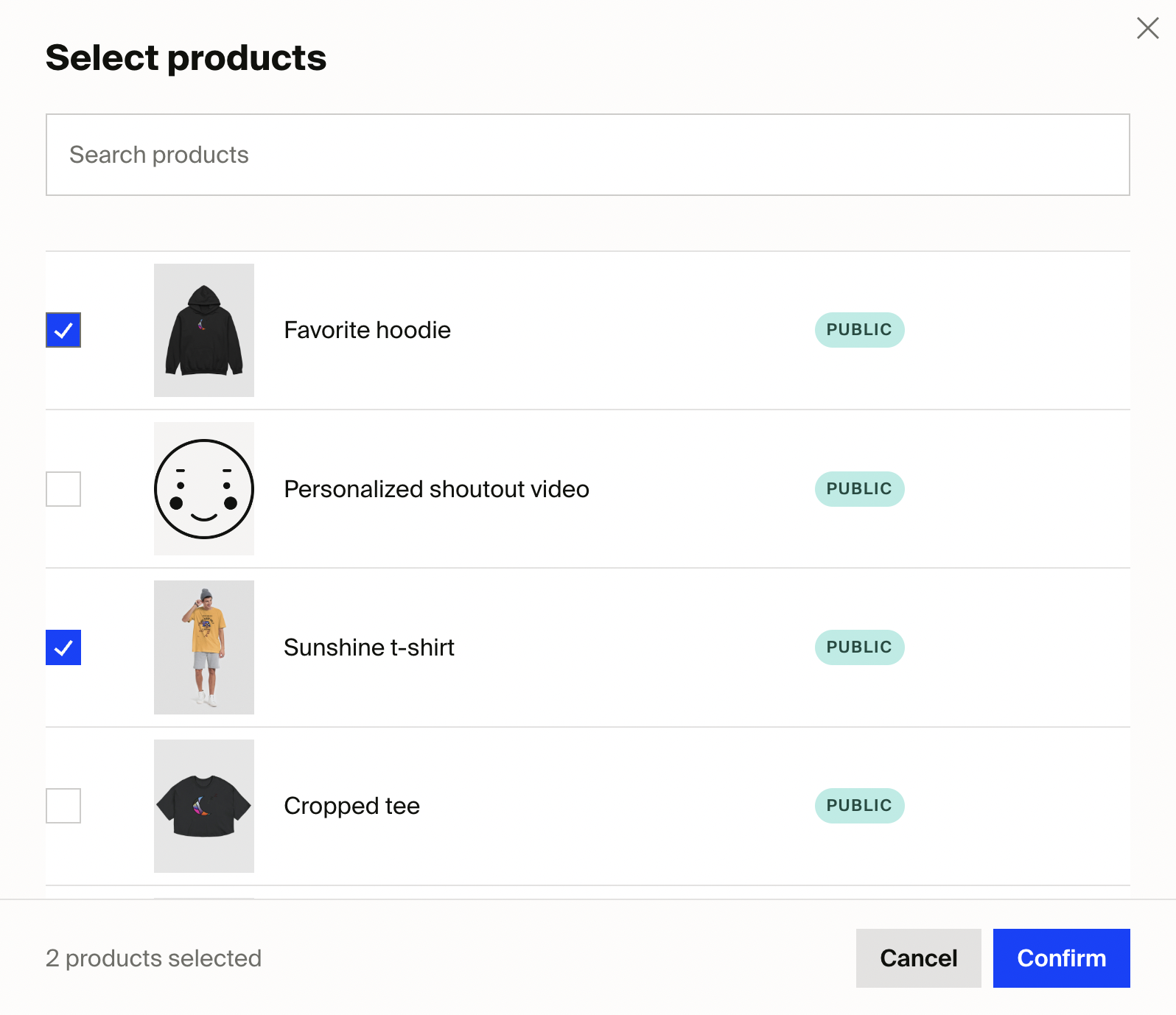
You may change which products are available for gifting at any time in your settings.
The giveaway process
Gifting is only available when you are live on Twitch.
Once you have completed the setup process, a “Gift this product” section will appear under the products you’ve selected as available for gifting.
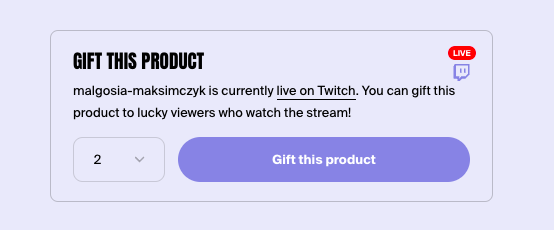
For Memberships, this will appear as a "Gift to Twitch chat" button on the Tiers section of your homepage and on your pricing page (yoursitename.com/supporters/pricing).
When someone purchases a gift, they have the option to include their name and a brief message (they can also choose to gift anonymously), which will be displayed in chat and stream alerts, if enabled.
Once the gift purchase is complete, the FourthwallHQ bot will automatically kick in, announce the gift in chat, and invite your viewers to enter to win by typing !enter (or !join if connected via StreamElements) within the gifting entry time you have selected, i.e., 20 seconds.
Tip: The entry timer is set to 60 seconds by default. You can customize the length of the timer in your Twitch app settings to be between 20 and 180 seconds.
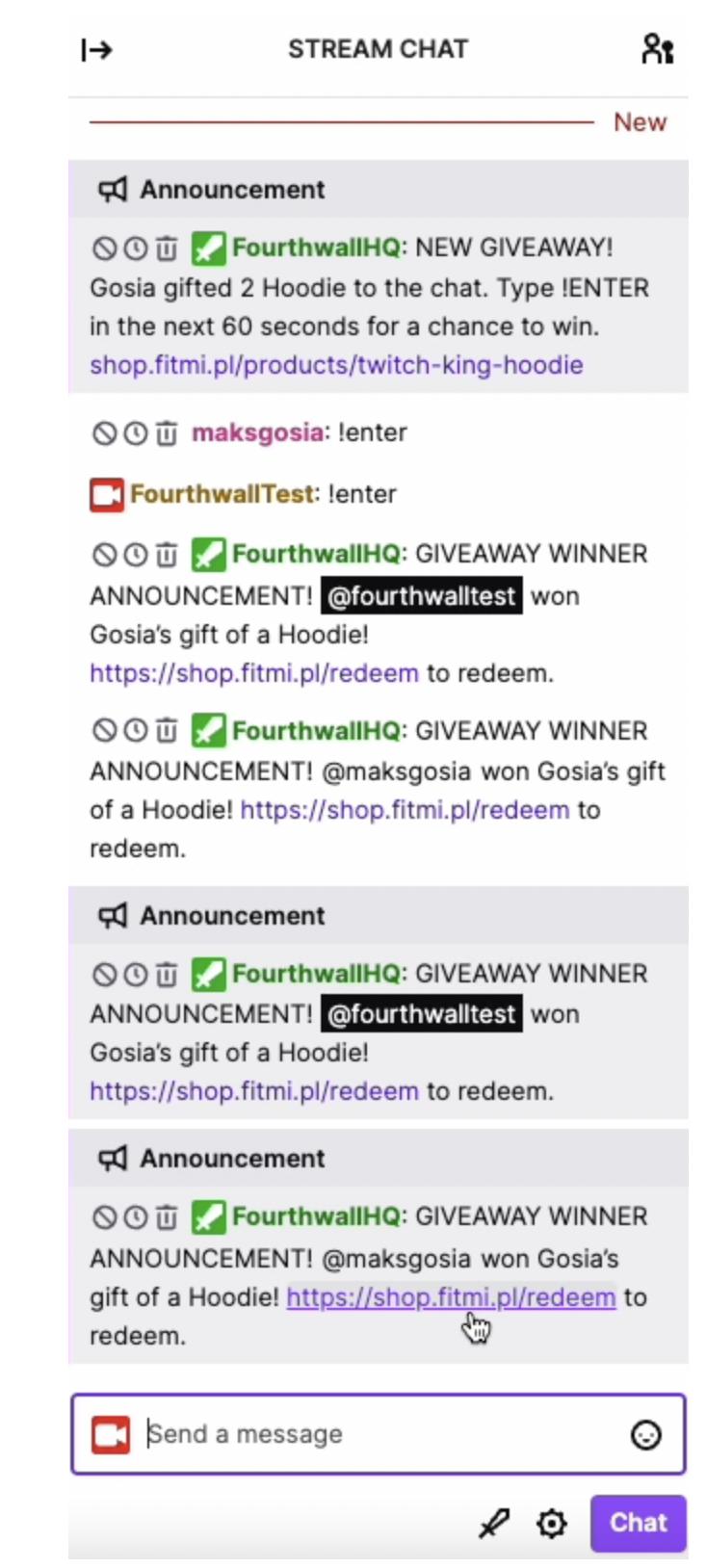
Note: Participants must type only !enter for the command to work correctly.
After the entry window has closed, the bot will randomly select a winner (or winners if more than one item is purchased) and announce their username(s) in chat (one regular chat message per winner and one using the /announce command to allow for mobile visibility).
These announcement messages will include a link where viewers can redeem their prize by entering their Twitch login credentials. This link is always the same: yoursitename.com/redeem.
Redeeming gifts
When a user clicks on your redemption link, they’ll be taken to a page where they can authenticate using their Twitch login credentials to verify they are the winner, enter their information, and redeem their gift for free.
Redoing giveaways for unredeemed gifts
Occasionally, a giveaway will not result in a winner (i.e., if no one enters during the entry window), or winners will not redeem their gift.
You can identify gifts without winners or unclaimed gifts by going to Orders > Twitch gifts. In the profit column, you will see "X redeem left" under the profit number if that gift has not been redeemed or only partially redeemed in the case of multiple gifts in one order.
Additionally, in the status column, an unredeemed gift will say "Gift (Redeemed 0/1)" or "Gift (Redeemed 2/5)" if it was multiple gifts by one chatter, and not all were redeemed.
If a gift does not have a winner or the winners have not redeemed it, you may choose to redo the giveaway process by going into the gift order and clicking "redo the giveaway". This will tell the FourthwallHQ bot to restart the giveaway process for the selected gift and randomly select a new winner. You must be live to redo a giveaway.
Important:
- If you choose to redo a giveaway, the original winner(s) can no longer redeem the gift. We recommend waiting at least 24 hours before initiating a redo.
- Profits from gifts are calculated first as positive profit (from the gift purchase), then as negative profit (from the gift redemption), resulting in your net profit. If you choose to redo a giveaway, please be aware that only the positive profit will have been reflected in your account balance, and that when the gift is redeemed, you will see the negative profit representing the redemption cost come through. This is normal.
Tips & best practices
Boosting visibility of gifting, giveaways, and redemptions
While gifting is designed to run on its own, there are a few ways creators can get the most out of this feature by making it even clearer to your community that products and memberships are available for gifting, when a giveaway is happening, and when it has ended.
How will my chat know gifting is available?
This part is up to you! Especially when you’re first starting out using Twitch gifting for your Fourthwall shop, it’s important to let your community know that they can head to your shop (share a link) when the stream is live and gift any product or a one-month membership to the chat to start a giveaway.
How long do my viewers have to enter to win a gift?
By default, viewers have 60 seconds from when the FourthwallHQ bot announces the gift purchase to type !enter for a chance to win. You can customize the length of the entry timer (min. 20 seconds; max 180 seconds) in your Twitch app settings. We recommend encouraging chat to type !enter so they don’t miss out on the action!
How can someone check if they won?
After the giveaway entry period has closed, the FourthwallHQ bot will announce the winner(s) in chat. If chat is moving quickly, these messages may get lost. Viewers can always go to your-site-url.com/redeem and log in with their Twitch credentials to see if they won (and if so, redeem their gift.)
Tip: Try using your standard chatbot to set up the following commands at a regular cadence of your choosing:
- Entered a giveaway and not sure if you won? Visit my-site-url.com/redeem to check!
- Create a !gift or !giveaway command that triggers something like this: Want to start a giveaway? Go to my-site-url.com when the stream is live and gift any product or membership to the community!
Setting up gifting alerts via StreamElements or Streamlabs
Another great way to promote and optimize gifting is to set up stream alerts. Fourthwall offers StreamElements and Streamlabs integrations that let you enable on-screen alerts when someone purchases or redeems a product or membership from your site as a gift (as well as for product purchases in general). If you use the StreamElements or Streamlabs event feed, you can also keep track of incoming gift orders there.
Note: As a third-party integrating with the StreamElements and Streamlabs platforms, we cannot control all aspects of their alerts experience. Some features may perform better on one platform vs. another, so we recommend testing both and deciding the best solution for you.
Connecting your Fourthwall shop to StreamElements or Streamlabs
To get started, you’ll first need to connect your Fourthwall shop to StreamElements or Streamlabs, depending on which platform you use. Learn about setting up purchase alerts here and return to this page once you’re done.
Setting up gifting alerts with StreamElements
After you’ve configured purchase alerts, you’re ready to set up gifting-specific alerts. These alerts work best when they activate in real time (when a giveaway starts). To help ensure your alert fires quickly, we recommend creating a separate alert box for gifting alerts so they don’t get queued up behind other types of alerts.
In this separate alert box, create a new purchase alert. To get your gifting alert to play differently from a standard purchase alert, you will need to enter the exact “required amount” as 2147483647.

We recommend structuring your message like this:
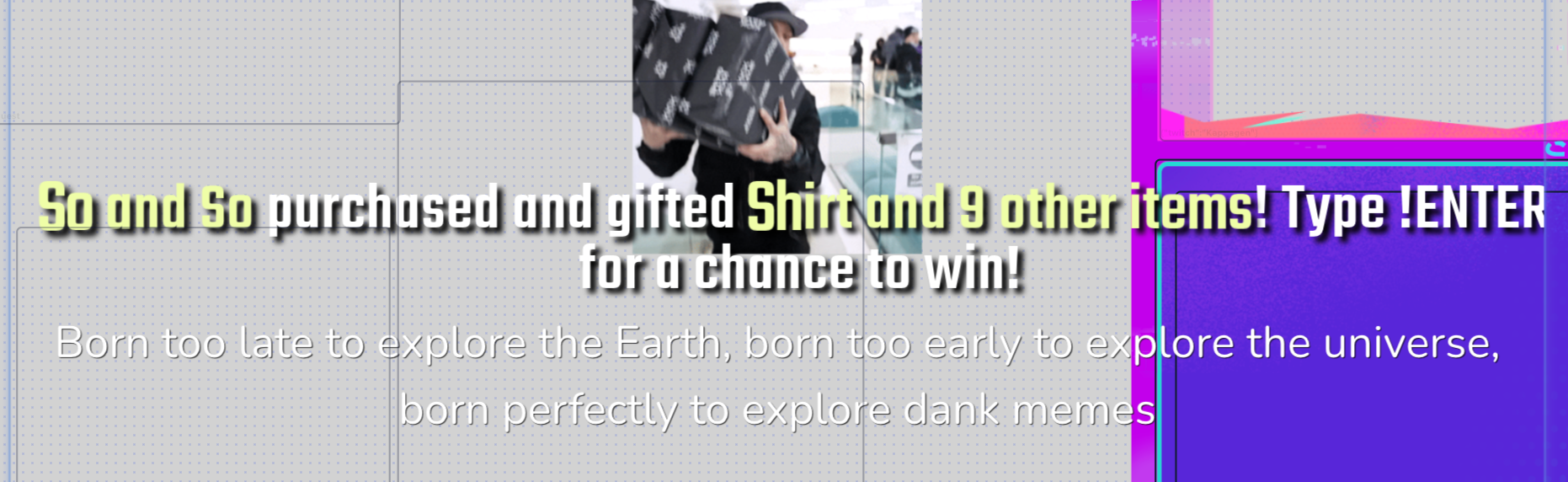
{name} purchased and gifted {items}! Type !ENTER for a chance to win!
Which would look something like this (or this clip as another example):
Redemption alert
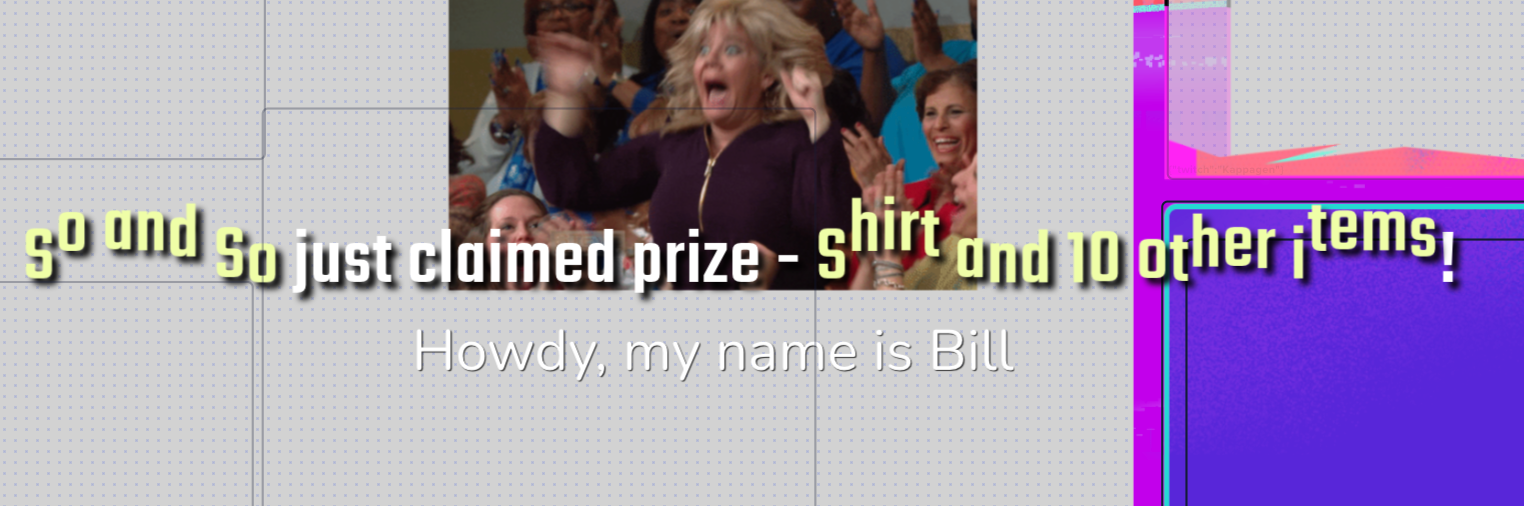
This is an alert that plays when the purchase amount = $0 (AKA when someone redeems a gift). If you don’t want an alert to display for gift redemptions, you can remove this alert type by simply requiring the purchase alert to be at least $1. You can also customize this type of alert to display however you’d like by creating a variant where amount = $0 and then adding in your desired parameters.
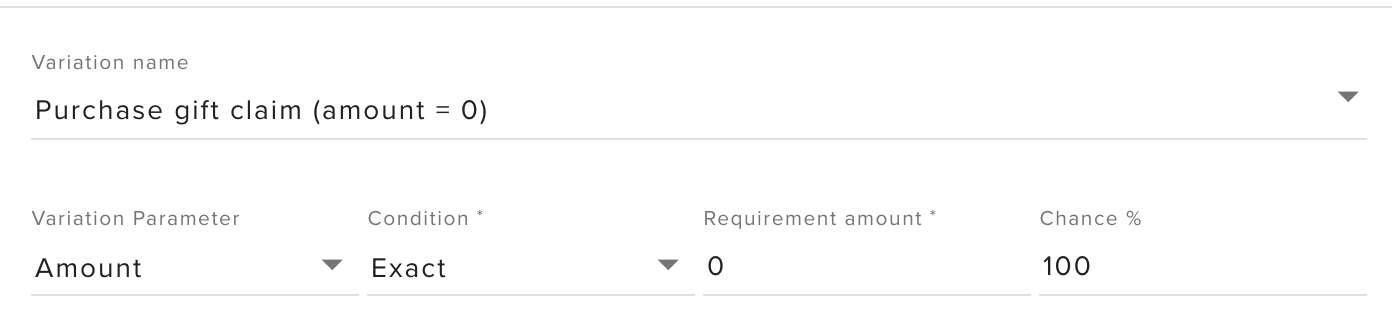
The above configuration would look something like this (or this clip as another example):
Pros & cons of using StreamElements for gifting alerts
| Pros | Cons |
|---|---|
| Fully customizable alerts and variants using StreamElements native tools | Alert variations (normal purchase, gifting, redeem) all need to be setup manually on StreamElements |
Setting up gifting alerts with Streamlabs
From your Streamlabs dashboard, go to Essentials > Alert box.
Fourthwall uses the “Tips” event type to push purchase events to Streamlabs, so in the Settings section, go to the Tips tab and make sure your Tips alerts are set to Enabled.
You can also configure how you’d like your alerts to appear on stream here (remember that you cannot customize the image that appears in the alert – it will always display the product purchased). Make sure to save your settings at the bottom of the page when you’re done.
- Here’s an example of a gifting alert.
- Here’s an example of a redemption alert.
Pros & cons of using Streamlabs for gifting alerts
| Pros | Cons |
|---|---|
|
|
Check out the end-to-end gifting experience in the video below:
Twitch gifting FAQs
How are winners selected?
For each gift purchased, the FourthwallHQ bot collects entries during the entry window, then randomly selects and announces the winner(s).
Can I gift products or memberships to specific viewers?
Currently, we do not support gifting to specific viewers. Everyone in your chat can enter and win whenever someone purchases a gift.
What happens if no one enters the giveaway or a gift goes unclaimed?
By default, if a gift does not have a winner or goes unclaimed, the value of the purchase is passed on to the creator as profit.
Can I refund supporters for unclaimed gifts?
If you would like to request a refund on an unclaimed gift, please contact support@fourthwall.com. Please note that while we can issue refunds on unclaimed gifts to the gift purchaser, this will not stop the winner from redeeming, which could negatively impact your account balance.
Can I transfer my gift to someone else?
No, gifts are non-transferable.
How is shipping calculated, and who pays for it?
Shipping is paid by the gift purchaser and is calculated based on the average US shipping cost for that product. Any differences between our estimated cost and the actual cost of shipping based on the recipient’s address (positive or negative) are passed on to the creator by default. However, you may adjust how any extra shipping costs are covered in your app settings.