Everything you need to know about the perks you can offer your Fourthwall Memberships and how to enable them
Choosing which perks to offer your members
Fourthwall gives you complete flexibility and control over how you reward your members and set up your tiers. You can choose from the following perk types to create a membership offering your community will love.
- Custom perk - Create unique, personalized rewards tailored to your brand and audience
- Discord - Grant exclusive server access or members-only roles through Discord integration
- Members-only discounts - Offer special promotions on products in your shop
- Members-only products - Release products only available to your members
- Private RSS feed - Share all your audio posts in a dedicated podcast-style feed
When setting up a perk, you select which tiers the perk will apply to and customize other important details based on your preferences:
Custom perk
Custom perks give you maximum flexibility to tailor your membership offering to your brand, community, and goals. Below are some examples of custom perks:
- Exclusive or early access to content, events, or giveaways
- Engagement features (polls, AMAs, ability to request products)
- Personalized rewards and recognition (custom videos, birthday messages, gift boxes, shoutouts, on-stream VIP role, etc.)
How to add:
- Select Custom perk from the dropdown when creating a new perk.
- Enter a title and select which tiers can access it.
- Click Add perk to confirm.
Discord
The Fourthwall Memberships x Discord integration allows you to grant special roles to your members. These roles must first be set up in Discord, and you can choose whether to have a single "Member" role or have different roles assigned to particular tiers.
How to add:
- Select Discord roles from the perk type dropdown.
- Enter a title and click Connect to Discord.
- Assign the perk to tiers.
-
Click Update to finish.
Once the integration is configured, the Fourthwall bot will join your Discord server to assign and manage Discord roles for your members automatically. Members must connect to Discord through the /supporters/perks tab in your members' area to authenticate, and will then be automatically granted the appropriate role in your server.
Note: To function properly, this perk requires the Fourthwall bot to have permission to manage the Discord roles associated with your tiers. You'll be prompted to grant these permissions at setup—be sure to keep these in place in your Discord Roles to avoid disruptions.
Members-only discounts
Members-only discounts let you reward your members with exclusive promotions on the products in your shop. When enabled, promotional badges will appear on eligible products to help you build awareness of this perk among your supporters.
How to add:
- Select Members-only discount from the perk type dropdown.
- Fill in:
- Perk title (displayed in perks list and Perks tab)
- Description (displayed in Perks tab)
- Included tiers
-
Save your perk by clicking Add perk.
Next, go to the Promotions tab in your dashboard to create a new shop promo code.
Under Requirements, check Members only and configure details such as:
- Eligible tiers
- Discount (e.g., 10%)
- Product-specific or Entire order
- Usage limitations
Once saved, promotional badges will appear automatically.
Members-only products
Members-only products let you offer a whole new level of exclusivity to your most loyal community members. Select this perk to grant members access to a product line only available to them. Once added, a section in your Perks tab lets members know exclusive products are waiting for them in your shop. Additionally, “Members Only” badges appear on selected products on your main shop page to help you promote this perk to all supporters.
How to add:
- Add a new perk and select Members-only products from the dropdown.
- Enter a title and assign tiers.
-
Click Add perk.
Once added, this section will be displayed to members in selected tiers on the Perks page:
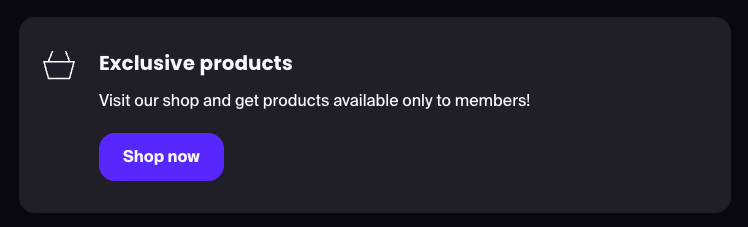
To finish setting up members-only products, edit the product(s) in the Products tab of your dashboard and check the Make this a members-only product checkbox at the bottom of the page. Finally, select who should have access to the product:
- All tiers (the product will be available to all members in all tiers)
- Selected tiers (the product will only be available to members in these tiers)
You’re all set. Once saved, the product will display a special “Members-only” badge on your shop.
Private RSS feed
A private audio RSS feed is an individual link generated for each of your members that allows them to easily access all of your audio posts in a centralized place. You must have at least one audio post for this feature to work.
How to add:
- Add a new perk and select Private RSS feed.
- Fill in:
- Perk title - Title to be used in the tier’s perks list and as the feed title in the RSS feed
- RSS image (optional) - Image displayed in the feed
- Include all audio posts - Choose if you want to include all audio posts
- Include audio posts with selected tags - Select this option to add only audio posts marked with a particular tag
- Hide this perk from the tiers list - By default, the RSS feed perk is displayed both as a bullet point in the tiers display and in the Perks tab for supporters. While your members will need to access this feature from the Perks tab, you can select this option if you do not want to feature it in the Tiers list.
- Included in tiers - Choose which tiers have access to this perk
- Save your perk by clicking Add perk.
Members can then copy their personal feed link from the Perks tab and paste it into apps like Apple Podcasts.
You’re all set to design perks that fit your community. Want inspiration? Check out how top Fourthwall creators structure their memberships on our blog.