Enable donations on your site
Updated May 13, 2026
Easily enable donations on your homepage, checkout, or custom pages. No platform fees required
Donations let fans support your content directly on your homepage, during checkout, or on any custom page of your Fourthwall site. We don't take a cut; you keep 100% of donations (minus standard credit card fees).
Where donations can be added to your site
Once enabled, the donation section can appear in:
- Your home page layout
- The checkout flow
- Any custom page via the Site design
Enable or disable donations on your home page
Step 1: Go to Site design > Layout > Home.
Step 2: Click on the + Add page section link on the left and select Donations under "Others."
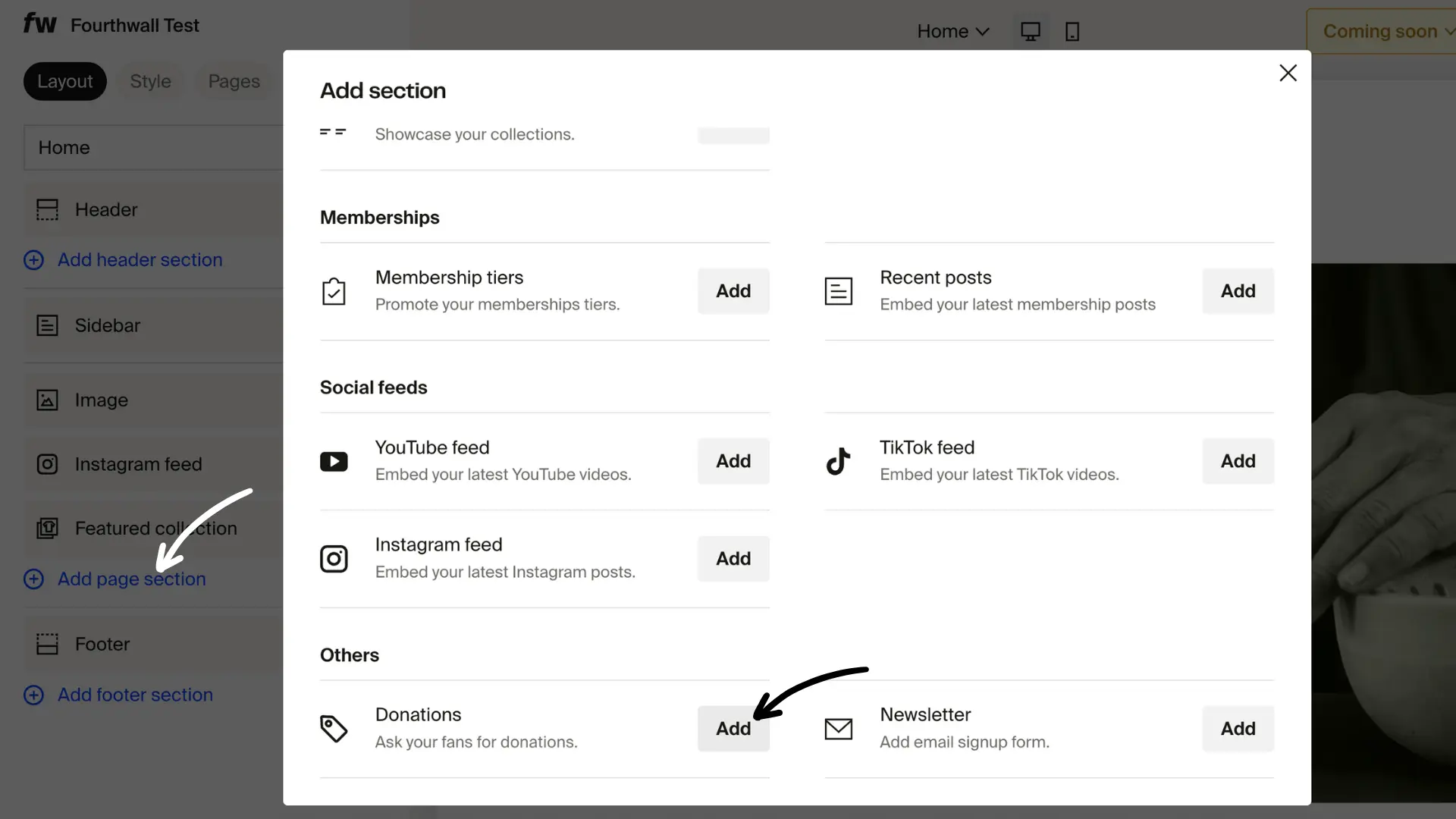
Step 3: Customize the Donations page using the options on the left as needed. Once you're satisfied with its appearance, click Save.

Additional customization for the Donations section
Hide or move the section
To remove it from public view, click the eye icon; you can unhide it at any time. To reposition, place the cursor on the handle and drag it to your desired location.

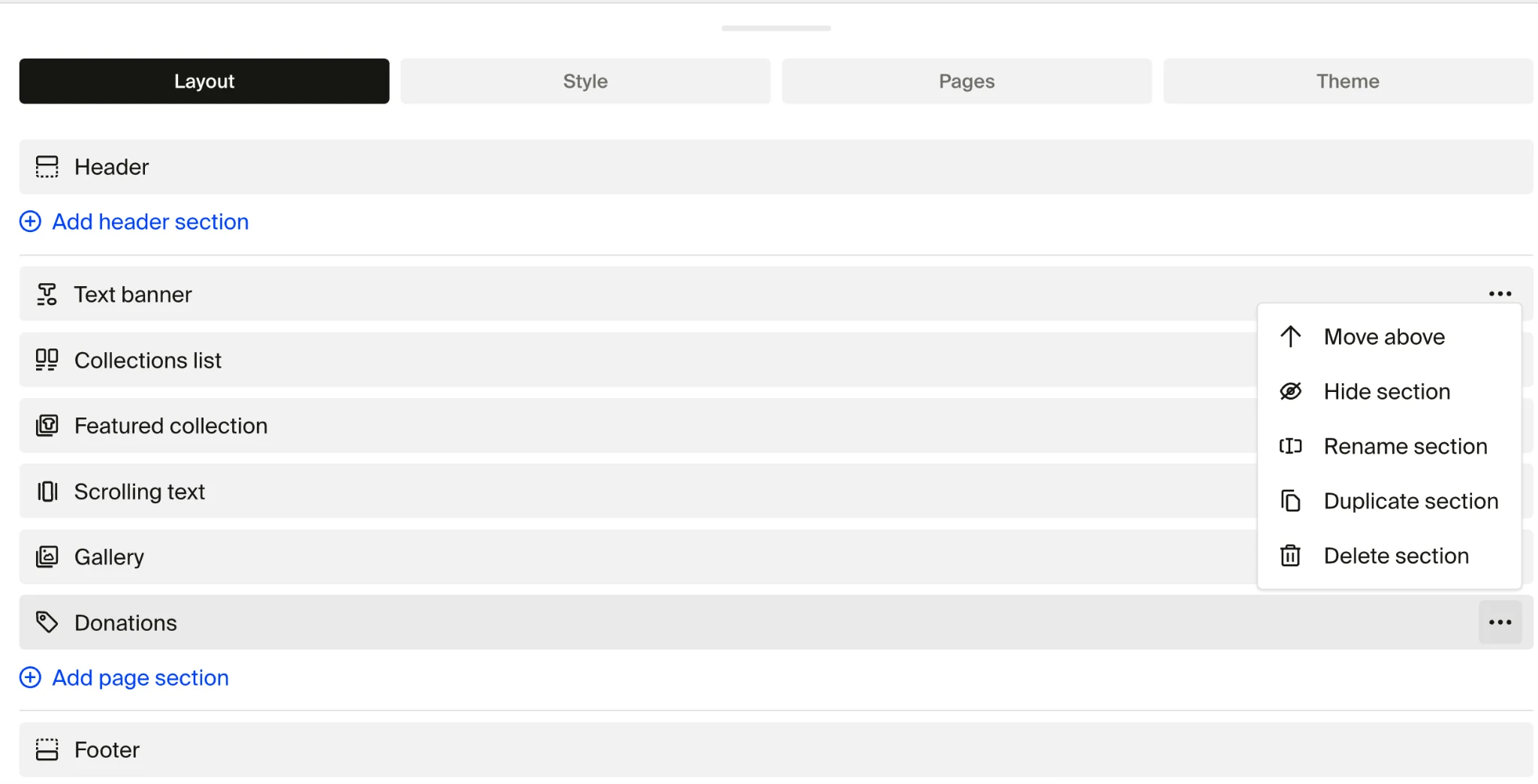
Edit, delete, and more
Click the Donation section. Then:
- Edit the title, description, and donation amounts
- Customize the appearance
- Click the three-dot menu to rename, duplicate, or delete the page
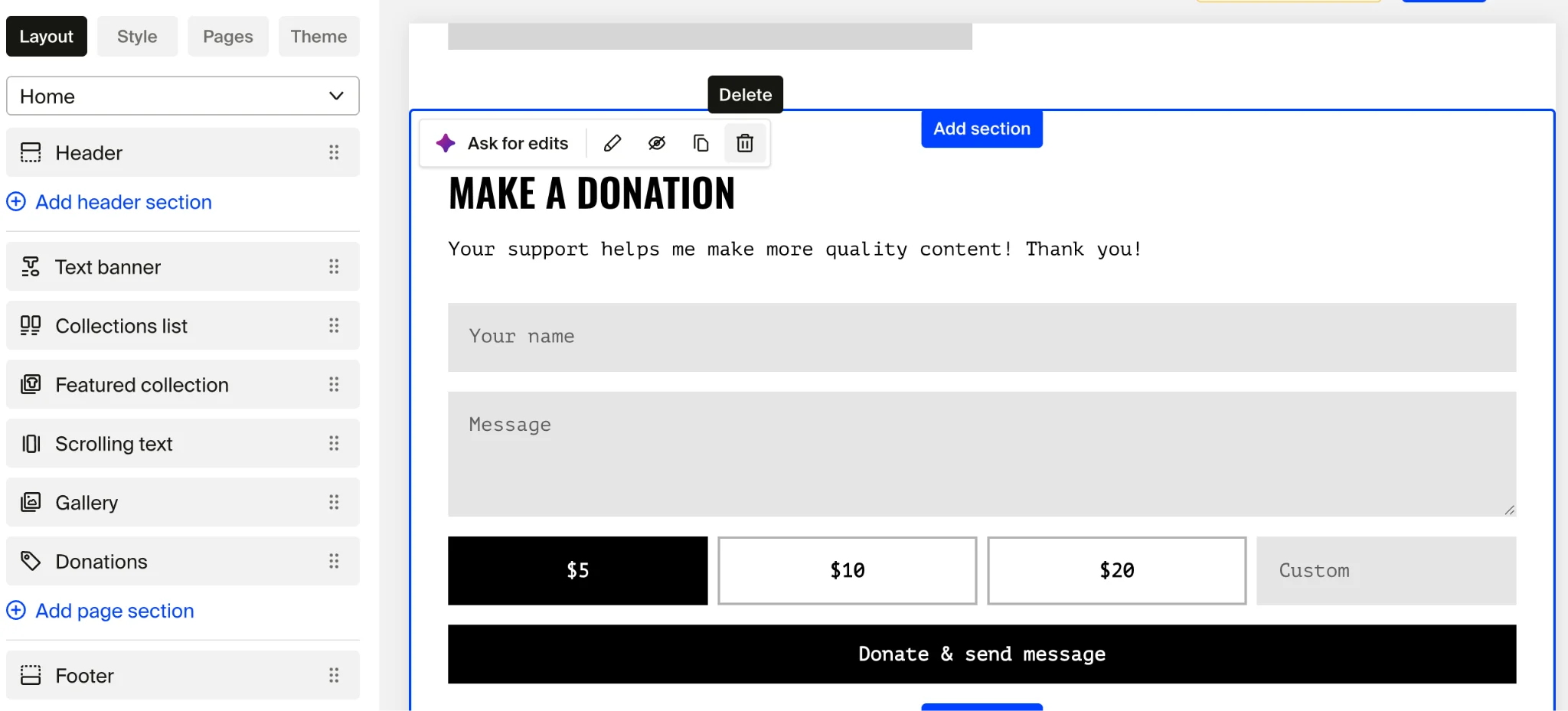
Note: Hidden sections are not deleted, you can re-enable them at any time. To delete, you will need to select "Delete"
Enable or disable donations in checkout
Step 1: Go to Site design > Layout.
Step 2: From the dropdown, select Checkout. This will take you to the checkout settings, where you can update/edit the Customer message, Donation, and Email marketing campaign option.
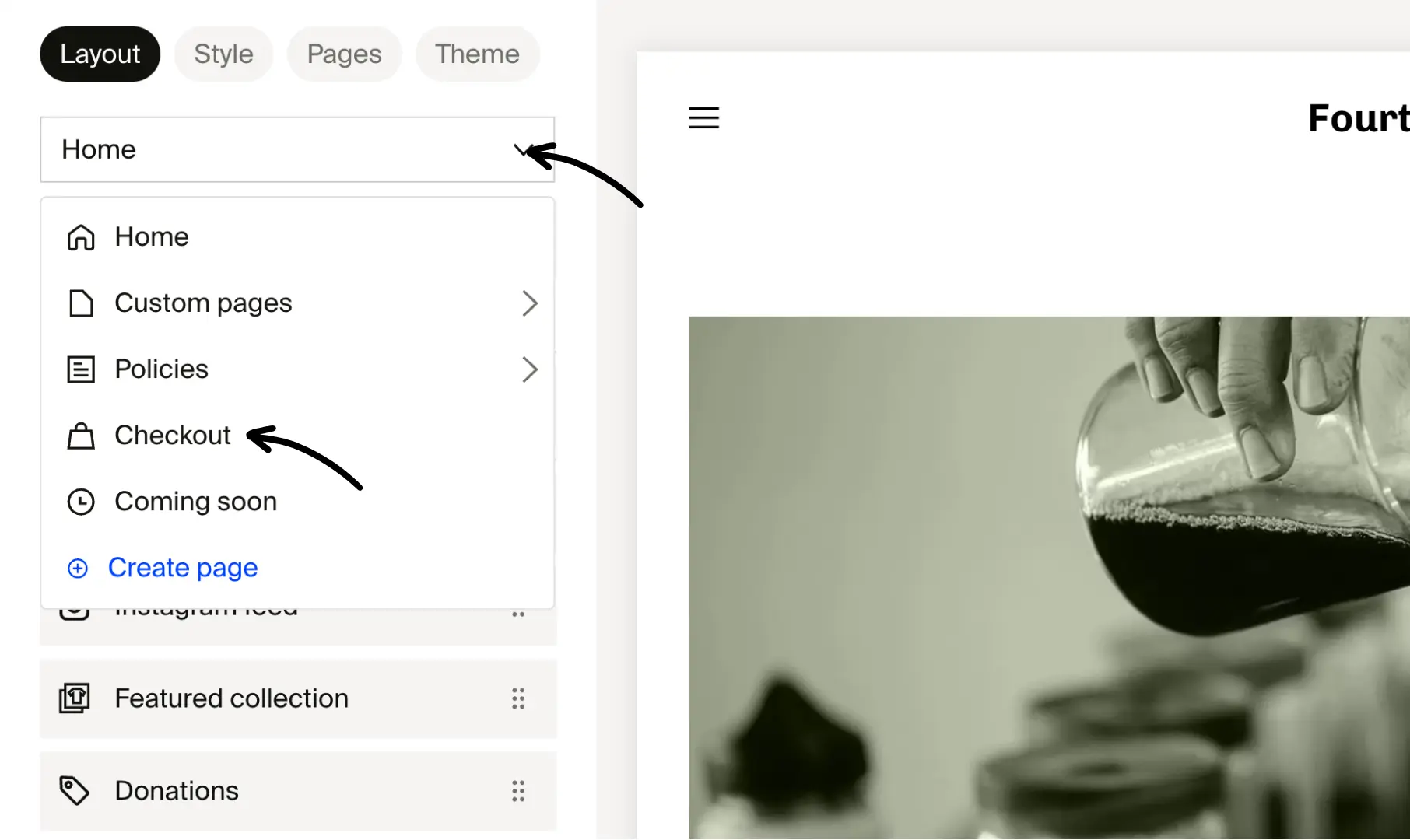
Step 3: Scroll to the Donation settings. From here, you can:
- Enable/disable the donation option at checkout
- Set preset donation amounts
- Customize the Donation-related details
Note: This setting is independent of homepage or custom page donations.
Donate button color and styling
The donate button uses your site's primary button color. There is no separate color setting for the donate button alone.
To change the donate button color, update your site's primary button style:
Step 1: Go to Site design > Customize.
Step 2: Find the Buttons section (under your theme's style settings) and adjust the primary button color.
Step 3: Click Save. The donate button, along with all other primary buttons on your site, will update to the new color.
Note: Changing the primary button color affects all primary buttons across your site, not just the donate button. If you need the donate button to be a different color from your other buttons, you can add custom CSS in Site design > Custom CSS to target the donation section specifically. For help with custom CSS, contact support@fourthwall.com.
Custom fields limitation on Donation forms
You can't add or modify fields, such as phone numbers or addresses, on Donation forms at this time. Only preset amounts and basic information are supported. Consider looking into third-party tools that may offer a better solution.
While this might be a limitation for some, we're always listening to creator feedback and will use it to improve features over time!
Next steps
- Add a Donation section to any custom page via the Site Design - Create & Edit Custom Pages on Your Site.
- Monitor customer donations in your Dashboard > Orders and send them a thank you video.