Edit your checkout page
Updated August 3, 2026
Customize key sections of your checkout page, including customer messages, donations, email consent, and style
Your checkout page automatically matches the style of your site to maintain a cohesive experience. While checkout customization is limited for security reasons, you can still adjust several sections to personalize the experience for your customers.
In this article, we'll cover:
- How to access checkout page settings
- Skin (dark, light, or auto mode)
- Customer message
- Donation
- Email marketing campaign
Access checkout page settings
All checkout settings live in one place. Go to Dashboard > Site design > Layout > Checkout.
-
From your Fourthwall dashboard, go to Site design > Layout.
-
Select Checkout from the dropdown menu.
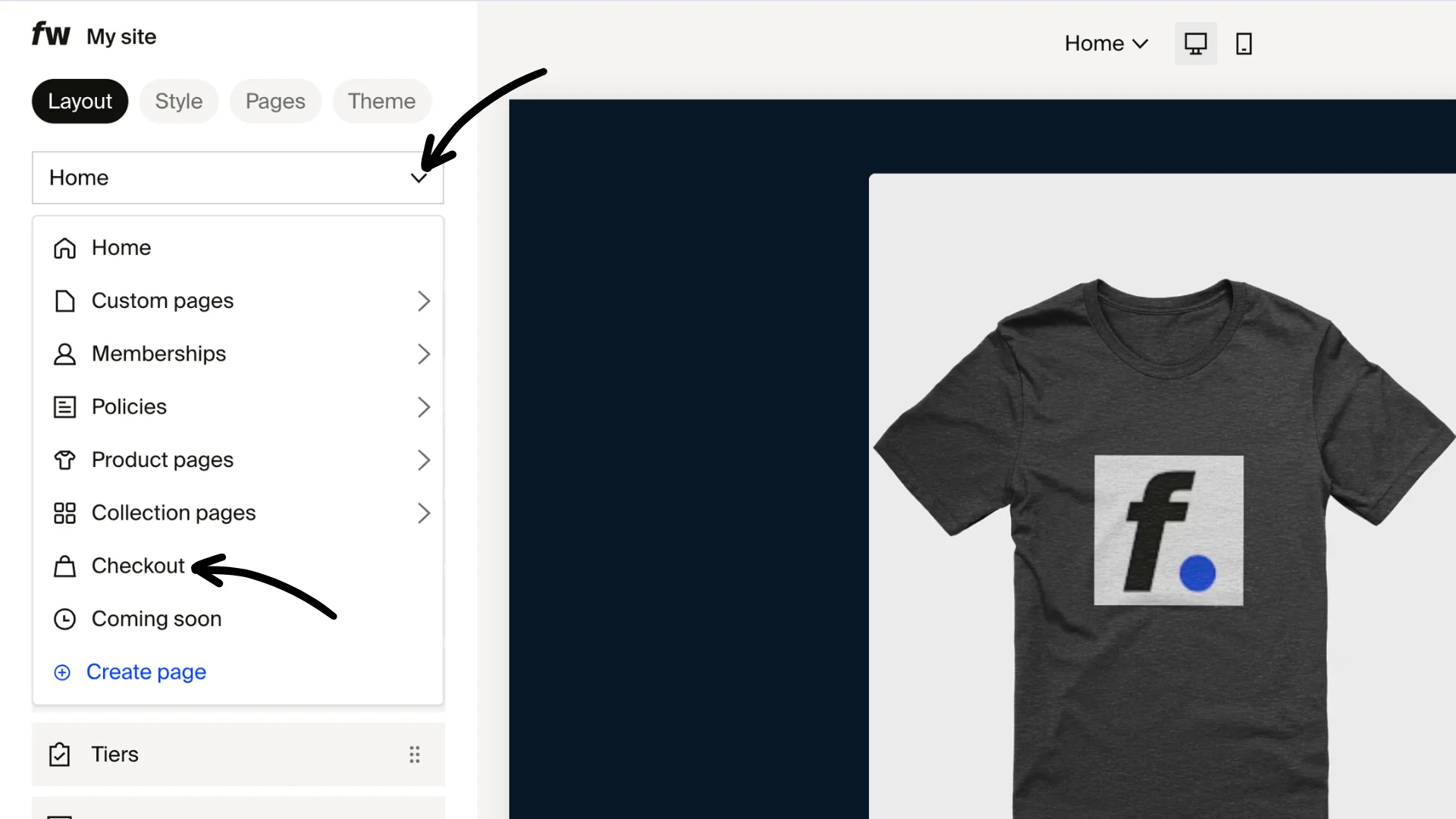
This loads your checkout editor, where you can manage the available options.
Skin
The Skin setting controls the checkout background and the contrast of text against it. Set it to:
- Auto (follows the customer's browser settings)
- Light mode
- Dark mode

If the checkout looks too white or customers report they can't see the page clearly, the Skin is the first place to check. Switching to Dark gives the checkout a dark background with light text, and Auto matches each customer's own device setting, so it adapts to whatever they find readable. A low-contrast checkout (for example, light text on a near-white background) is usually fixed by changing this one setting.
The checkout also inherits the colors you set for the rest of your site under Site design > Style > Colors. Your background and text colors carry through to checkout, so adjusting them changes how checkout looks too. If the contrast still feels off after changing the Skin, review those site colors. For step-by-step guidance, see Customize your site colors and product appearance.
Customers say they can't see the checkout? Check two things: the Skin setting on this page (try Dark or Auto), and your site's background and text colors under Site design > Style > Colors. Low-contrast complaints almost always trace back to one of these.
Customer message
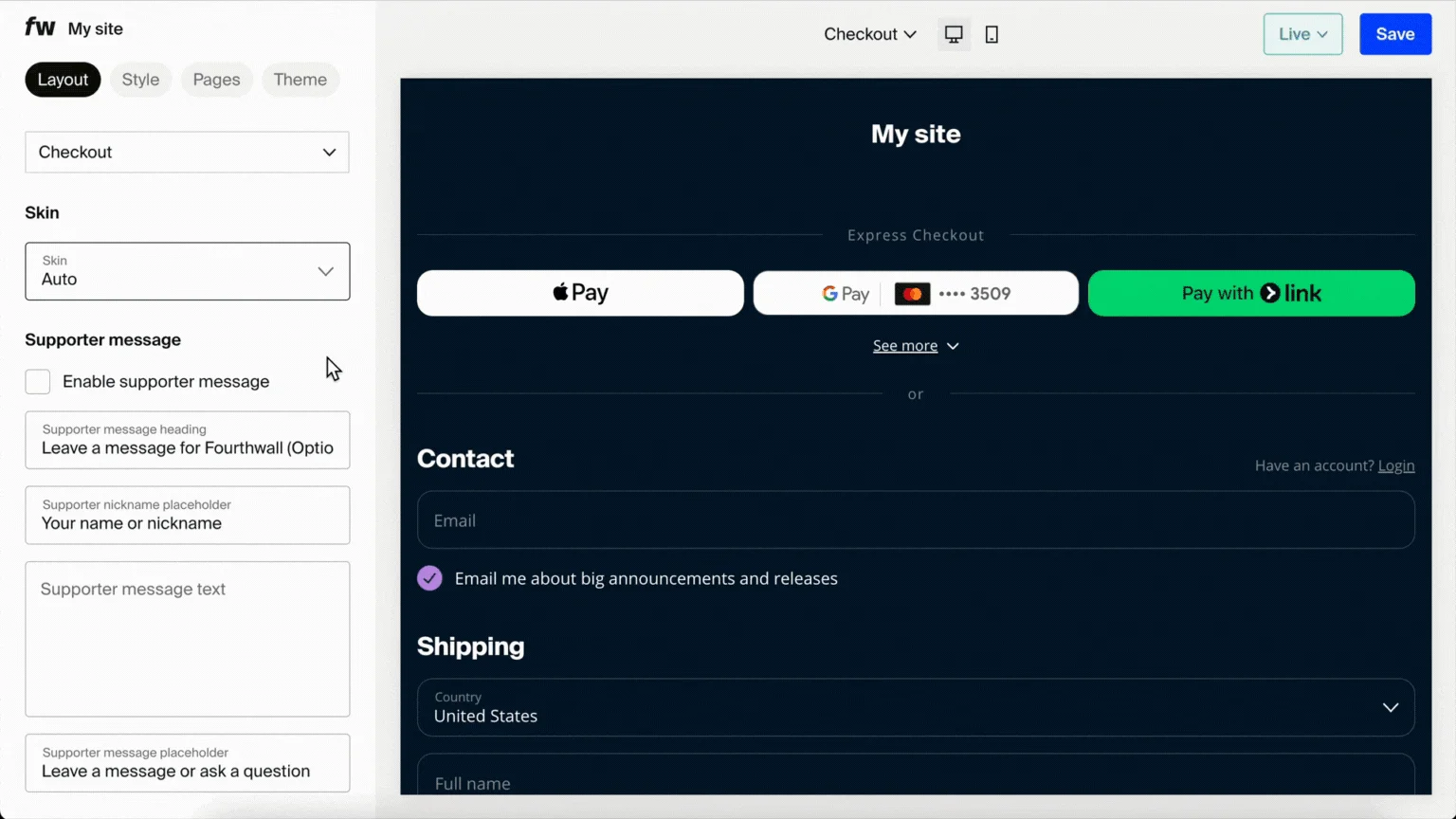
The Customer message section gives fans a space to share a note with you during checkout. This can be a fun way to interact, and it's perfect for sending thank-you videos or notes later.
Choose how the section appears to customers:
- Auto (recommended): Fourthwall determines the best display based on context.
- Minimized: The section appears collapsed. Customers can expand it.
- Expanded: The section appears open by default.
- Hidden: The section does not appear at checkout.
To fully disable, uncheck Enable customer message.
Editable text fields:
- Customer message heading. The call to action, e.g., "Leave a message for [Shop Name]".
- Customer nickname placeholder. The placeholder text for the nickname/handle field.
- Customer message placeholder. The placeholder text for the message box, e.g., "Leave a message or ask a question".
Donation
The Donation section lets customers add an extra donation during checkout. By default, this section is enabled.
Choose how the section appears:
- Minimized: The section appears collapsed. Customers can expand it.
- Expanded: The section appears open by default.
- Hidden: The section does not appear at checkout.
To disable, uncheck Enable donations. You can also edit the preset donation amounts shown.
Email marketing campaign consent
The checkout page includes an email marketing consent box beneath the email field. Depending on local regulations, this may appear as:
- Opt-out. box is checked by default, customer unchecks to decline marketing emails.
- Opt-in. box is unchecked by default, customer checks to consent.
- To disable, uncheck Enable email marketing campaign.
- To edit, change the consent text (default: "Email me about big announcements and releases").