Design your site: Navigate the layout tab
Updated August 7, 2026
Learn how to navigate the site designer's Layout tab to arrange pages, sections, and content
Your website's design is key to making a great first impression. With the updated Fourthwall site editor, you can easily customize your site's appearance using four main tabs: Layout, Style, Pages, and Theme.
This guide will walk you through the Layouttab, where you can visually customize your site's structure and content.
Step 1: Access the Layout tab
Within your Fourthwall dashboard, navigate to Site design > Layout.
You'll see a list of sections on the left and a preview of your page on the right.
Note: The Site Design section entry URL is /admin/dashboard/store-design/general/, which lands on the Style tab. The direct URL for the Layout sub-tab is /admin/dashboard/store-design/layout/index/. Both URLs are valid, the Layout, Style, Pages, and Theme sub-tabs all live inside the Site Design section. For a full overview of all four tabs, see Fourthwall site design options.
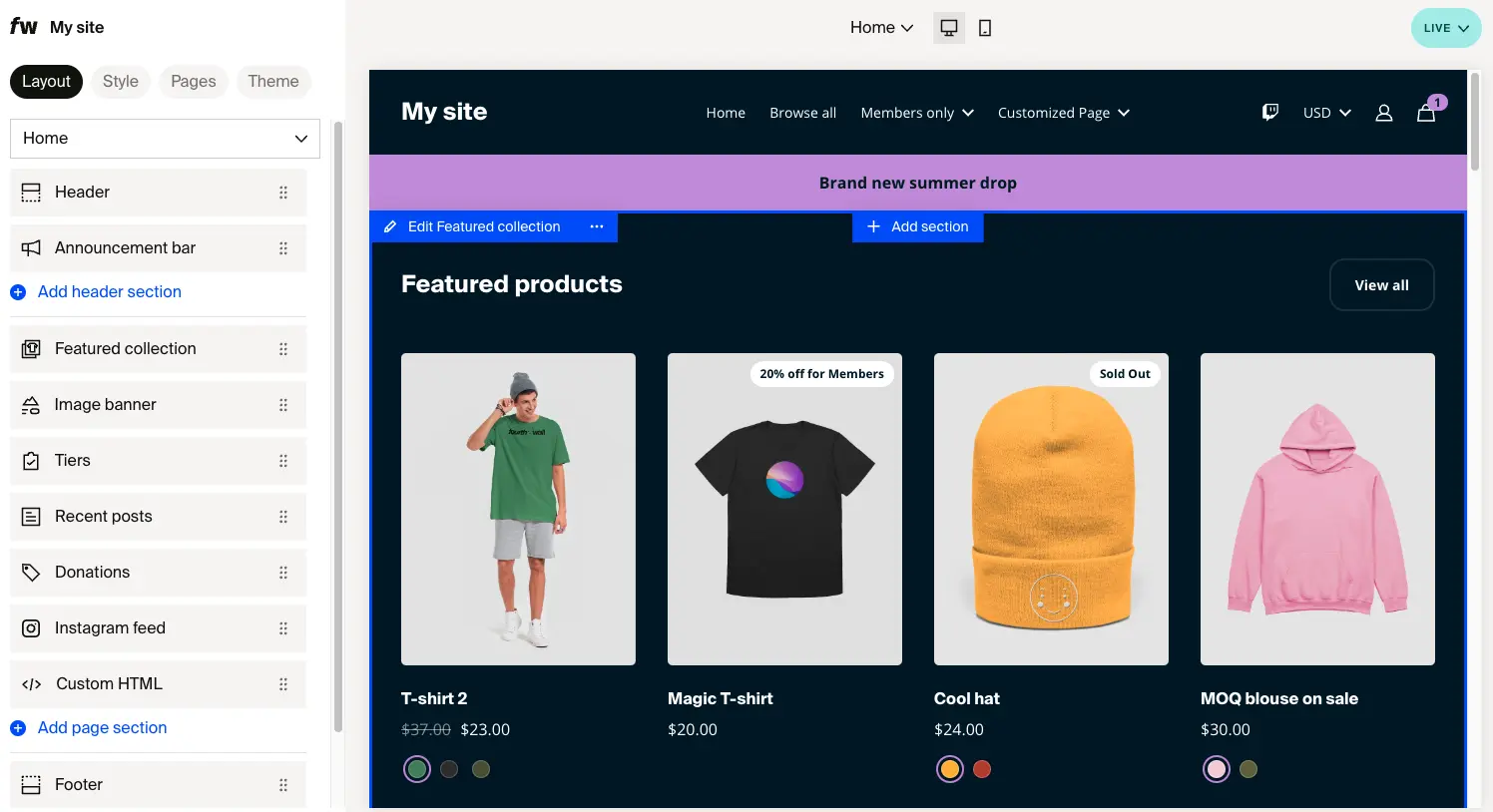
Step 2: Choose which page layout to edit
By default, the Home page opens every time you click on the Layout tab. If you want to customize a different page:
- Click on the dropdown menu at the top to switch pages.
- Choose an existing page or create a new one by selecting + Create Page.
Available pages include Home, Search, custom pages, Memberships, Policies, Checkout, and more.
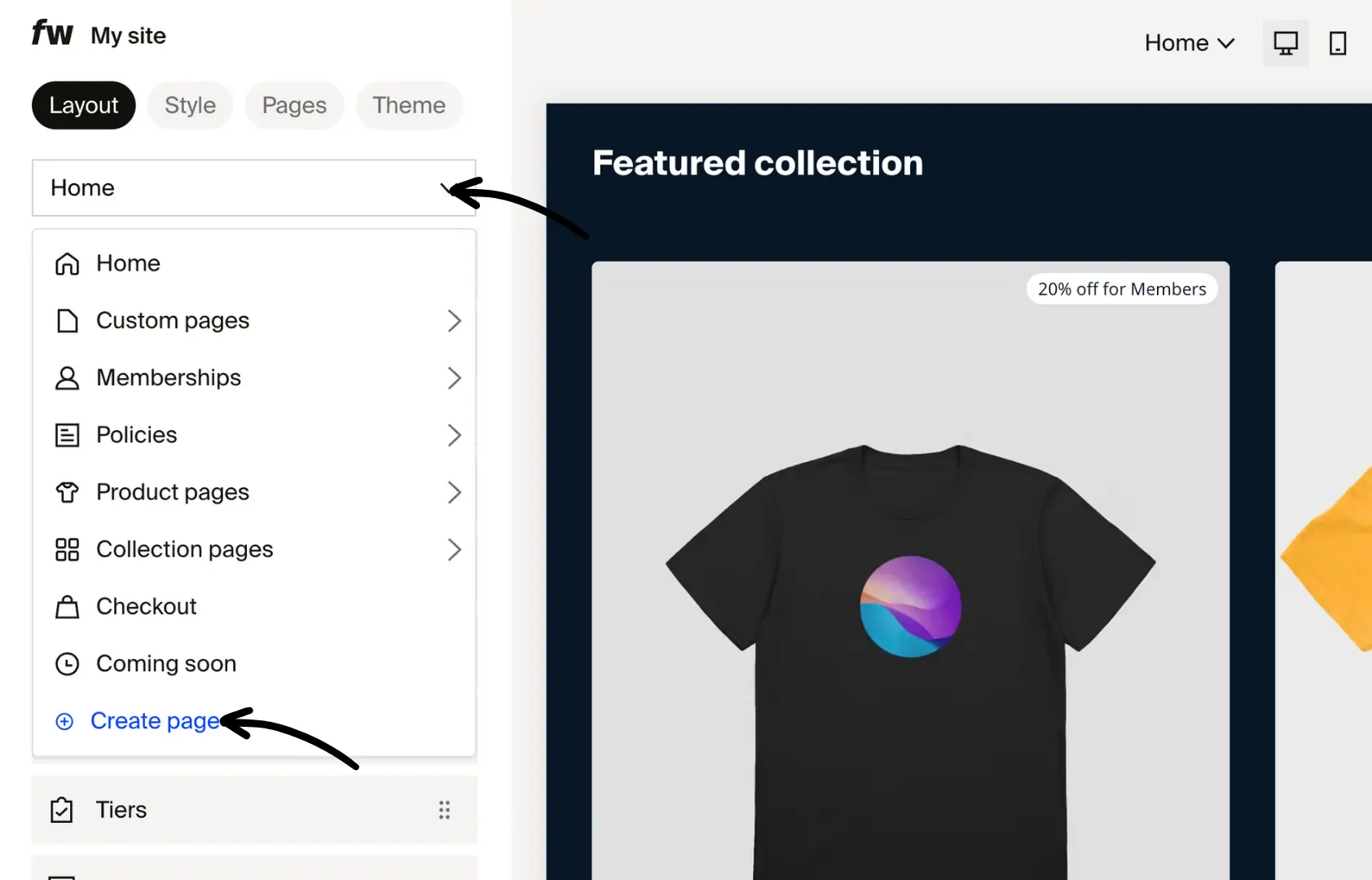
Note: Some pages, such as Checkout or Product pages, have limited customization options due to their predefined structure. The Search page can be fully customized, so you can add or edit sections just like any other page.
Note: The Memberships Feed page appears in the Layout dropdown, but its layout can't currently be customized. If you select it, the editor displays the message "Memberships feed layout can't be currently customized." To manage what shows up in your feed, go to Memberships > Posts. For alternative ways to display feed content, such as Gallery Posts and Post Tags, see the Memberships FAQ.
Step 3: Edit sections within your page
Each page is made up of different sections, such as headers, banners, and product displays. Here's how to edit them:
- Move: Click and hold the six-dot icon next to a section, then drag it up or down.
- Hide: Click the eye icon to remove a section from the page temporarily.
- Delete: Click the section and select Delete to remove it permanently.
- Edit: Click on a section's name to open its settings and customize text, images, or layout.
customizing pages.gif
Step 4: Add new sections
Want to add more content to your page? Follow these steps:
- Click Add page section.
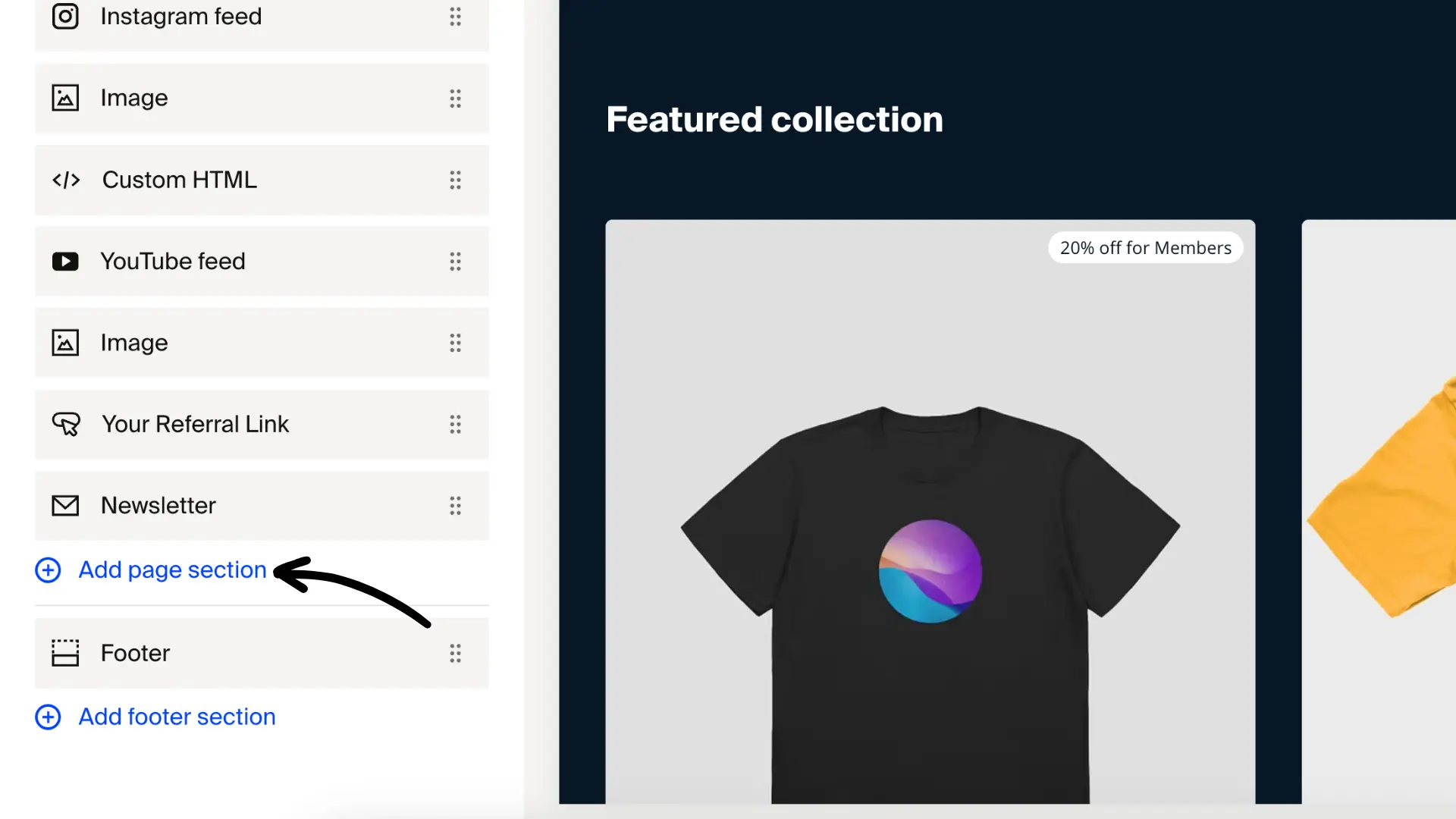
- Choose from various categories, including text, text blocks* (new!), images, videos, and more.*****Text blocks allow you to divide lengthy content into structured segments, making it easier for visitors to scan, comprehend, and engage with your site.

- To edit a specific section, click on its name, which will take you to its specific settings.

Available section types
Layout elements
- Text. Add headlines and descriptions
- Text banner. Create clean, impactful header text without image assets
- Image, Upload an image
- Image with text, Combine image with text
- Image banner. Combine image, text, and buttons
- Video banner. Combie video, text, and buttons
- Custom HTML, Embed your own code
- Links list. Create a links list with icons and text
- Announcement bar, Add a text bar with an optional countdown
- Video. Upload or embed a video
- Video with text. Combine video with text
Shop elements
- Featured collection. Showcase your products.
- Featured product. Showcase your product
- Collections list. Showcase your collections
Memberships elements
- Membership tiers, Promote your "Memberships" tiers
- Recent posts. Embed your latest membership posts
Social feeds
- YouTube feed. Embed your latest YouTube videos
- TikTok feed. Embed your latest TikTok videos
- Instagram feed. Embed your latest Instagram posts
Other
- Donations, Ask your fans for donations
- Newsletter, Add email signup form
- Embedded section, Embed a section as an iframe
Step 5: Customize!
While the Layout tab focuses on structure, these tabs help refine your site's look and feel:
- Style: Adjust colors, fonts, and branding
- Pages: Manage and organize different pages
- Theme: Apply pre-made themes for a cohesive design
With Fourthwall's new and improved site editor, you have more control over your website's design than ever before. Experiment with different sections and layouts to create a unique and engaging experience for your visitors.
Ready to start? Head over to Site Design> Layout and customize your site today!