Edit button text
Updated August 7, 2026
Update the wording on call-to-action buttons in your Fourthwall shop
When updating your site design, you can change the text on buttons (like "Shop Now" or "Subscribe") to better match your brand voice and guide visitors clearly.
Learn how easy it is to change button text inside the site designer of your Fourthwall shop.
Steps to change the button text
-
Go to Site Design > Layout in your Fourthwall dashboard.
-
Navigate to the section where your button appears (e.g., product collection, image section, or custom content) and click Edit...

-
In the Button element, edit the Button text field with your preferred wording.
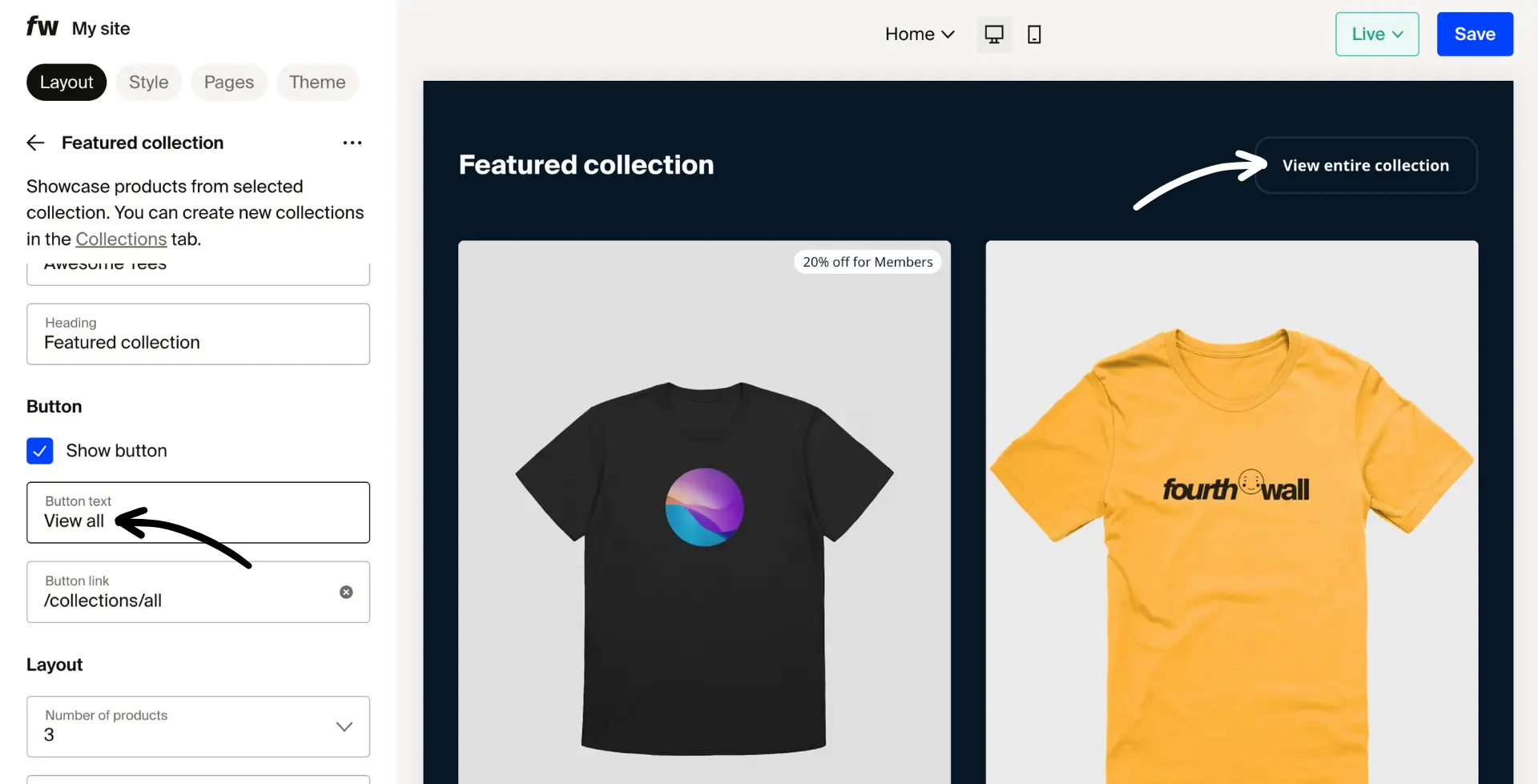
-
Preview the site changes to confirm the update.
-
Click Save to apply your changes.
- Only the button label changes; your product artwork, design settings, and images remain unaffected.
- Keep button text short, clear, and action-oriented (e.g., Buy Now, Learn More).
- Button color is based on your site's color palette. You can choose "Use primary color" or "Use text color" for each button type. See Advanced Button Customization to style primary and secondary buttons separately.
The Quick add button on product cards
The Quick add button that appears on product cards works differently from the layout buttons above. It is not a text field you can rename in the site designer.
To control it, go to Site Design > Style > Product card settings. There you can set it to one of three options:
- On — the Quick add button always shows on product cards.
- Off — the button is hidden.
- On card click — the button appears when a customer clicks or hovers on the card.
These settings control whether the button appears, not what it says. The "Quick add" label is built into your theme and cannot be changed through the site designer.
Change the Quick add label with custom code
If you want to rename the "Quick add" text to something else, that requires a custom CSS or JavaScript override. This is outside the theme designer's native controls.
For guidance on adding custom code to your site, see Add custom HTML and code to your site.