Feature your recent YouTube videos on your site
Updated March 25, 2026
Showcase your latest YouTube uploads directly on your Fourthwall site, no coding needed
You can display your most recent YouTube videos right on your storefront to keep fans engaged and boost your channel visibility. This guide walks you through adding and customizing the YouTube feed section.
Add a YouTube feed section
-
In your Fourthwall dashboard, go to Site design > Layout.
-
From the dropdown menu, choose the page where you want to display your videos.

- Click Add page section.
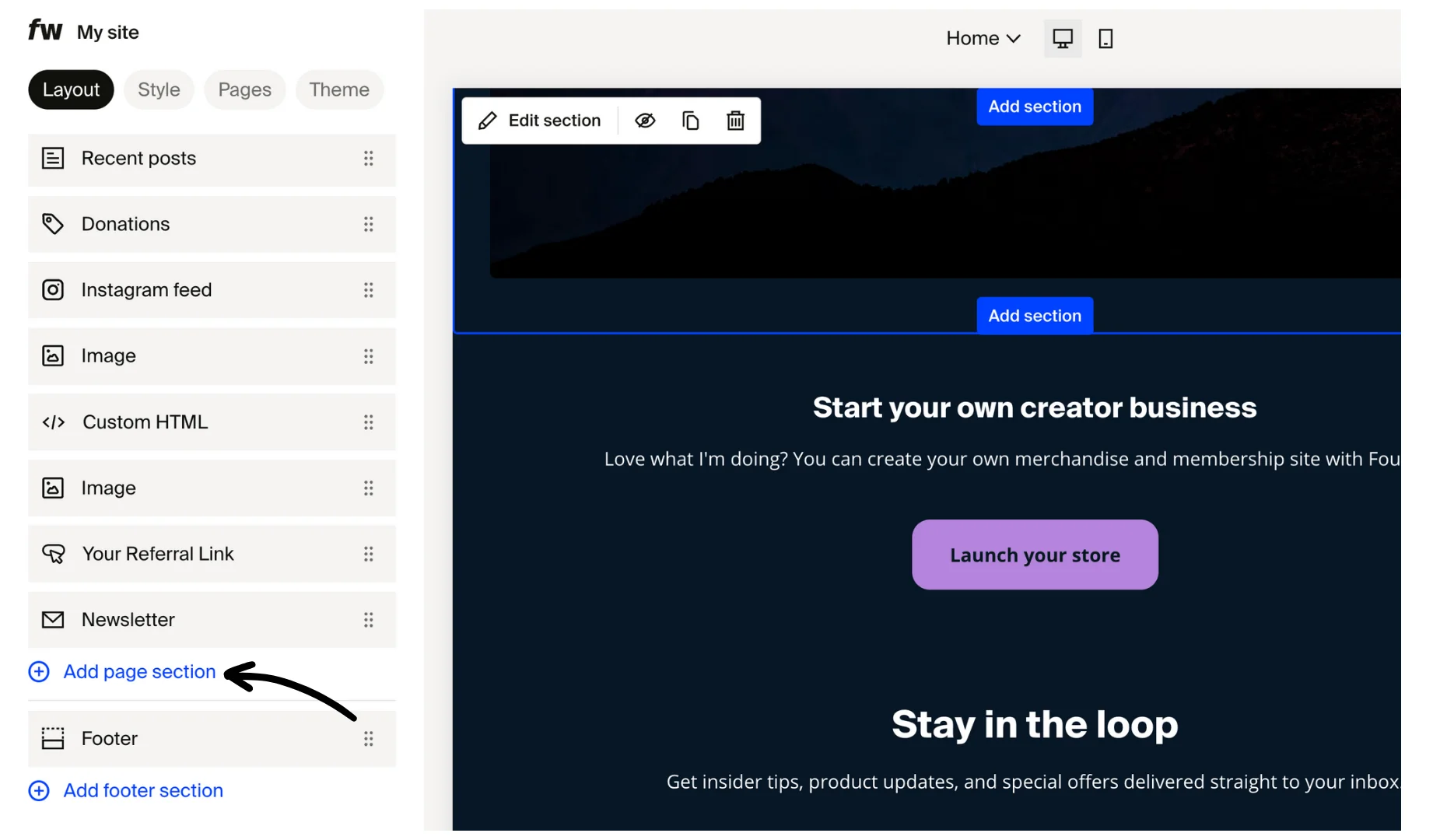
- Scroll to "Social feeds," select YouTube feed, and add it to your page by clicking on the widget.

note
Note: If you’ve already connected your YouTube channel under the Social tab, this section will automatically display your most recent uploads.
Customize your YouTube feed
Once the section is added, you’ll see the options to personalize how your videos appear:
- Text. Update the default heading (“Latest on YouTube”) with your own title (e.g., Watch My Latest Videos!).
- Number of videos. Choose how many videos to show: 3, 6, 9, or 12.
- Show or hide video titles. Toggle Show video title to display or hide video titles.
- Add a Channel link button. Turn on Show button linking to channel to include a button that directs visitors to your YouTube channel.
- Button text. Customize the button label (e.g., Subscribe for More!).

Advanced:
- Adjust spacing and colors. Modify top and bottom padding (default: 48px) and adjust section colors to fit your brand style.
- Add Custom CSS. For advanced users, you can inject your own CSS for deeper level of customization.
tip
Tips for best results
- Keep the feed near the bottom of your homepage or on a dedicated “Watch” page to highlight your content without overwhelming the layout.
- Make sure your YouTube channel is connected in the Social tab before adding this section.
- Use short, catchy titles to encourage clicks and engagement.
Was this helpful?