Manage how products appear on your shop
Updated April 30, 2026
Control what customers see first when they land on your shop
The order products appear, which collections are visible, and how your shop is presented on external sites all shape the first impression customers get. This article covers the key merchandising controls available in your Fourthwall dashboard so you can make deliberate choices about your shop layout.
Reorder products within a collection
The order products appear in a collection is fully under your control. You can drag them into any sequence or use sorting rules to automate the order.
- In your Fourthwall dashboard, go to Products > Collections.
- Click the collection you want to update.
- In the Products section, grab the drag handle next to any product and move it up or down to your preferred position.
- Click Save.

The first product in the list also becomes the collection's default cover image. If you want a specific product image to represent the collection, move that product to the top.
Sorting modes
Instead of dragging manually, you can let Fourthwall sort products automatically. In the collection editor, use the Sorting dropdown to choose from:
- Manual order — drag-and-drop arrangement you control
- Best selling first — auto-refreshes every 15 minutes based on live sales data
- Newest products first — most recently added products appear at the top
- Oldest products first — reverse chronological order
- Product name (A to Z) or (Z to A) — alphabetical sorting
Switching to an automatic mode overrides your manual order.
Manage collections
Collections group related products together and can appear as sections on your homepage or shop page. You can create new collections, control their order, and hide ones you do not want visitors to see.
Create a collection
- Go to Products > Collections.
- Click Create new collection.
- Enter a name, add products, and set the visibility to Public when you are ready for it to go live.
For a full walkthrough, see Create a collection.
Reorder collections on your shop page
Collections appear in a Collection list section on your homepage or shop page. You control the order they appear in from the site designer.
- Go to Site design > Layout.
- Use the page dropdown to select the page where your Collection list section appears.
- Click the Collection list section to open its settings.
- Drag the collection entries up or down to change the display order.
- Click Save.
For more options like custom cover images and grid appearance, see Customize collection lists.
Hide a collection
If you want to stop a collection from appearing to visitors without deleting it, set its visibility to Hidden.
- Go to Products > Collections.
- Open the collection.
- Click the visibility button in the top right and select Hidden.
- Click Save.
Hidden collections are still accessible via a direct link but do not appear in Collection list sections or your shop navigation.
Storefront currency display
Your shop automatically detects each customer's location and displays prices in their local currency. You do not need to set up anything for this to work.
The prices customers see are converted from your base currency using live exchange rates. You can set your base currency in Settings > General. Choose the currency that matches where you receive payouts and where most of your products are priced.
Changing your base currency updates how prices are converted for display. Review your product prices after changing this setting to confirm amounts look correct.
Embed your shop on an external website
If you have a personal website, blog, or other platform, you can add your Fourthwall shop to it using an embed code. This lets visitors browse and buy without leaving your site.
- In your Fourthwall dashboard, go to Settings > Integrations.
- Locate the store embed option and copy the embed code.
- Paste the code into your external website wherever you want the shop to appear.
The embed displays your shop in an iframe. Full navigation, cart, and checkout functionality work within the embed, but the checkout process routes back to your Fourthwall shop URL. For a fully seamless experience on your own domain, using your Fourthwall site directly remains the best option.
For more details on connecting Fourthwall to other platforms, see Integration options for Fourthwall with other platforms.
Change your shop name
Your shop's display name appears in the browser tab, checkout pages, order confirmation emails, and search results. To update it:
- Go to Settings > General.
- Under Site details, edit the Site title field.
- Click Save.
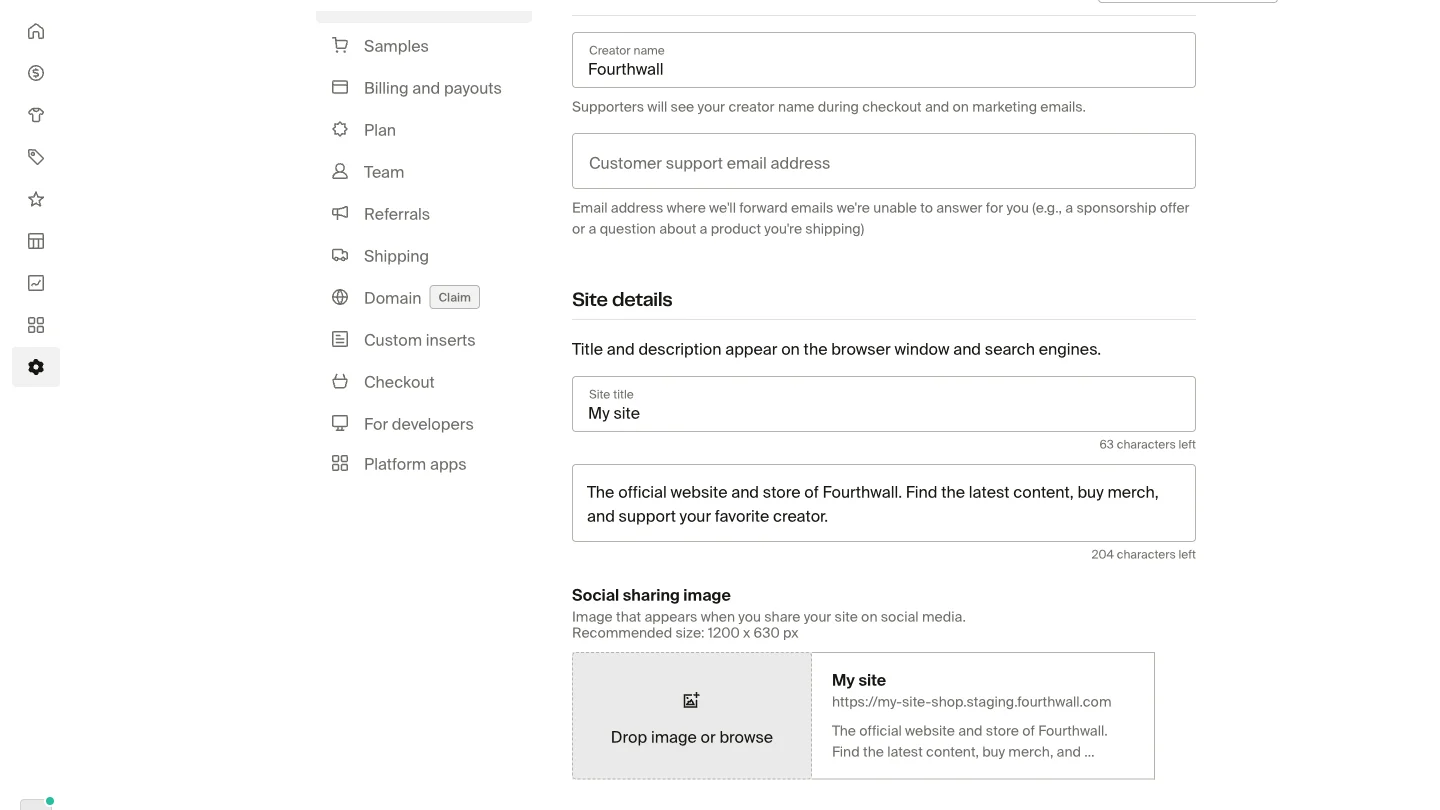
The site title is separate from your Fourthwall subdomain URL. To change the URL, go to Settings > Domain. For a full guide, see Update shop details and URL.