Build your Fourthwall website step by step
Updated August 7, 2026
Pick a theme template, then customize your layout, pages, colors, and branding
Create your Fourthwall website from scratch using the site editor. Start by picking a theme template, then customize the layout, colors, and pages to match your brand. This guide takes you through each step in order, even if you're a beginner.
Build and design your site
Note: Before you start, make sure you're logged in to the correct account with the right permissions assigned.
Step 1: Open the Site editor
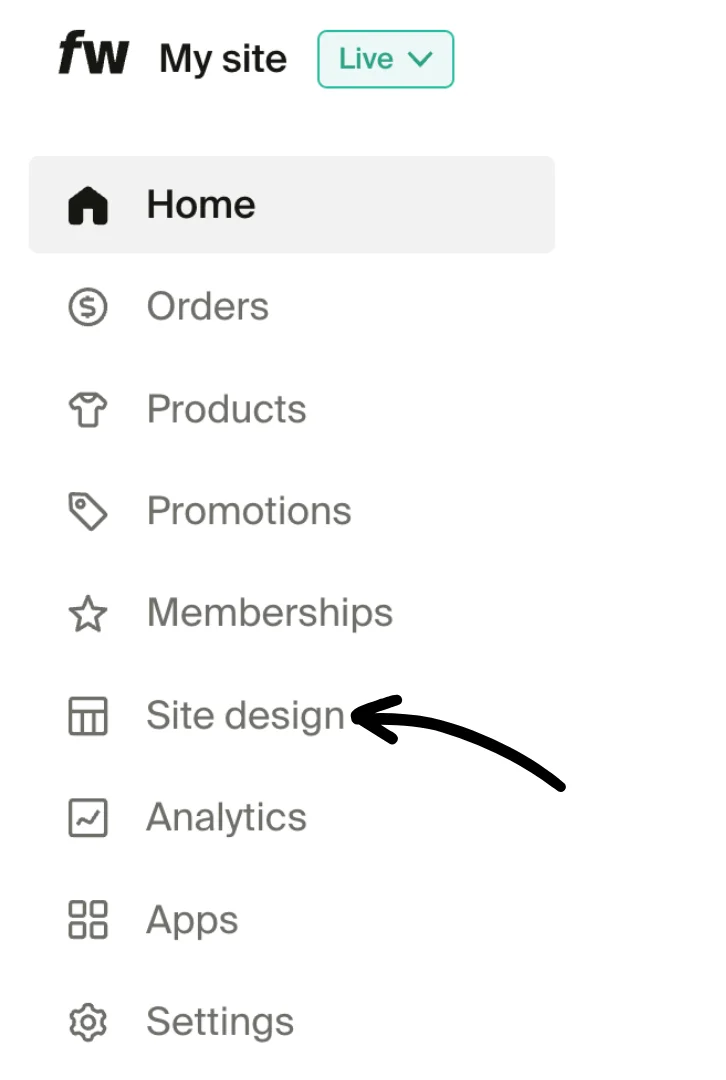
In your Fourthwall dashboard, select Site design from the left menu.
Step 2: Understand Fourthwall's Site design options
Fourthwall's site editor has four main tabs:
- Layout. Add, remove, and reorder sections on your page
- Style. Control colors, fonts, logo, and branding
- Pages. Create and manage additional pages
- Theme. Browse theme templates and apply a preset design
To learn more, go to: Understanding Fourthwall's Site Design Options
Step 3: Pick a theme template
Start here when you're building a site from scratch. A theme template (also called a theme preset) sets the overall look and feel of your storefront: the homepage layout, hero style, color pairs, and typography. Picking a template first gives you a polished starting point, so you customize a real design instead of a blank page.
Go to Site design > Theme and click Add new theme to open the Theme Selector Modal. Browse the available templates, preview each one on desktop and mobile, then click Add this theme to apply the one that fits your brand.
For the full theme flow, including onboarding paths, color pairs, and switching between saved themes, see Update your shop theme.
Once you've chosen a theme template, you'll customize it to make it yours. Next, you'll adjust the homepage layout, fine-tune your colors and visual style, and build out your hero section and any extra pages.
Step 4: Customize your Homepage layout and content
Use Site design > Layout > Home to add, remove, and edit sections on your homepage. You can insert different section types such as image banners, text blocks, or videos, then configure their content and layout to match your site's goals.
You can also edit existing sections, including the default header or image.
Note: Changes appear in the live preview as you work.
For complete layout options and section types, see the Customize Your Homepage Layout help article.
Step 5: Customize your site's colors and visual style
Use Site design > Style to control your site's global look and feel, including colors, background visuals, borders, and the appearance of product cards. These settings apply site-wide, with optional overrides available in individual sections when needed.
You can adjust your primary, background, and text colors, upload a background image, and fine-tune rounded corners for buttons, inputs, and images. If your site displays products, you can also customize how product cards appear, including image ratios, hover effects, and promotional badges.
Check out the full customization guide here.
You can upload your logo and add your social links in this tab for branding and promotional purposes.
Step 6: Create and customize additional pages
You can go back to Site design > Layout to create custom pages such as an About page, press kit, FAQ, or other brand-specific content. Custom pages help organize information, improve navigation, and give your site a more complete, professional structure.
After creating a page, you can add, move, hide, duplicate, or delete sections to control its layout and content. Once published, pages can be added to your site menu, featured on other pages, or shared directly using their unique URL.
Use this helpful article as your guide for creating and editing custom pages.
Want to switch theme templates later? You can browse and preview new templates, then activate the one that best fits your brand, without rebuilding your site. Only the active theme can be edited, so set your site to Coming Soon mode if you want to work on changes before showing them live. See Update your shop theme for the full flow.
Next steps
Now that you have a site, it's time to create your product listing and continue to set up your shop!