Customize your homepage layout
Updated August 1, 2026
Easily add, edit, and rearrange sections to create the look you want for your homepage
Your homepage layout is the first impression visitors get of your brand. Fourthwall lets you rearrange, add, and edit sections to create a design that matches your goals.
Step 1: Start from the layout editor
In your Fourthwall dashboard, go to Site design > Layout.
Select your Homepage from the drop-down menu, labeled as "Home." This is already selected by default.
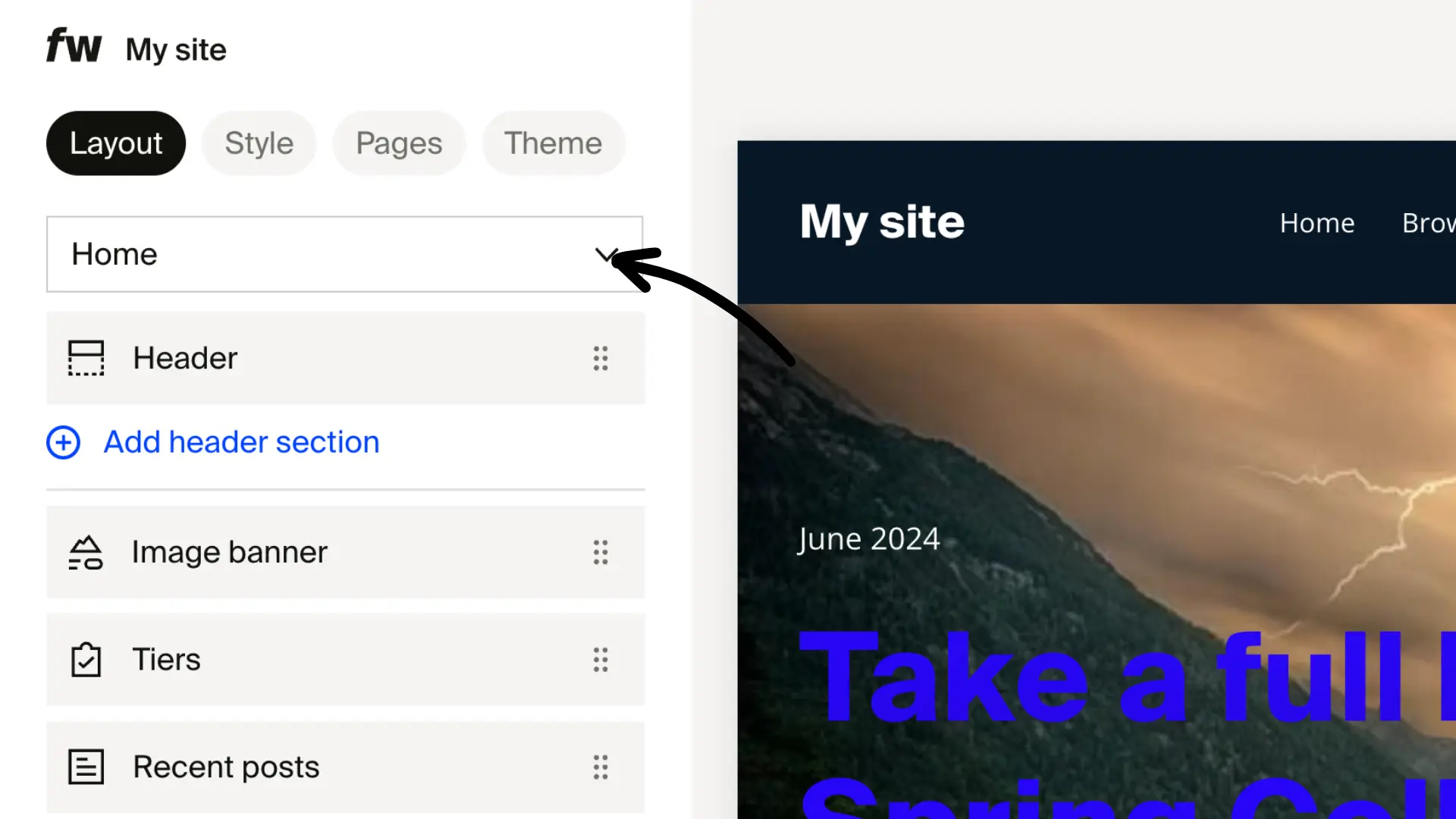
There are three sections within the homepage, namely:
- Header section. Top of the homepage, usually showing your logo, navigation menu, and quick links.
- Page section. The main body where you can add content like products, text, images, or videos.
- Footer section. Bottom area with links to policies, contact info, or social media.
Step 2: Add a section to the homepage
Click the option to add (+) a header, page, or footer section (blue hyperlinked text) and choose from the available options:
-
Header. Announcement bar
-
Page
- Layout: Text, Text blocks*****, Text banner, Image, Image with text, Image banner, Links list, Video, Video with text, Video banner, Scrolling text, Search bar
- Shop: Featured collection, Featured product***, Collections list
- Memberships: Tiers, Recent posts**
- Social feeds: YouTube feed, Instagram feed, TikTok feed
- Others: Donations, Newsletter, Embedded section, Custom HTML
-
Footer. Announcement bar
*****Text blocks allow you to divide lengthy content into structured segments, making it easier for visitors to scan, comprehend, and engage with your site.
**Recent posts is available for creators with active memberships. It displays your newest posts on the homepage so customers can discover recent content.
***Featured product has an image placement setting you can set to left or right. This controls whether the product image appears to the left or right of the product details. It positions the image horizontally, not vertically, so it does not stack the image and details on top of each other.
Step 3: Reorder sections and control visibility
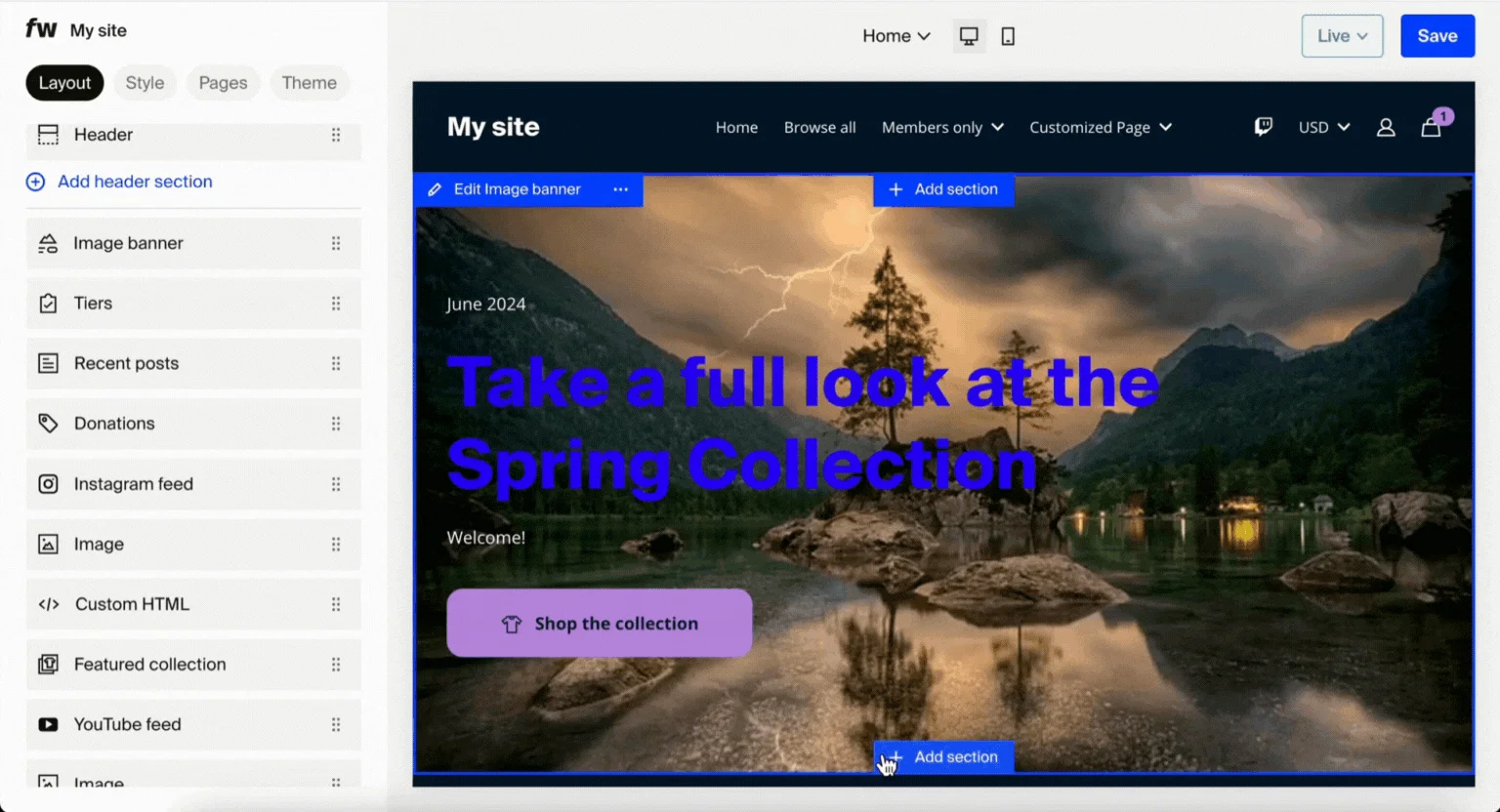
After you have added the sections, you can rearrange them to suit your preferences. You can also choose to hide sections until that section is ready for your site visitors.
- To rearrange a section, grab the handle and move it to your desired location on the page.
- To hide (or show) a section, click the eye icon.
Step 4: Edit a specific section
You can edit each section you have added to further customize the appearance, layout, text, media, buttons, and other elements.
Click the section and update its settings.

Preview changes and Save.
Step 5: Rename, duplicate, or delete a section
You can find these options in the section by opening it and clicking the three-dot icon.

Feel free to experiment with sections and elements to achieve your vision for your Homepage layout!
Tips:
- Keep your most important content (like store info or featured products) near the top.
- Use a mix of text, images, and video sections for balance.
- Avoid adding too many sections; they can result in slow loading times.