Create a collection
Updated August 7, 2026
Group related products together and showcase them in your store
A collection in Fourthwall is a curated group of products by theme, season, style, or a characteristic of your choosing that lives on its own unique page. It helps you organize your catalog and makes it easier for visitors to explore related items.
Once you've created a collection, you can highlight it on your homepage or custom page using the Feature Collection or Collection list sections. Learn how to customize pages here.
Step 1: Create a new collection
-
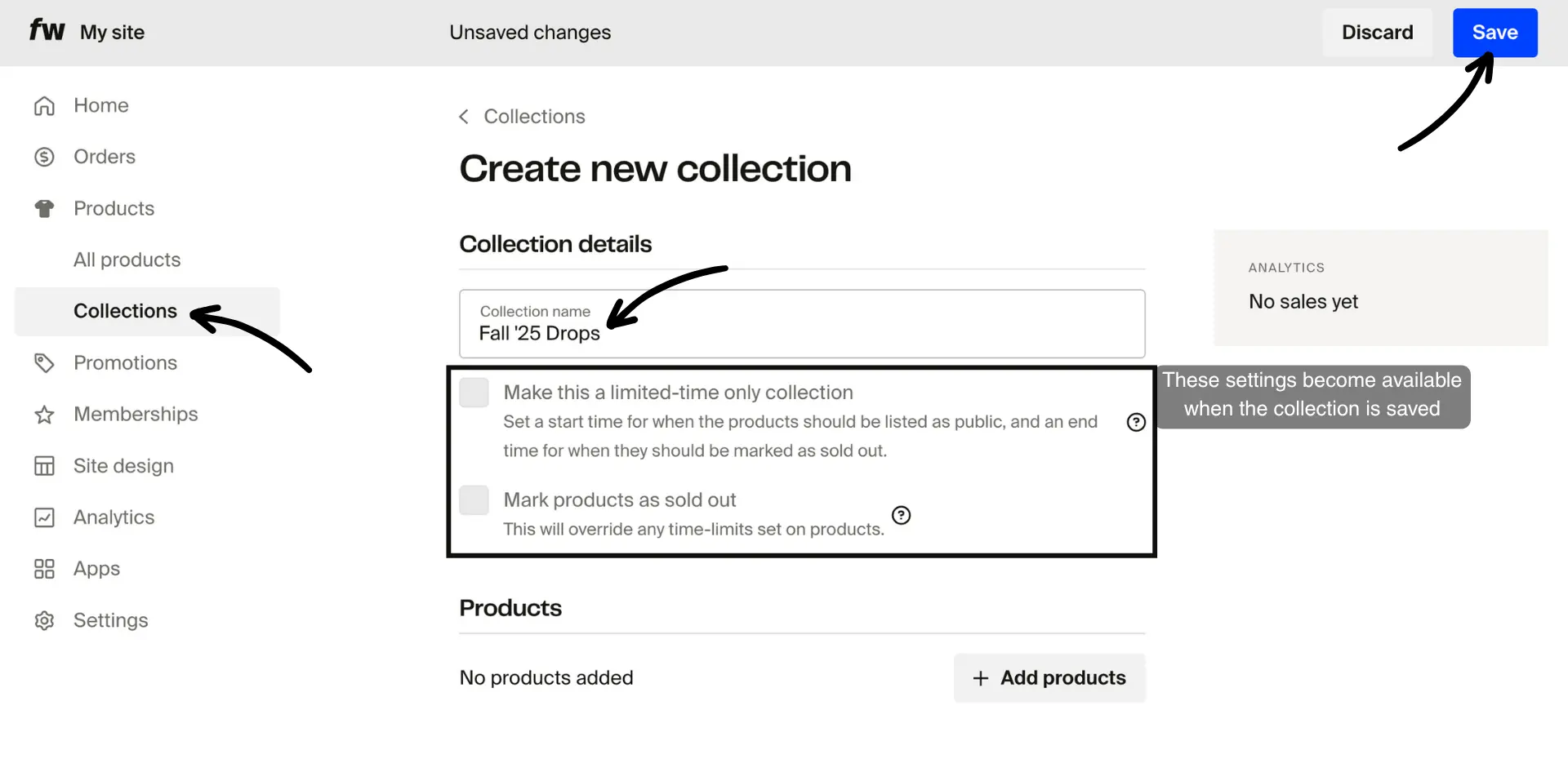
Go to Products > Collections
-
Click Create new collection
-
Enter your collection name (e.g., "Fall '25 Drops" or "Essential Accessories")
- This name will be part of the collection's URL
- Make it catchy and relevant!
-
Click Save (this will mark your collection as "Hidden" and allow you to configure the optional settings)
Step 2: (Optional) Make the collection time-limited
Want to launch an exclusive or seasonal collection?
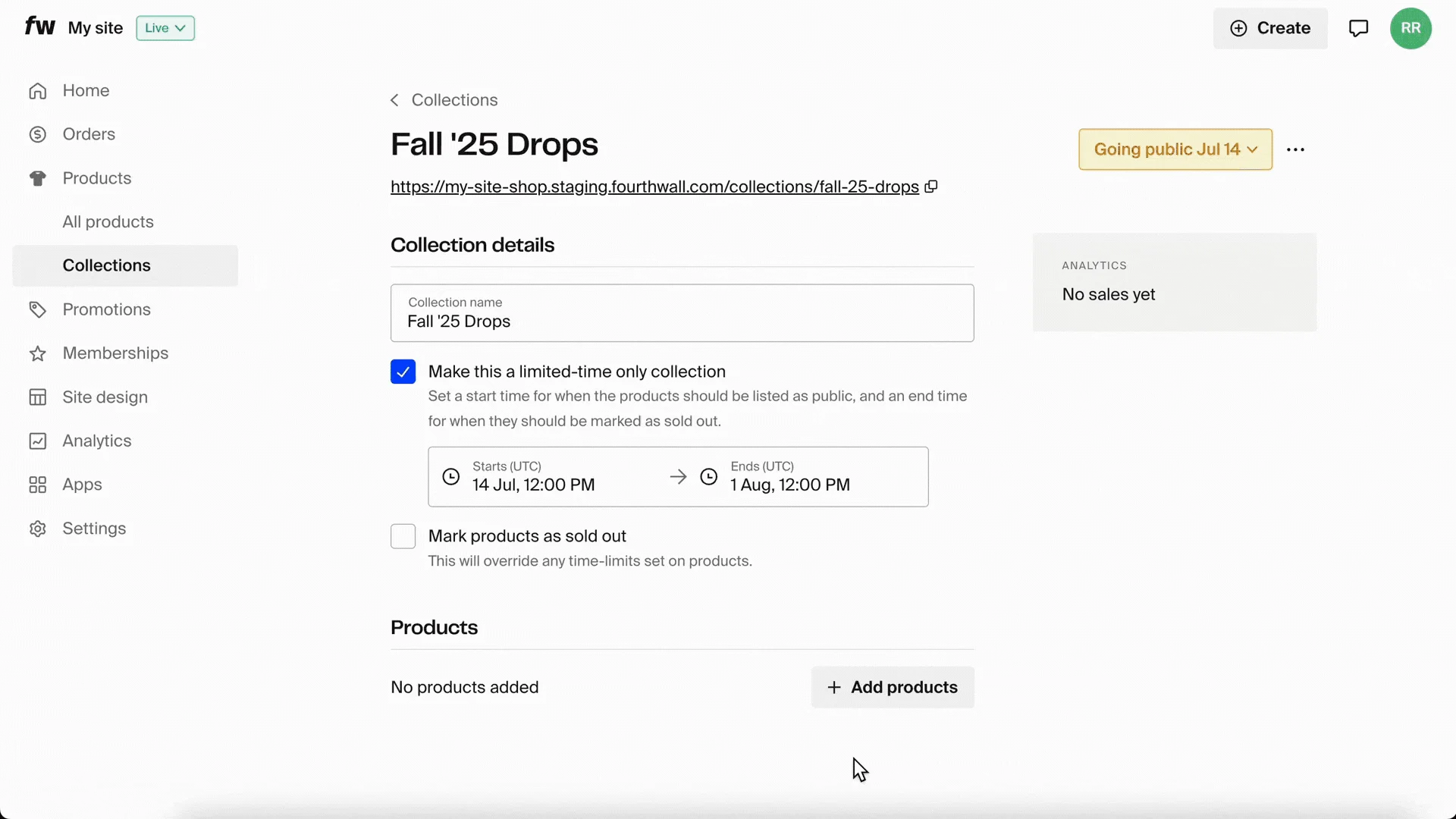
- Tick the box for Make this collection time-limited
- Open the date selector to add the start and end dates and set the times
- Click Apply when you're ready

Note: If the start time has already passed, the collection goes live immediately when you save.
Step 3: Add products to your collection
-
Look for the "Products" section
-
Click + Add products
-
Select the items you want to include
-
You can:
- Drag and drop products to reorder them (the first product becomes the collection's main image)
- Use the three-dot menu to move or remove items
-
Click Save
Note: Removing a product from a collection doesn't delete it. It just removes it from that specific group.
Step 4: Set collection visibility
Click the visibility button in the top right to choose who can access the collection:
- Public. Visible to all site visitors
- Hidden. Only accessible via direct link
- Private. Not visible to anyone outside the dashboard. Only admins on your shop can view and manage the collection.
- Schedule as Public. Pick a future date/time to make it public
You can switch between these states at any time.
Click Save to confirm your settings.

Private collection limits: Private collections have no public URL, so they cannot be made time-limited or marked as sold out. Those options are disabled while Private is selected. Switch to Public, Hidden, or Schedule as Public if you need those settings.
Visibility toggle stuck or unresponsive? Fourthwall support agents can flip a collection between Hidden and Public directly from the admin dashboard on your behalf. If the toggle is unclickable, the fastest fix is to email support@fourthwall.com and ask an agent to make the change. They will confirm the result with a link to the affected collection. Reach for browser-side troubleshooting (clearing cache, switching browsers) only when you want to drive the change yourself.
Step 5: Choose a sorting mode
You can control how products appear in your collection using the sorting options. The sort order you choose here directly controls the display order in the Featured Collection section on your storefront.
Available modes:
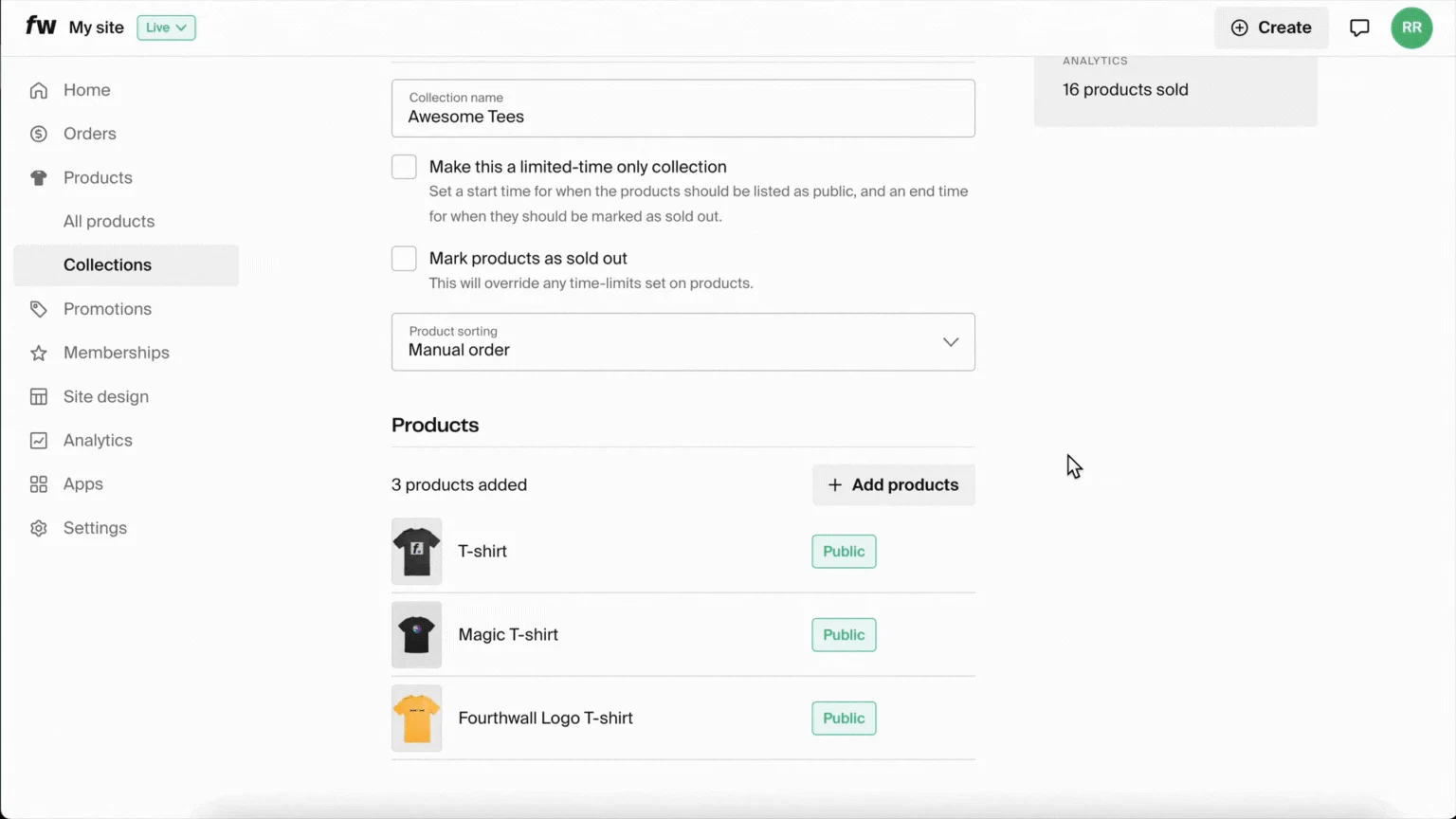
- Manual order. Drag and drop products into your preferred order within the collection. This option is only available on custom collections you create, not on the system "All Products" collection.
- Best selling first. Products with the most sales will appear first in your collection. This auto-refreshes every ~15 minutes with live sales data.
- Newest products first. Recently added products will appear first in your collection (based on creation timestamps).
- Oldest products first. Older products will be displayed first in your collection, listed in reverse chronological order.
- Product name (A to Z). Products will be sorted alphabetically from A to Z.
- Product name (Z to A). Products will be sorted alphabetically from Z to A.
How it works:
Once you select a sorting mode, the system will use automatic re-sorting intelligence to organize your collection when products are added, removed, or updated.
Manual order and the All Products collection: The system "All Products" collection does not support manual ordering. To control the display order of specific products in your Featured Collection section, create a dedicated custom collection, add your products in the order you want (for example, mugs last), then point the Featured Collection section to that new collection instead.
Step 6: (Optional) Tweak collection settings
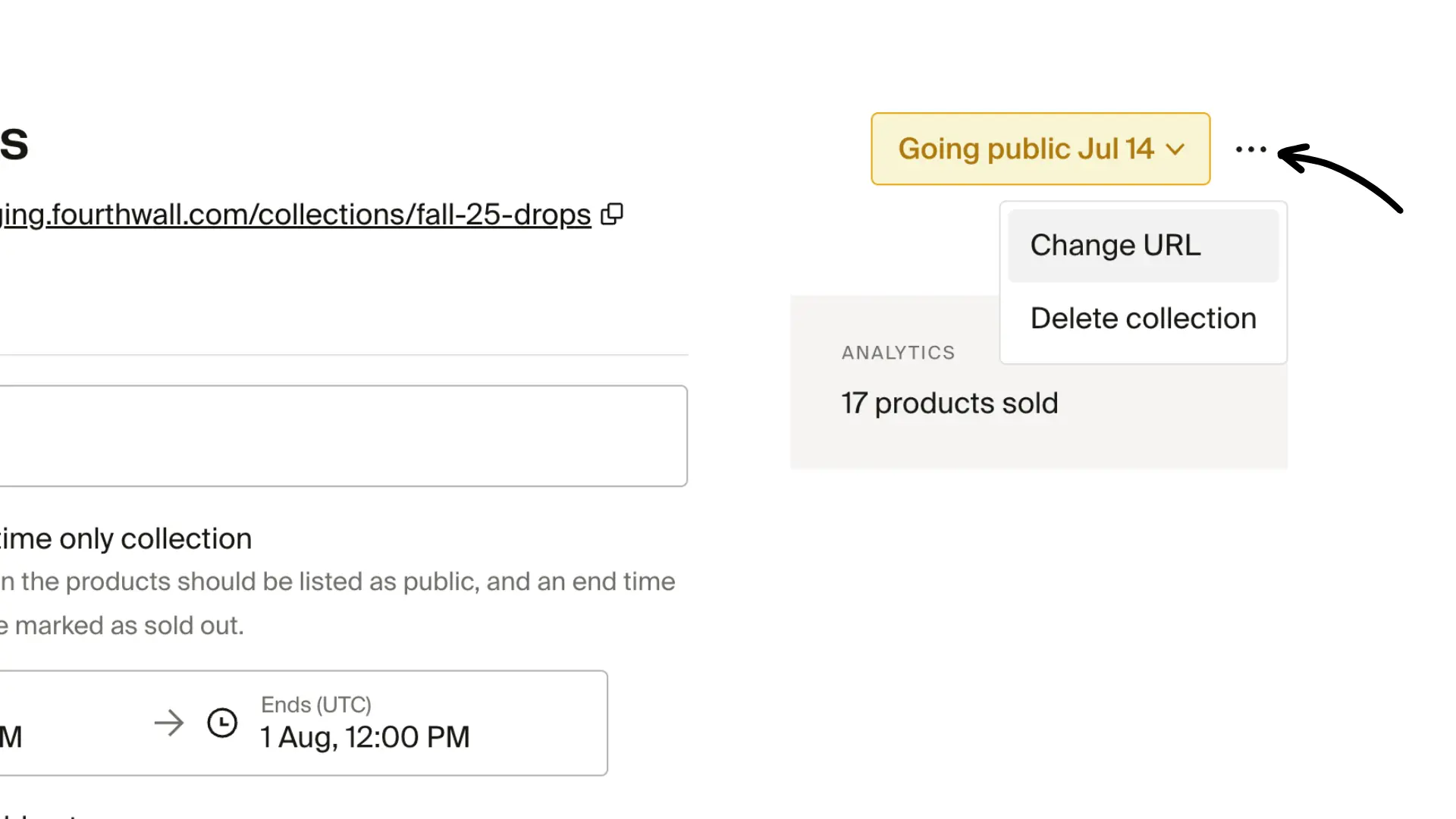
Click the three dots (...) to:
- Change URL. Customize how the collection page appears
- Delete collection. This removes the collection, but your products stay untouched
Understanding the limitations of product grouping
- Collections are not auto-displayed: Creating a collection doesn't automatically show it on your site. You must manually add it via the Featured Collection or Collection List sections.
- Featured Collection shows only a subset: It will display only the number of products you configure. You need to click View all or link directly to the full collection.
- The Collection list is manual: Collections must be added manually to be visible in that section; they don't auto-update when you create a new collection.
- Visibility rules apply: Hidden or scheduled collections won't appear to shoppers until made public or the scheduled time arrives. Private collections never appear to shoppers, only admins can view them from the dashboard.
- Product order matters: The sort order you set in a collection directly controls the display order in the Featured Collection section. Adding new products can shift your top items and affect what customers see first.
- One collection per Featured Collection section: To show multiple collections on a page, you must add multiple Featured Collection sections or use a Collection List.
- Reordering across pages is limited: Drag-and-drop only works on the current page. To move items across your entire catalog, use precise position controls or manual ordering.
- Manual order not available for All Products: The system "All Products" collection does not support manual ordering. Create a dedicated custom collection instead and add products in the order you want.
Pro tips
- To avoid shifting featured items: keep your curated products at the top of the product list, or use multiple Featured Collection sections for different sets.
- When running campaigns (like seasonal drops), use Collection Lists to group multiple collections under one section.
- Remember that visibility and position settings don't auto-sync, so double-check the display after edits or new product additions.
- To control the exact order of products in your Featured Collection section, create a dedicated custom collection with your products arranged as you want them, then point the Featured Collection section to it.