Find and use hex codes for product colors
Updated August 12, 2025
Match and apply the right color codes for your product colors
Hex codes are six-character codes (e.g., #452FDB) used to accurately represent colors in digital formats. In Fourthwall, you can sometimes use hex codes to define a custom color for certain product types, such as all-over print products.
However, not all products in the Fourthwall catalog support custom hex colors. Many products, such as standard print-on-demand apparel, have fixed color variants determined by the manufacturer, and those colors cannot be changed.
When can you use a hex code
You can add a hex code when:
- You’re creating products from scratch or designing from the catalog that support hex (e.g., sublimation, all-over print).
- The product’s editor includes a custom color (fill) field.
Example: If you’re designing an all-over print hoodie, you can set the background or fill color by entering a hex code into the color picker.
When you cannot use a hex code
You cannot set a hex code for:
- Products with fixed manufacturer color options (e.g., Gildan polo shirts, Cotton Heritage hoodies).
- Variants are already tied to a limited set of predefined colors.
For these items, you’ll need to choose from the color swatches listed in the product setup.
How to find a hex code
If your product supports hex input:
- From an image:
- Use an online color picker like ImageColorPicker.com or the ColorPick Eyedropper Chrome extension.
- Upload or open your image, click the desired color area, and copy the displayed hex code.
- From a brand guideline: If you already have a brand color, your designer may have the hex code ready.
- From design software: Tools like Photoshop, Canva, or Figma can give you exact hex values for selected colors.
How to use a hex code in Fourthwall
Here's an example of how you can use a hex code on a product that was already created.
-
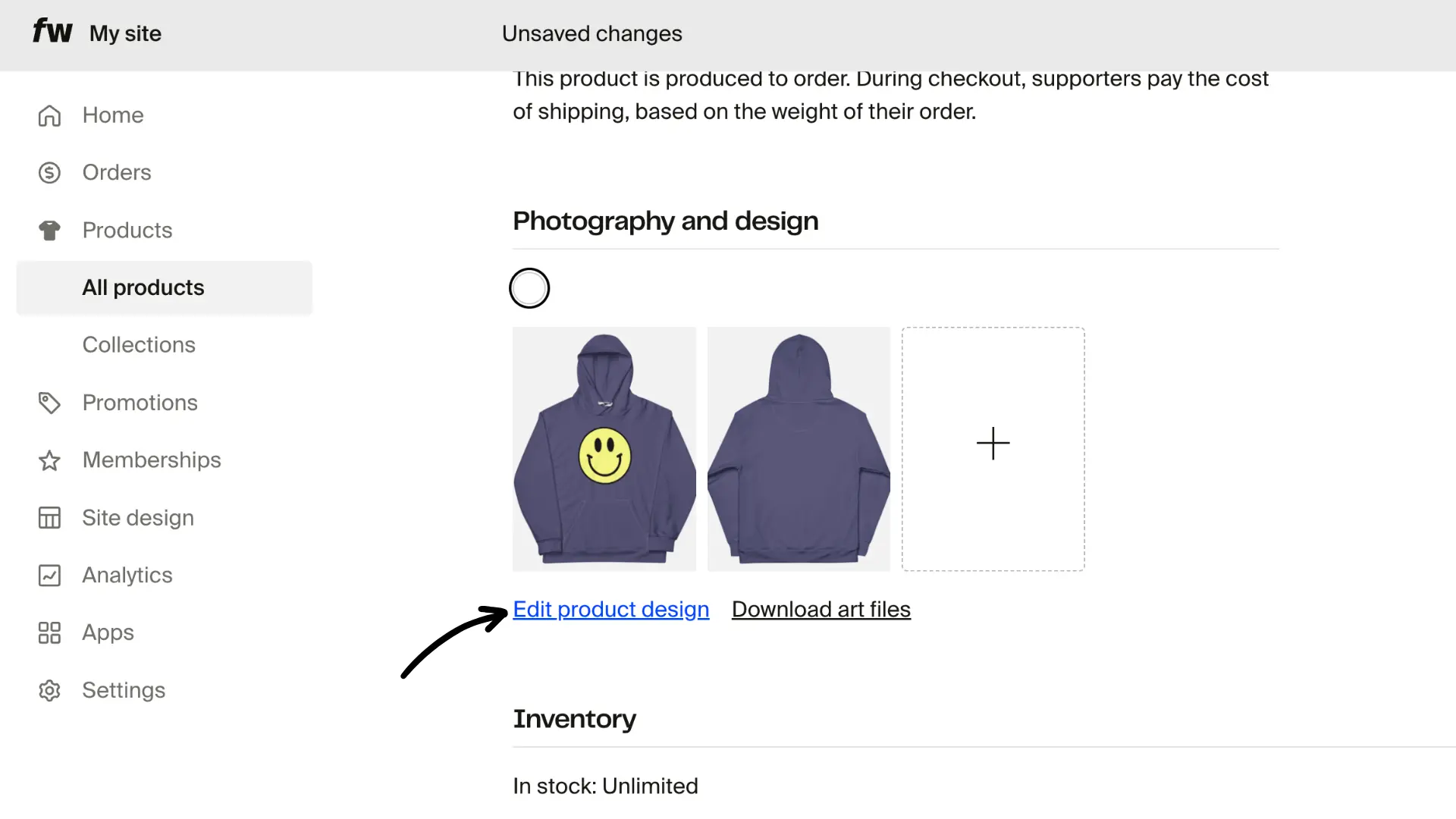
In your Fourthwall dashboard, go to Products >All products.
-
Open the product you want to edit by clicking Edit product design.
-
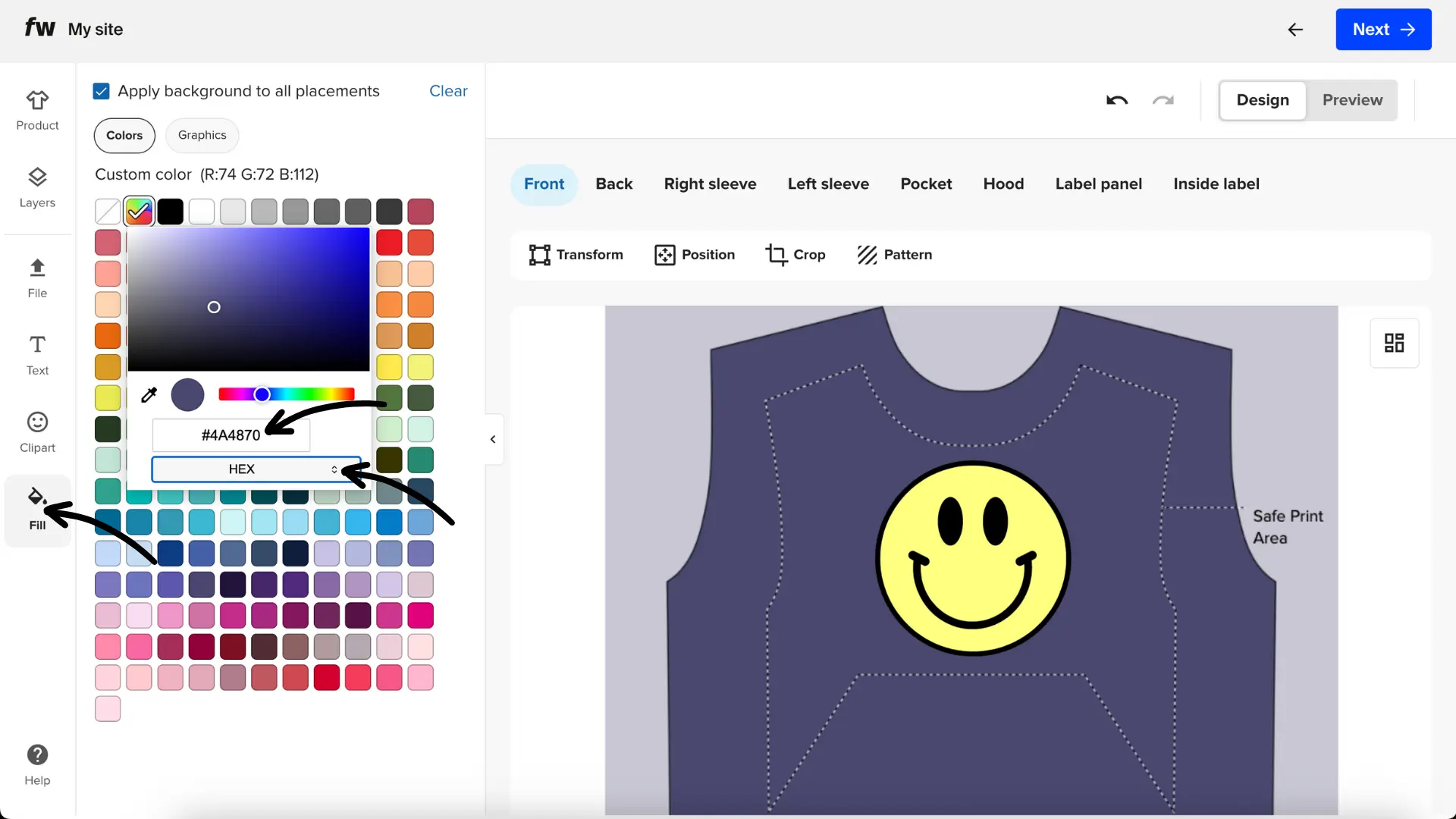
If the variant color field allows custom input:
-
Enter the hex code (including the “#” symbol).
-
-
Click Next and continue with the usual flow.
If you do not see a field to enter a hex code, the product does not support custom colors.