Create a promo code
Updated August 19, 2026
Offer discounts, free shipping, or other perks to boost fan engagement and sales
Promo codes let you run flexible campaigns, from launch discounts to seasonal sales and fan appreciation offers. You can control what the discount applies to, how often it can be used, and whether customers need to enter a code or get the discount automatically.
Here's a quick video guide on creating a promo code:
Steps for creating a promo code
Step 1: Create a Shop promo
In your Fourthwall dashboard, click Promotions.
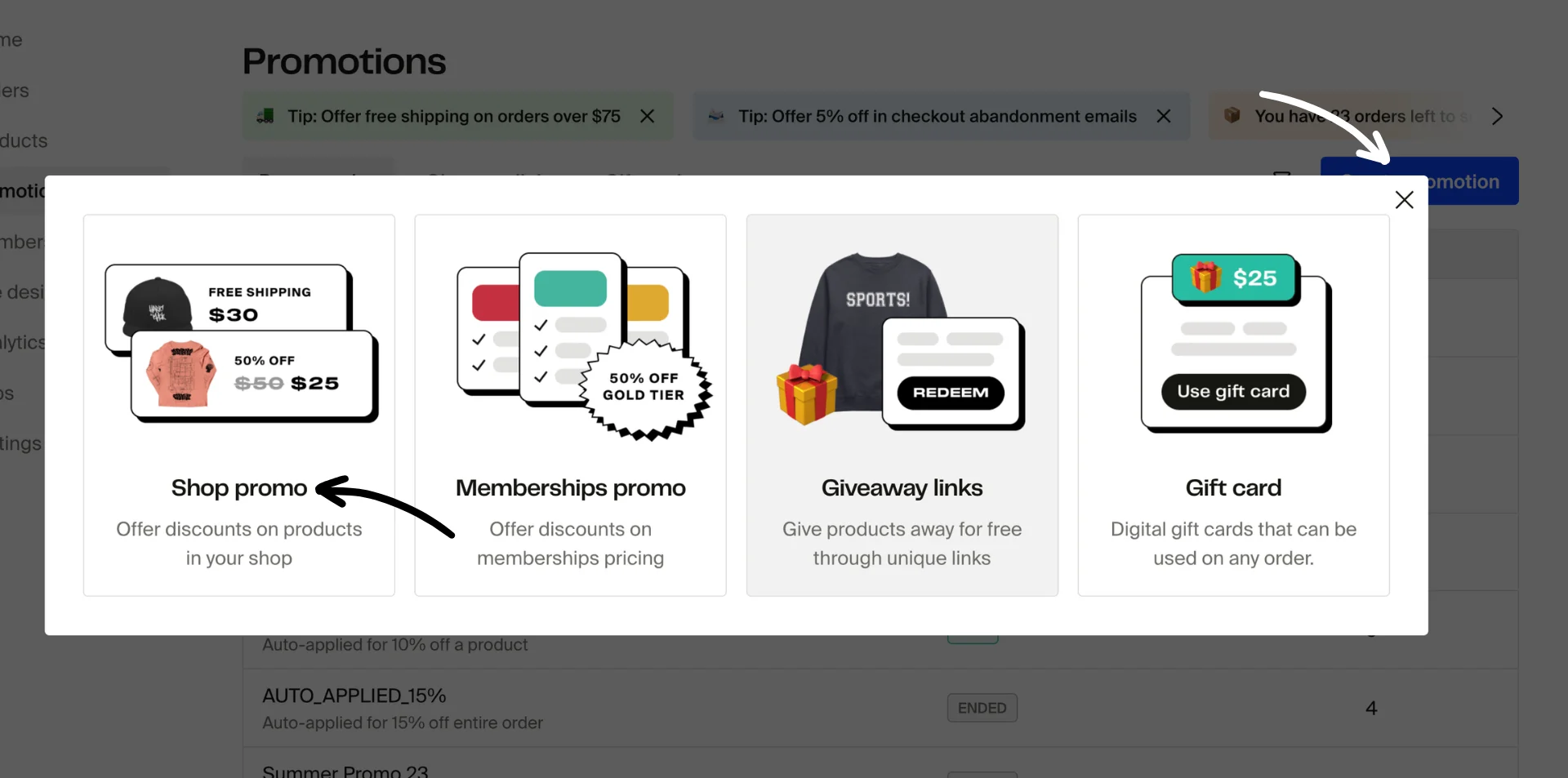
Click Create promotion, then select Shop promo.
Step 2: Choose the promotion type
Under Promotion type, select one of the following:
-
Promo code. Create a single discount code that customers manually enter at checkout.
- Best for: Simple campaigns, public discounts, and short-term sales.
- Example: FANLOVE, LAUNCH15
-
Multiple promo codes. Generate multiple unique codes within a single promotion. Each code follows the same rules and discount logic, but can be redeemed individually.
- Best for: Influencer campaigns, ambassador programs, and bulk giveaways
Tip: You can simplify generating multiple promo codes by clicking Generate promo codes for me. In the pop-up screen, enter the number of codes you need along with any prefix for identification, if you want.
- Auto-applied promotion. Apply the discount automatically at checkout when cart conditions are met. No code required.
- Best for: Storewide sales, free shipping offers, and members-only discounts

Important: The promotion type, promo code, and auto-applied promotion title cannot be changed after you create the promotion. Choose carefully before saving.
Step 3: Set conditions to qualify (recommended)
Under Conditions to qualify, define when the promo should apply. Choose one or more of the following:
- Must have specific products in cart. Check the box, then set the Minimum quantity and pick Any products or Specific products in the Products in cart select. (Requires the Buy X Get Y feature to be enabled.)
- Minimum order value. Set your desired order value (e.g., $70)
Tip: For free-shipping promos, set a minimum order value of at least $70. Shipping costs on small orders can wipe out your profit margin.
- Selected countries only. Choose the countries that qualify for the promotion
- Members only. Choose All tiers or Selected tiers (disables Twitch subs option when enabled)
- Twitch subs only. Choose All tiers or Selected tiers (disables Members only option when enabled)
Members only and Twitch subs only are mutually exclusive. You can enable one or the other, but not both on the same promotion.
Example: Apply the discount only when a member (Members only) buys 2 or more items or adds selected products (Products in cart) to their cart.
Step 4: Set the reward
Four reward types are available: Percentage off, Flat amount off, Free shipping, and Free products. Choose the one that fits your promotion:
-
Percentage off
- Exclude shipping cost from the discount
- Include shipping cost in the discount (applies only to the cheapest shipping option at checkout)
- Add free shipping to the discount (standard shipping becomes free; expedited and rush rates are discounted by the standard shipping rate)
- Add free shipping for the standard option only
-
Flat amount off
- Optional: Add free shipping to this discount
-
Free shipping
- Applies to the cheapest shipping option at checkout
- Optional: Free shipping on the lowest order
-
Free products (requires the Buy X Get Y feature)
- Automatically add free products to cart. Selected products are added to the customer's cart when promotion conditions are met. Search for and select the products to include, and set the quantity for each.
- Require user to manually add free products to cart. Customers must browse and add qualifying free products themselves. Select which products are eligible as free items, and set the quantity.
- Optional: Check Include free shipping for the whole order to waive shipping costs when the free products promotion applies (applies to the cheapest shipping option at checkout).
The Free products reward type is part of the Buy X Get Y feature. If you do not see Free products as a reward option, this feature may not yet be enabled on your account. Contact support@fourthwall.com to request access. This is not tied to your subscription plan.
Free products vs. Giveaway links: The Free products reward is a promotion type that gives free items with a purchase when conditions are met (such as a promo code or auto-applied rules). Giveaway links are a separate feature that generates unique, single-use URLs to gift products at no cost, with no purchase required.
Step 5: Select where the promo will apply
The Applies to section decides how far the reward reaches. Entire order discounts everything in the cart. Selected products limits the discount to the products you pick, so search for and select each one you want the promotion to cover.
With Entire order selected, you can still hold a few products back. Click Exclude selected products under the Entire order option, pick the items in the Select products to exclude from promotion window, and click Confirm. The section then lists your excluded items with a count above them.
A few rules to keep in mind:
- Exclusions pair with Entire order only. Switch to Selected products and you pick what gets the discount instead.
- Pick at least one product. Save the promotion with nothing excluded and the discount covers the whole order.
- Products, gift card products, and bundles are all in the picker. Excluding a bundle also excludes the items inside it.
- Free products hide the section. Set the Reward to Free products and the Applies to section disappears.
On a percentage-off promotion with Include shipping cost in the discount checked, shipping is only discounted when the cart holds no excluded products. A single excluded product in the cart keeps shipping at full price.
You can change both product lists later. Unlike the promotion type and code string, the Applies to product scope and the excluded products are editable after creation.
(Optional) Step 6: Set usage limits
Control how often the promotion can be redeemed:
- Limit this code to one use per customer
- Limit the total number of times this code can be used
This is useful for exclusive offers and giveaways.
Step 7: Review and activate
Double-check your settings, then click Save to activate the promotion.
Give free products to specific membership tiers
You can combine the Free products reward with an Auto-applied promotion and the Members only requirement to automatically give members of specific tiers a free product at checkout.
- Click Create promotion and select Shop promo.
- Set Promotion type to Auto-applied promotion.
- Under Conditions to qualify, check Members only and select Selected tiers. Check the membership tier(s) you want to receive the free product.
- Under Reward, select Free products and choose Automatically add free products to cart. Search for and add the product(s) you want to give away.
- Click Save.
When a member from the selected tier visits checkout, the free product is added to their cart automatically. No code entry is needed.
If the Free products reward option is not visible, the Buy X Get Y feature may not be enabled on your account. Contact support@fourthwall.com to request access. If you need an immediate workaround, consider using Giveaway links to gift products to specific customers.
For more on members-only promotions, see Memberships: Members-Only Promotions.
Editing a promo code after creation
You can edit most settings on an existing promotion at any time. Go to Promotions and click the promotion you want to update. From there you can change the discount amount, requirements, usage limits, reward type, and other details.
Add or remove products from a promotion
If the promotion is scoped to selected products, you can update that product list from the promotion's edit page:
- Go to Promotions and click the promotion you want to update.
- Find the Applies to section.
- Make sure Selected products is selected.
- To add a product, search for it and select it so it joins the list.
- To remove a product, clear it from the selected list.
- Click Save to apply the new product scope.
The excluded-products list is editable the same way. With Entire order selected, click Exclude products to add items to the list, or clear a product from the list to bring it back into the discount, then click Save.
Both product lists can be updated at any time from the promotion's edit page. You can also switch between Entire order and Selected products here.
The following fields cannot be changed after creation:
- Promotion type (Promo code, Multiple promo codes, or Auto-applied promotion)
- Promo code (the code string itself, such as FANLOVE or LAUNCH15)
- Auto-applied promotion title
If you need a different promotion type or code, deactivate the existing promotion and create a new one.
How customers redeem a promo code
Once your promo code is active, customers can apply it during checkout:
- Add products to their cart.
- Proceed to checkout.
- Enter the promo code in the Discount code field.
- Click Apply to see the discount reflected in the order total.
If the cart meets all promotion requirements, the discount will apply automatically.
Note:
- Only one promo code can be used per order.
- Auto-applied promotions do not require a code.
Tips and best practices
- Keep codes short, simple, and easy to remember.
- Set usage limits to create urgency. Shop promotions do not have a built-in expiration date, so deactivate a promotion manually from the Promotions list when it should stop.
- Promo codes cannot be stacked.
- You can edit a promotion after creating it, but the promotion type, promo code, and auto-applied promotion title cannot be changed. If you need a different type or code, deactivate the old promotion and create a new one.
Some promo code ideas
| Code | What it does | When to use |
|---|---|---|
FIRSTDROP | 15% off entire store | Launching your first collection |
FREESHIP | Free shipping on orders over $70 | Fan appreciation or VIP offers |
HOLIDAY25 | 25% off select products | Seasonal promotions |
ONETIME10 | 10% off, one-time use per customer | Exclusive perks for loyal fans |
Troubleshooting
If a promo code does not work:
- Did the customer actually enter the code in the Discount code field at checkout? The discount will not apply until the code is entered and Apply is clicked.
- Is the promotion set to Auto-applied? Auto-applied promotions apply automatically when cart conditions are met, so no code entry is needed. Check the Auto-applied toggle on the promotion.
- Check if the promotion has been disabled or reached its usage limit. Shop promotions do not expire automatically. To stop a promotion, disable it from the Promotions list.
- Confirm the cart meets all promotion requirements.
- Verify there are no typos.
- Make sure your shop balance can cover the discount or that you have a payment method on file.
Problem: The Free products option is not visible or not clickable in the promotion creation form. Solution: The Free products reward type is part of the Buy X Get Y feature, which may not yet be enabled on your account. This is not related to your subscription plan or billing tier. Contact support@fourthwall.com to request the feature be enabled.
Problem: You want to give a free product to members of a specific tier, but the promotion does not apply at checkout. Solution: Confirm the promotion is set to Auto-applied promotion (not Promo code). Under Conditions to qualify, check that Members only is enabled with the correct tier(s) selected. Make sure the member is logged in at checkout. If the member is not logged in, the promotion will not apply.
Problem: You entered a Fourthwall milestone celebration code (such as a $1k Club or $10k Club reward code) at your own shop's checkout and saw "Code does not exist." Solution: Milestone celebration codes are issued by Fourthwall and only redeem at the Fourthwall Shop (shop.fourthwall.com). They cannot be applied to your own storefront, since they were not created in your Promotions dashboard. Use the code at shop.fourthwall.com to claim your reward.
Problem: You want to give customers a 100% profit discount but can't find the right reward type. Solution: There is no "% off your profit" option in the promo code creator. The four available reward types are Percentage off, Flat amount off, Free shipping, and Free products. To give customers a full discount on the product price, create a Percentage off code set to 100%. Keep in mind that a 100% off code sets the checkout total to $0, which can trigger the Block unprofitable transactions setting if there are remaining fees (such as the 5% platform fee on digital products). See the next troubleshooting entry below for workarounds.
Problem: A 100% promo code on a digital product is being blocked at checkout. Solution: The 5% platform fee on the original list price still applies even when the checkout total reaches $0. This creates a negative-profit order that triggers the Block unprofitable transactions setting. Try one of these workarounds:
- Maintain a shop balance to cover the fee.
- Set the list price to $0 instead. Free digital products carry no platform fee.
- Upgrade to Fourthwall Pro, which charges a 0% digital product fee.
- Use Giveaway links instead. Giveaway links carry a 3% redemption fee for digital products and skip the promo code path entirely.
If you have any questions, do not hesitate to contact us at support@fourthwall.com