Edit your product listing
Updated August 19, 2026
Editing your product listing on Fourthwall is a straightforward process that allows you to customize various aspects of your products, ensuring they meet your needs and appeal to your audience. Here's our guide to help you navigate the editing process.
- Edit product details
- Edit additional sections
- Edit photos
- Edit Inventory
- Explore additional settings
Edit product details
- Access the product: Within your Fourthwall dashboard, go to the All products section and click on the specific product you wish to edit.
- Edit product details: As you click on the product, the edit product details page is displayed. Here, you can:
- Modify the product name
- Update the description to reflect its features and benefits accurately. For more info, check out the blog post on writing product descriptions.
The product edit page layout varies by product type. Products with embedded design tools (such as Adobe-integrated or Printful-based products) show design and editing tools at the top of the page, where a standard product specification section would normally appear. Use Edit additional sections to access product specification options (More details, Size & Fit, and Quality Guarantee & Returns) for any product type.

Edit additional sections
Click Edit additional sections to update the product specification options your customers see before buying. This panel is available on all catalog product edit pages, including products with embedded design tools. It contains three sections:
- More details: Materials and weight information are automatically filled in based on the product you select from the catalog. If you're self-fulfilling, make sure to enter all the details you want your customers to know.
- Size & Fit: If you selected a product from the Fourthwall catalog, this section is automatically updated to provide accurate measurements so customers can choose the right size. If you're self-fulfilling, make sure to enter these details.
- Quality Guarantee & Returns: For Fourthwall catalog products, this section is automatically included to cover our warranty to your customers. If you're self-fulfilling, make sure to communicate your policies for customer reassurance.
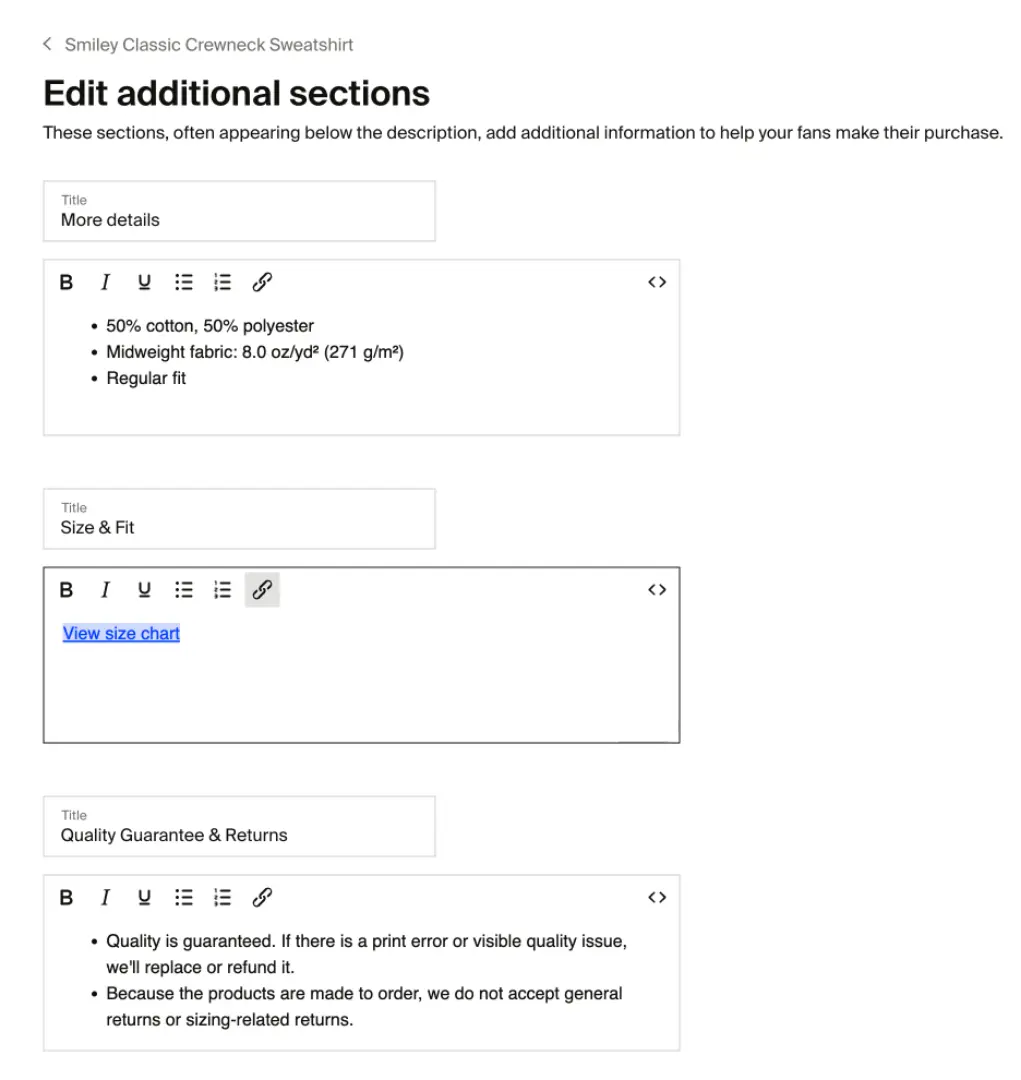
For products from the Product catalog, these sections are automatically filled.
Adjust pricing
- Here, you can update your item's sale price if needed. For more information about pricing products, check out the blog.
- Optionally, if you are updating your sale price to a lower price, you can enable the Compare-at price checkbox to display the original higher price crossed out next to the new selling price.
Price changes on Fourthwall take effect immediately when you save them. There is no option to schedule a future price change. If you want to run a timed sale or discount, use one of the workarounds below.
Run a timed sale without scheduled pricing
Fourthwall doesn't support scheduled price changes, but you have two options to run a time-limited discount:
Option 1: Promo code with a usage limit or manual deactivation
Create a promo code that gives customers a percentage or fixed-amount discount at checkout. Set a usage limit so the discount expires automatically after a set number of orders, or manually deactivate the code when your sale ends.
To set this up, go to Promotions and create a new promo code. For a full walkthrough, see Create a promo code.
Option 2: Time-limited collection with compare-at pricing
Add the sale products to a dedicated collection (for example, "Weekend Sale"). On each product in that collection, enable the Compare-at price checkbox and set the sale price as the active price. When the sale ends, disable compare-at pricing and restore the original price, then remove the collection.
To create a collection, see Create a collection.

Edit photography and design
- Edit Photos: Add new images, rearrange them, or delete existing ones. You can also change which image appears as the primary one. The first image will always be the primary display.
-
Edit product design: If you created the product from the Fourthwall catalog, you can update the artwork or design in the product designer. Any changes apply to future orders only and won't affect orders that have already been placed.
To open the product designer, go to All Products, click on the product, scroll to the Photography and design section, and click Edit product design.

For a full walkthrough of the designer, see Design a new product.
Edit inventory and variants
When managing a self-fulfilled product, you'll likely use the inventory and variants section to track different product versions and their availability. This section allows you to customize details for each variant effectively.
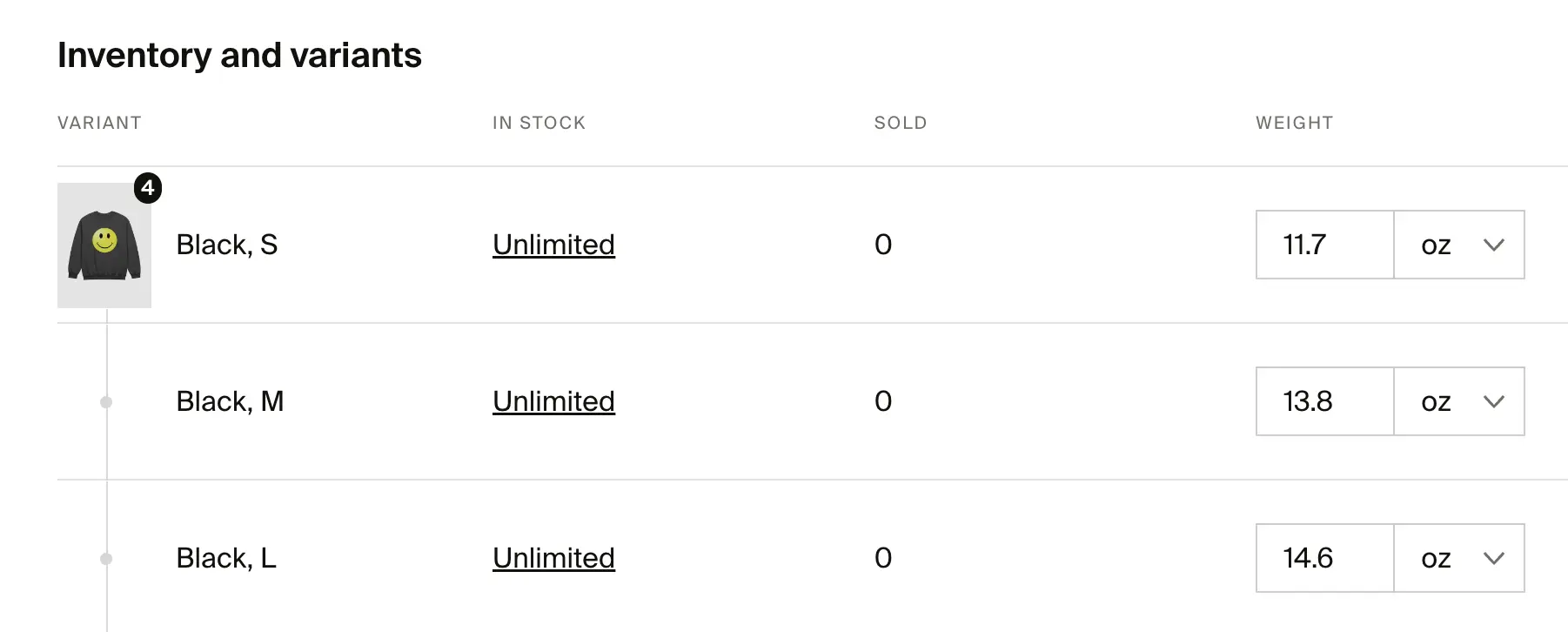
Here's a quick breakdown of the different fields you'll see in the inventory table:
- Variant: This refers to the specific version of the product, such as its color and size. For example, "Light Pink, S" would indicate the small size of a light pink product.
- In Stock: This shows the available quantity of each variant. If set to "Unlimited," it means there is no limit on the stock for that variant.
- Sold: This column shows the total number of units sold for that specific variant.
- Weight: When the setting "Different sizes have different weights" is enabled, the variant weights will be displayed, which is important for shipping purposes. If you are using self-fulfilled products, you can modify the settings to reflect the actual weight.
Additional options:
- At the bottom of the product details, you will find two additional options you can choose from:
- Mark as sold out: Use this option if your product is sold out or you do not want customers to be able to buy this product, but still be able to find it on your site.
- Each variant has an identification code (such as a UPC or Stock Keeping Unit (SKU)): Every product variant comes with a unique identifier that helps you track and manage inventory more efficiently. These codes are automatically generated but can also be customized if you use external inventory or fulfillment systems. Keeping these codes consistent across platforms ensures smooth order tracking and reporting.
- Mark as members-only: This option restricts the product to members only, providing exclusive access. For more info, click here.

Once you've made all the necessary changes, don't forget to click Save before returning to the product listing. Scroll back up to the product title and click on it to return to the main product listing.
Explore additional settings
To access additional settings for your product listing on Fourthwall, click on the three dots in the top right corner of the screen and choose from the following options:
- Order Samples: Request samples of your product for promotion and quality assessment. To understand more, click here.
- Change URL: If you change your product name from the original one, you can update the product URL to match the new product title. When you rename a product, the old URL automatically redirects to the new one, so any existing links in your marketing materials or social media posts will continue to work.
- Duplicate: Create a copy of the product listing for faster editing or variations.
- Advanced Settings: Access more detailed configuration options for your product, such as Luminate Reporting, adding a Digital Download to the product, and limiting the quantity a customer can add to their cart at once. To cap per-order quantity, enable Limit quantity that can be purchased at once and set your maximum. For example, set it to 1 to ensure each customer can only purchase one unit per checkout.
- Archive: Remove the product from the active listings without deleting it completely.
When you are done with the Additional sections, you can return to the product listing by scrolling back up and clicking on the product title back bar. Don't forget to save your changes to ensure everything is updated properly!
Can I bulk edit products?
Currently, bulk editing isn't supported in Fourthwall. Each product must be edited individually from the All Products page.
If you need to make multiple updates, here are some tips to speed things up:
- Open several product tabs at once in your browser to edit simultaneously.
- Copy and paste common text (like updated descriptions or pricing) across tabs.
- Use consistent product naming or tagging to make bulk management easier.