Create a bundle product listing
Updated August 31, 2026
Package multiple products into a single listing so customers can buy the full set in one click
Bundles group your existing products into a single listing, simplifying checkout and creating natural cross-sell opportunities.
Two ways to create a bundle
You can create a bundle from the Create New Product flow or directly from your product list. Both methods produce the same result, so pick whichever fits your workflow.
Create a bundle from the product page
Go to Products > All Products and click Create New Product. Select Design Something New, then choose Bundle.
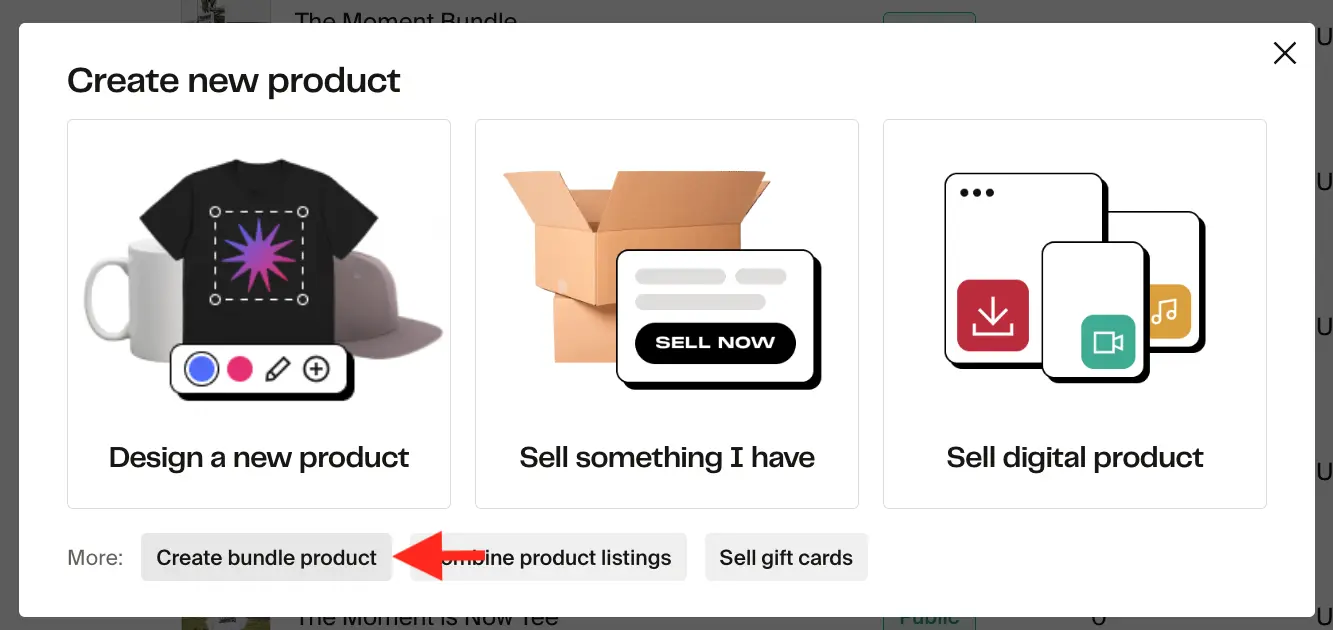
Create a bundle from the product list
You can also start a bundle directly from your All Products list. This method is faster when you already know which products you want to combine.
- Go to Products > All Products.
- Select up to 25 products by checking the box next to each one.
- Click the Create Bundle button that appears at the top of the list.
Your selections persist as you navigate between pages of the product list. You can browse multiple pages, select products across them, and then create the bundle once you've picked everything you need.
The system validates your selections in real time. If a product cannot be included (for example, another bundle), you'll see a message explaining why before you proceed.
After you click Create Bundle, you'll land on the same bundle editor described in the steps below, with your selected products already added.
Step 1: Select the products
Click Select products to add the products you want to include in your bundle. Bundles can consist of on-demand products, digital products, self-fulfilled products, combined listings, and gift cards. The only limitation is that a bundle cannot contain another bundle.
Step 2: Add bundle listing details
Next, add a bundle name and description. Use this space to highlight what's included, why the products belong together, and any theme or special purpose the bundle serves.

Step 3: Set bundle pricing
You have three options for pricing your bundle:
- Fixed bundle price. Set your own final price.
- Discount-based price. Apply a percentage discount to the combined value of all included products. The system automatically calculates the final selling price.
- Keep individual pricing. Use each item's regular price, and the system reflects the total as the final bundle price.
Behind the scenes, each product inside the bundle receives a proportional price allocation. This keeps reporting, taxes, and refunds accurate.

Step 4: Add bundle product images
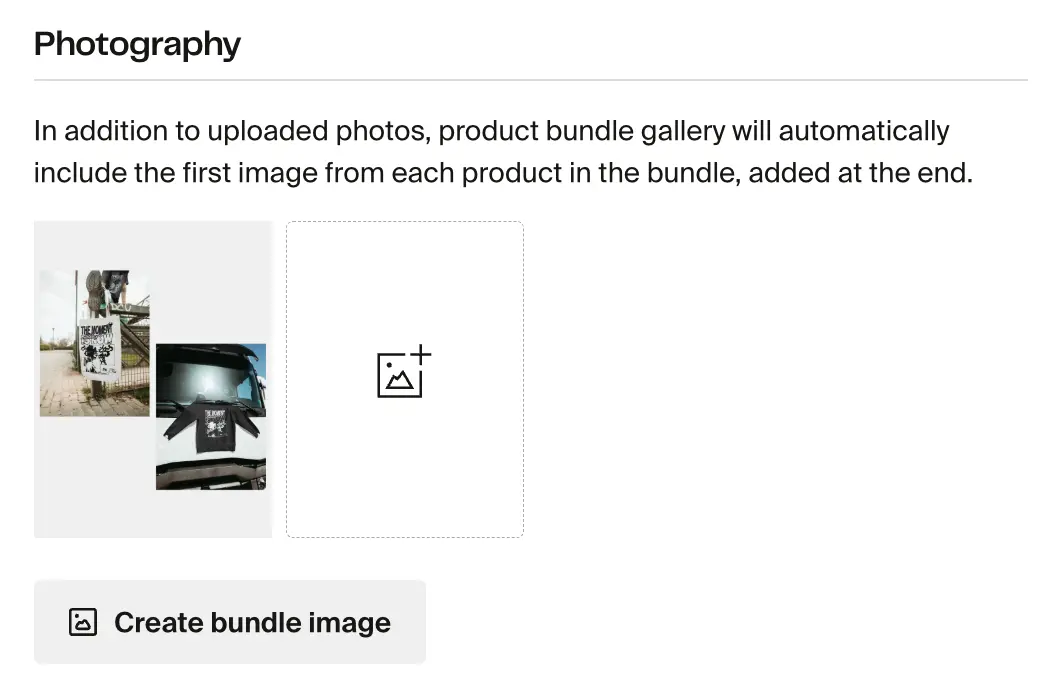
A great cover image helps customers understand what they're getting at a glance. You can upload your own bundle cover image or click Create bundle image to generate one automatically.
When you generate a bundle image, the system creates a collage from the main image of each included product. Each product's main image is also added as a secondary image on the bundle listing.
Your bundle is ready to promote. Here's how a bundle appears in your shop:

Additional bundle settings
The Inventory section on the bundle edit page has two options:
- Mark as sold out. Check this box to immediately hide the bundle from your shop. Uncheck it to make the bundle available again.
- Make this a members-only product. Restrict the bundle to customers with an active membership. See members-only products.
Bundles do not have a stock quantity field. You cannot set a specific number of units available for a bundle. Stock quantities are managed on each individual product's own edit page at the variant level. The bundle's availability depends entirely on whether all of its component products are in stock.

How bundles work for customers
Customers see the bundle as one product in your shop.
At checkout:
- The bundle appears as a single line item.
- Sub-thumbnails show the included products.
Shipping is calculated exactly as if each item were added individually. If products ship from different facilities, shipping is charged per facility, and customers may receive multiple packages.
How refunds and cancellations work
Customers can cancel a bundle only as a whole, and only if all items in the bundle are eligible for cancellation.
Cancellations are not allowed if:
- A digital file in the bundle has been downloaded
- A gift card in the bundle has been redeemed
- The cancellation window has passed
Partial refunds are possible, and the refund is prorated automatically (including taxes and shipping).
Bundles FAQ
Is there a limit on how many items a bundle can contain?
Yes. A bundle can contain a maximum of 5 items. Plan your product groupings with this limit in mind. Note that the "Create a bundle from the product list" method lets you select up to 25 products at once for batch operations, but each individual bundle is still capped at 5 items.
What types of products can be included in a bundle?
Bundles can include on-demand products, digital goods, self-fulfilled items, combined listings, and gift cards. The only restriction is that a bundle cannot contain another bundle.
Can bundles mix physical and digital items?
Yes. Any combination is allowed.
Do bundles work with promotions?
Yes. Bundles are eligible for most promotions, with two exceptions:
- Bundles cannot be used as a "required product" in a promotion (for example, "Buy X to get Y").
- Bundles cannot be automatically added to the cart as a free reward.
If a promotion requires a specific product that is only available in a bundle, the promotion will not trigger.
How do shipping and fulfillment work?
At checkout, the bundle behaves as if each included product were added individually. If items ship from multiple locations, shipping is calculated for each location, and customers may receive separate shipments.
What happens if one of the products in the bundle is out of stock?
The entire bundle becomes unavailable on your shop. Bundle availability depends on the stock status of each component product's variants. If any variant required by the bundle is out of stock, the bundle is automatically marked as unavailable, even if the other products in the bundle are still in stock.
Once all component products are fully restocked, the bundle automatically becomes available again.
Can I set a stock quantity for my bundle?
No. Bundles do not have their own stock quantity setting. The bundle edit page only offers Mark as sold out (to manually hide the bundle) and a members-only toggle. Stock quantities are tracked at the variant level on each individual product's edit page. To adjust inventory for items in your bundle, open each product separately and update its variant stock there.
My bundle shows out of stock, but none of the included products are sold out. What's wrong?
This can happen when a variant-level sync issue causes the bundle's internal availability to fall out of sync with the individual product settings. Even if each product appears in stock on its own page, a mismatch at the variant level can make the bundle display as unavailable.
If you've confirmed that every product in the bundle is in stock and the bundle still shows as out of stock, contact our support team at support@fourthwall.com. They can investigate the variant sync and resolve the issue.
Can bundles be used in giveaways or gifts?
Yes. Bundles can be selected as a giveaway product, so you can give away a complete product set in one go.
Will bundles appear in external integrations (YouTube, Facebook/IG shop, TikTok)?
Not yet. This is planned for a future update.
Can I archive bundles?
Yes. Archiving lets you hide outdated bundles while keeping your product catalog organized.
How are refunds for bundles calculated?
Refunds prorate the price across the included items based on their proportional value. Taxes and shipping are also prorated.
If you have any questions, do not hesitate to contact us at support@fourthwall.com.