Retrieve and manage archived products
Updated August 26, 2025
Bring back archived products and control their visibility
Archived products can be restored, updated, or permanently hidden depending on your needs. This guide walks you through retrieving archived products, adjusting their status, and managing visibility settings.
Step 1: Access archived products
From your Fourthwall dashboard, go to Products > All products.
Click the Status filter.
Select Archived to view all products that are currently archived.
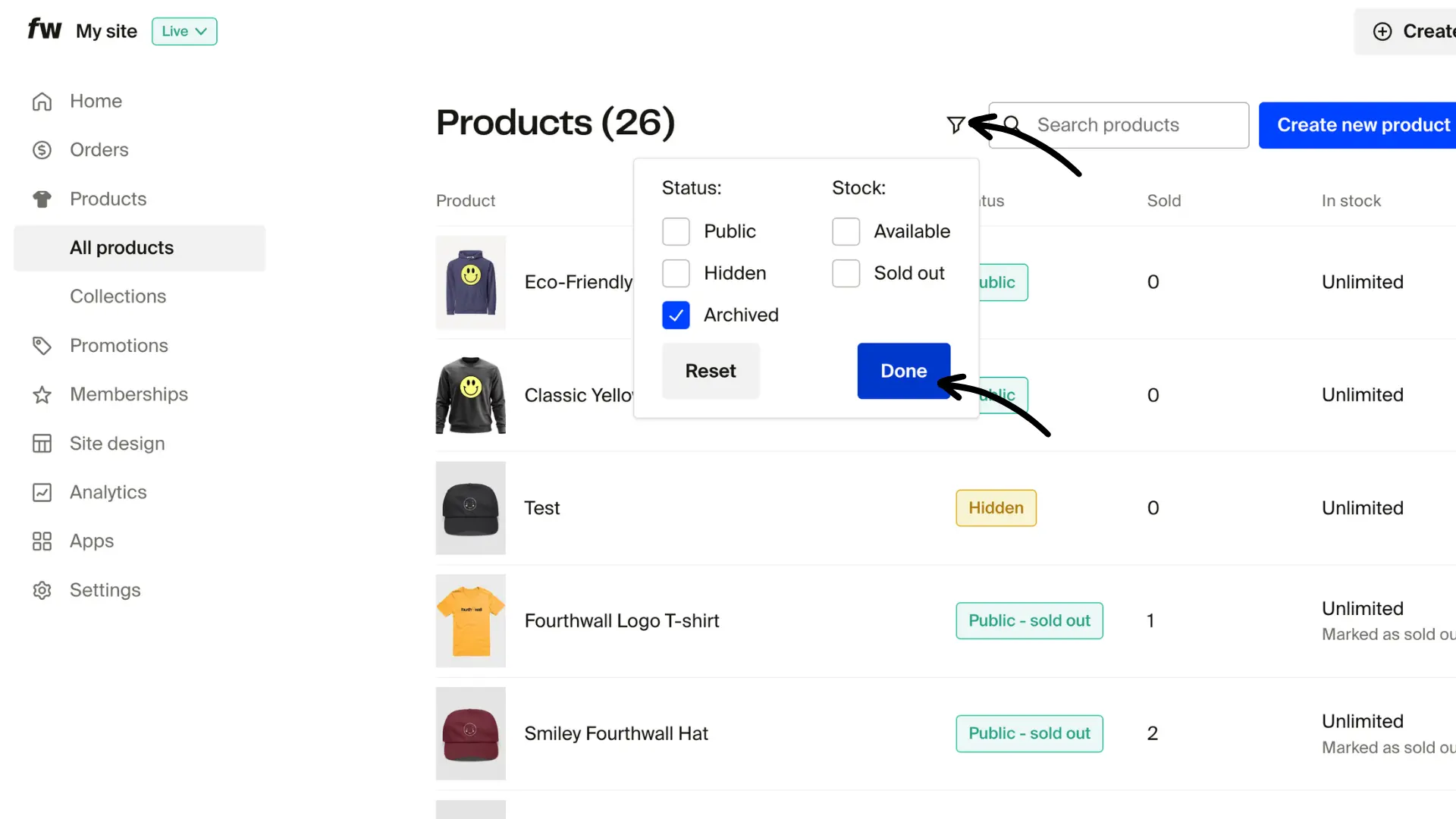
Click Done to apply the filter.
Step 2: Retrieve an archived product
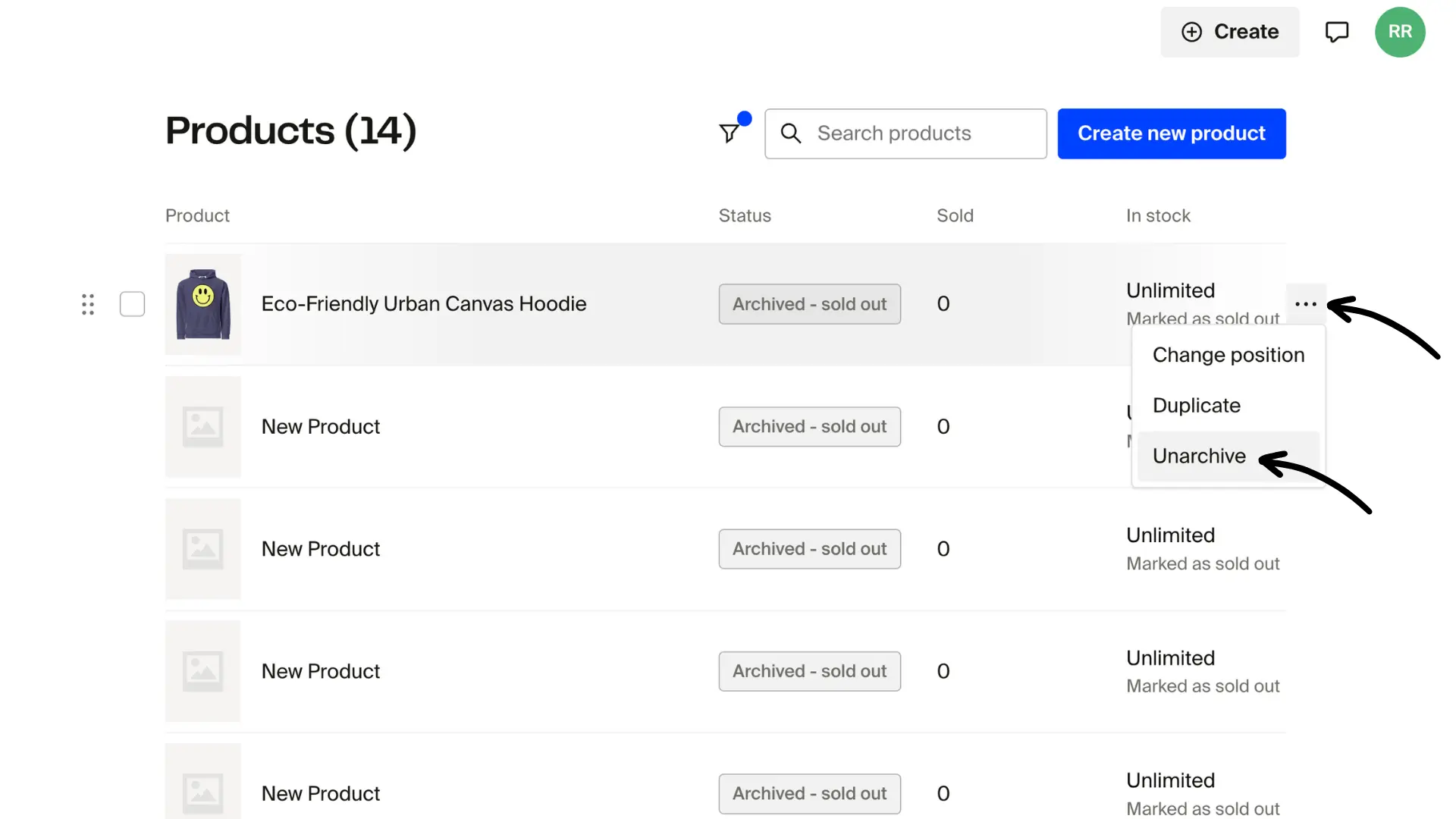
Click the three-dot menu for the product you want to bring back and choose Unarchive.
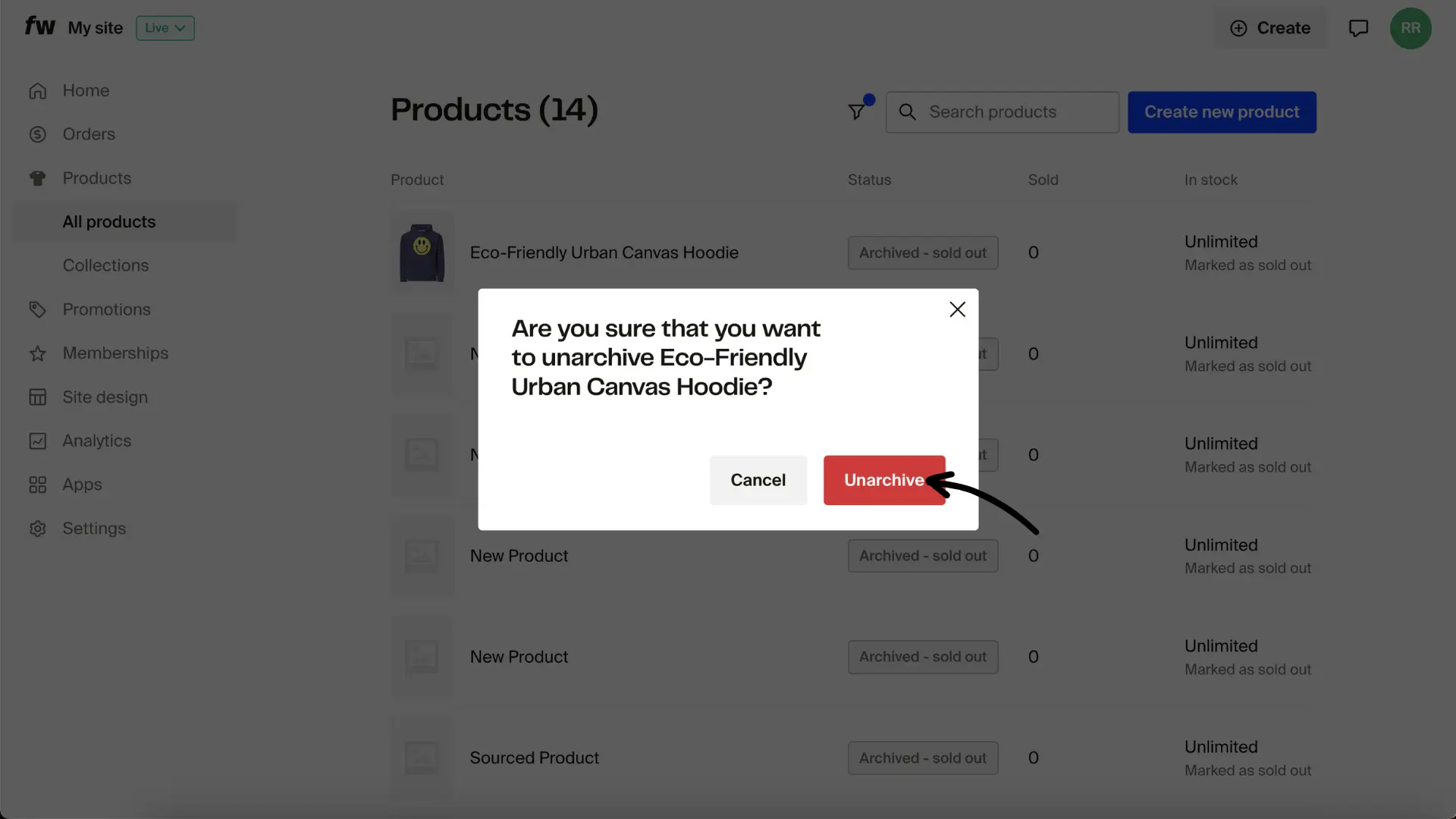
In the dialog box that appears, confirm by clicking Unarchive once again.
Step 3: Adjust visibility settings
Go back to All products and click on your product to open its settings.
Review the current status, make any necessary changes, and click Save.

Choose whether the product should be Public (customers can see and purchase) or Hidden (only accessible via direct link, not shown in store listings).
Tips:
- Double-check product visibility before re-launching to make sure it appears where you want in your store.
- Fourthwall automatically marks archived products as sold out. To remove this, scroll to Inventory and uncheck Mark as sold out.
- While in the product settings page, you can do other things, like updating the description or making changes to the current design as you see fit.
- Archived products do not count towards the product listing limit, only active products (Public or Hidden). Learn more about Fourthwall Pro here.