Upload tracking numbers for self-fulfilled orders
Updated May 5, 2026
Easily update your dashboard with tracking details to notify customers once their orders have shipped
This article will guide you through uploading tracking numbers for self-fulfilled or externally fulfilled orders. Follow this step-by-step guide to keep your customers informed when their packages are on the way.
Note: This article covers the CSV bulk upload workflow for adding tracking numbers to many orders at once. For row-by-row shipping with tracking, see Ship from home.
Identify orders to upload tracking numbers for
The homepage of your admin dashboard displays how many orders are left to send (it means tracking numbers that have not yet been uploaded into your dashboard).

Upload order tracking numbers into your dashboard
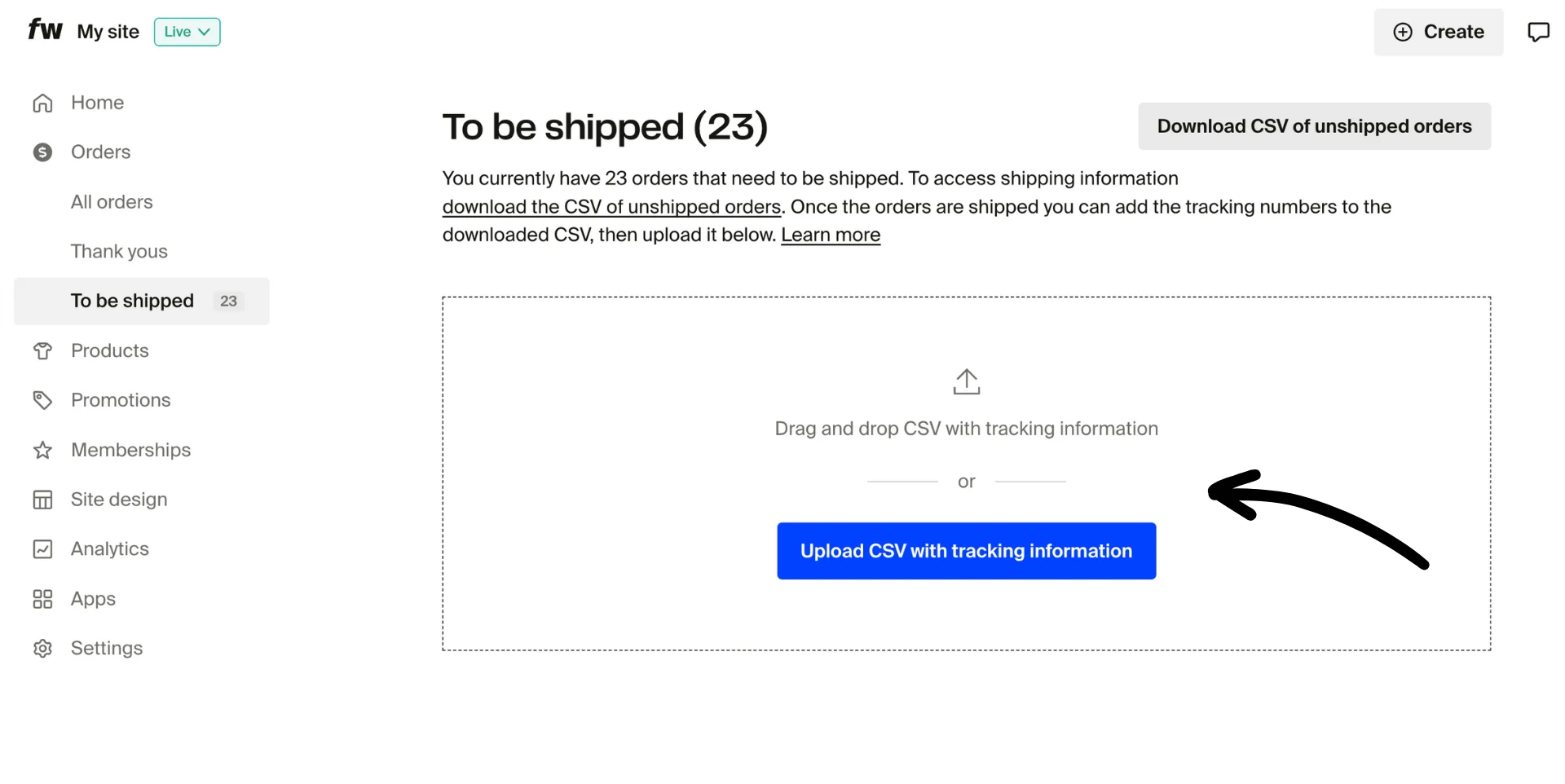
Step 1: Click the You have (X) orders left to send button on your dashboard homepage. This takes you to Orders > To be shipped, the primary self-fulfillment view for shipping orders row-by-row. To use the CSV bulk upload covered in this article, go to Orders > Fulfillment, or select Update many orders at once with a CSV from the To be shipped view.
Step 2: From the Fulfillment tab, download the CSV report by clicking the Download CSV of unshipped orders button at the top right of the page. This report will be used to add your tracking numbers.

Step 3: Open your file and enter the carrier codes and tracking numbers.
Tip: For best results, use a Google Sheet when preparing your upload file.
-
Enter the Carrier Code and Tracking Number for each order.
- Carrier Code: Ship Method (for example: FedEx, USPS, UPS)
- Tracking Number: The tracking number provided by your carrier
-
If an order is fulfilled by mail without a tracking number, use:
- Carrier Code: "Letter"
- Tracking Number: "Untracked"

Step 4: Make sure to save your file as CSV once all information is entered.
Step 5: Back in your admin panel under the Fulfillment tab, upload your CSV file using drag-and-drop, or click Upload CSV with tracking information and locate it on your computer.
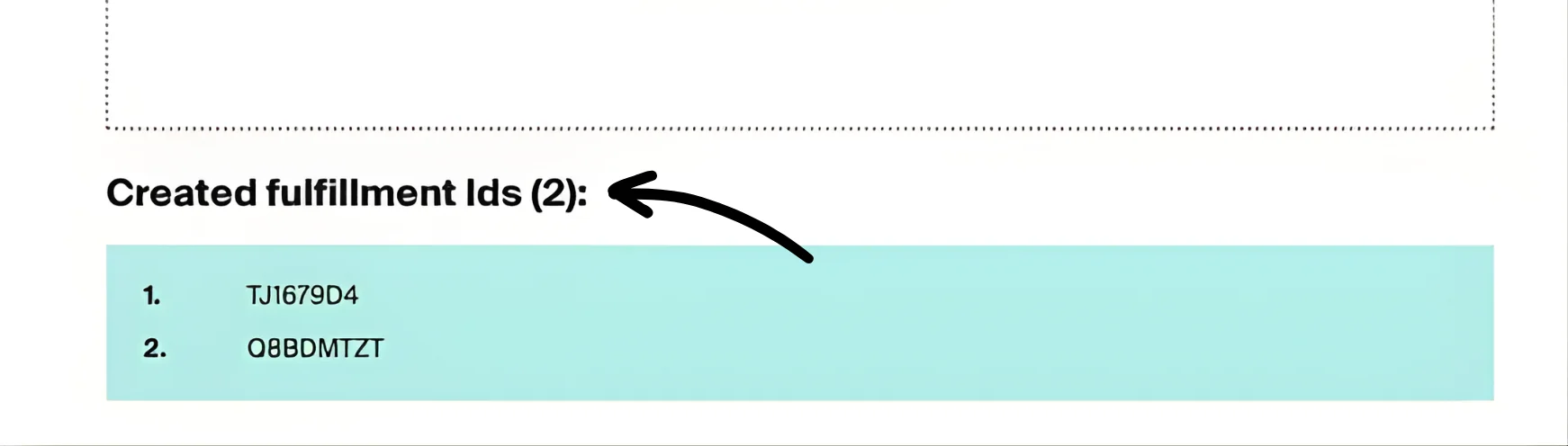
When your file uploads successfully, you'll see a green confirmation text with Friendly Order ID numbers (Column B). This means your tracking data has been successfully added.
Troubleshooting a failed CSV upload
If your CSV upload fails with an error and mentions invalid tracking code values, this usually means there is an issue with the Tracking Number field.
Common causes include:
- Hidden spaces or invisible characters in the Tracking Number column
- Special characters such as dashes, slashes, or symbols
- CSV formatting issues caused by spreadsheet software like Microsoft Excel
How to fix it
- Locate the row mentioned in the error message using the Order ID as a reference.
- Re-enter the Tracking Number manually instead of copying and pasting.
- Ensure the Tracking Number contains letters and numbers only with no spaces, dashes, or other characters.
- If you are using Excel, upload the file to Google Sheets, then download it again as a CSV before uploading.
- If an order does not include tracking, use:
- Carrier Code: Letter
- Tracking Number: Untracked
Customers are notified that their order has shipped
After you upload tracking information to Fourthwall, an automated email is sent to customers once the carrier scans the package for the first time. This ensures a real-time notification experience for your customers.
Note: If the tracking numbers you upload have already been delivered, no email will be sent, but the order status will still be updated accordingly.
That's it! If you have any other questions about the self-fulfillment process, contact our team at support@fourthwall.com.