Ship from home
Updated August 7, 2026
This article will guide you through the process of shipping self-fulfilled products - from setting up your shipping location to downloading orders to fulfill and uploading tracking details.
Looking for your shop's web address (URL)? Fourthwall stores have two types of addresses. Your shop's web address (the URL customers use to visit your shop) is in Settings > General or Settings > Domain. See Update shop details and URL for help with that. The physical shipping address below is the origin address used when you ship products yourself.
Self Fulfillment Playbook
Step 1: Enter the address you will ship from
- Go to the homepage of your dashboard
- Click "Settings"
- Under Settings, click "Shipping"
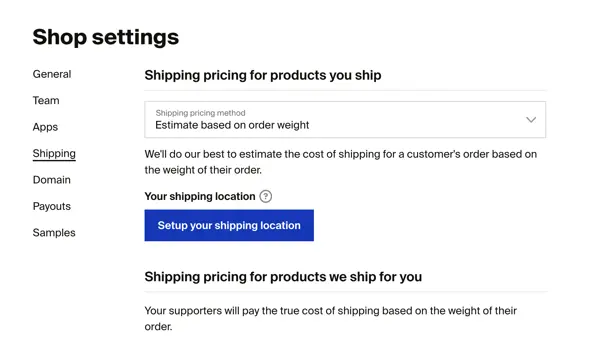
- Click "Setup your shopping location"
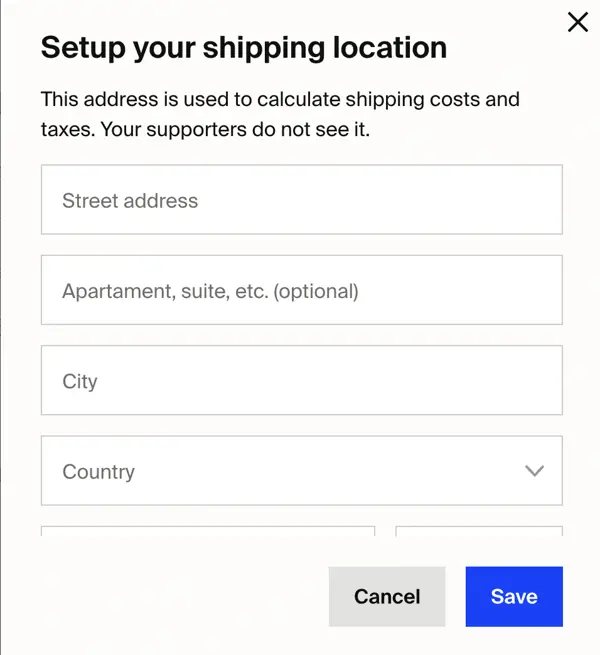
- Enter the address you will ship from
Step 2: Downloading Orders to Ship
- Go to the homepage of your dashboard
- Click "Contributions"
- Under Contributions, click "Fulfillment"

- There will be a download button on the top right side of this page

- Download your orders
- Your orders will download as a CSV file. Example here of what the column headers will look like on your CSV export
- All information needed to ship out orders will be in this report
You can also check orders waiting to be shipped from the Fourthwall mobile app. Open the More menu and tap To be shipped for one-tap access to the same order table and deadlines you see on the web dashboard.
If you ship multiple orders each month, you might want to consider our Shipstation integration. It simplifies the shipping and fulfillment process by sending orders directly to your Shipstation account, where you can buy and print shipping labels, and the orders will automatically get updated with tracking details back into your Fourthwall site. You can read more here.
Step 3: Uploading order tracking numbers into your Dashboard
- The homepage of your admin dashboard will show you how many orders you have left to send. (image below)
- Orders left to send = Tracking numbers that have not been uploaded into your dashboard.

- Click the button "X orders left to send!" This will take you to the Fulfillment tab you used to export your order information to ship.
- Download the CSV report by clicking the download button on the top right of the page. This report will be used to add your tracking numbers.
- On this report, you will be entering the Carrier Code (Column AE) and Tracking Number (Column AF) for your orders.
- Carrier Code = Ship Method (example. Fedex, USPS, UPS)
- Copy and paste the Carrier Code and associated Tracking Number in columns AE and AF for the corresponding order.
- In cases where you are fulfilling an order by mail, which does not provide a tracking number, enter "Letter" for the Carrier Code and "Untracked" as the Tracking Number.
- Once all of the information is entered, save your file as a CSV document
- On your admin panel, under the Fulfillment tab, upload your CSV file by the "drag and drop" function or by clicking "Upload orders to Ship" and locating it on your computer.
- Once the file uploads, you will receive a green highlighted text with Friendly Order ID numbers (column B), meaning your tracking has been uploaded successfully!

Step 4: Customers Being Notified Their Order Has Shipped
- After you upload tracking back into Fourthwall’s system, an email will be sent out to the customer notifying them their item has shipped.
- This email will ONLY go out after the package has its first scan from the carrier
- This makes the tracking email and process more “real-time” for the customer.
Note: Email notification to you for when a self-fulfilled order is bought is not currently available, but it is in the roadmap for future development
That is it! If you have any other questions on the self-fulfillment process, please reach out to our team at support@fourthwall.com