Troubleshoot design and rendering issues
Updated May 21, 2026
How to fix broken mockup images, stuck uploads, designs not saving, frozen rendering, overlapping previews, and WebGL issues
Designing products in Fourthwall should be a smooth process. Rendering or preview issues can sometimes occur, including broken or not-displaying product mockup images, stuck rendering (staying at 0%), overlapping designs, missing previews, or error pages after finalization.
This guide helps you diagnose and fix the most common issues.
Live storefront product images appear grey or blank
If visitors, or you viewing your own shop, see grey or blank thumbnails on your live storefront across multiple devices, the cause is almost always mockup regeneration or shop status, not a browser problem. Work through these sub-steps in order.
Sub-step 1: Regenerate the product mockup
- Open your dashboard and go to All Products.
- Open the affected product.
- Scroll to the Photography and design section.
- Hover over the broken default mockup image and click the trash icon to delete it.
- Click Edit product design.
- Click Save to trigger mockup regeneration.

Sub-step 2: Confirm your shop status is set to Live
If thumbnails still appear grey after regeneration, check that your shop is published. A shop set to Coming Soon, Password Protected, or a scheduled launch that hasn't triggered yet can render product images as grey or blank to visitors.
Check the status in either place:
- Home tab: the status is shown in the upper-left.
- Site Design tab: the status is shown in the top-right.
Confirm the status reads Live. If it does not, change it to Live and reload the storefront.

Sub-step 3: Check WebGL and browser settings
Only run this sub-step if thumbnails remain grey after the steps above, and only when you, the creator, see the issue on your own shop. Visitors seeing grey images will not be affected by your browser settings.
See Step 2: Confirm browser and WebGL settings below for a summary, or follow the Enable WebGL in your browser guide for full per-browser steps.
How to fix broken or not-displaying product mockup images
If a product's default mockup image is broken, missing, or showing a placeholder, you can re-trigger mockup generation yourself before contacting Support. This is the first-line fix for any mockup display issue.
Step 1: Go to All Products and open the affected product.
Step 2: Scroll to the Photography and design section.
Step 3: Hover over the broken default mockup image and click the trash icon to delete it.

Step 4: Click Edit product design in the same Photography and design section.
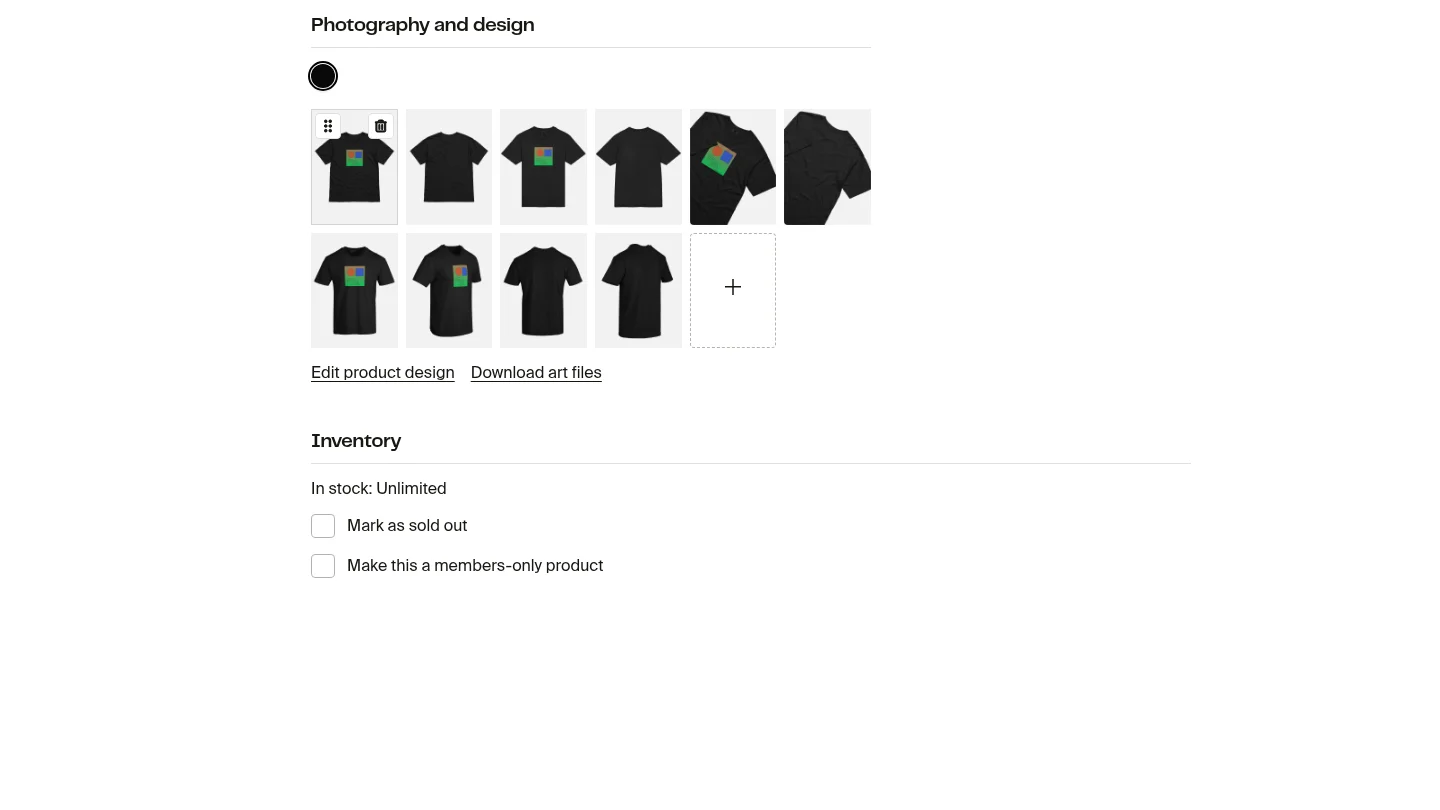
Step 5: Save the design to re-trigger mockup generation. The system will produce a fresh default mockup for the product.
Alternative: If the regenerated mockup still has issues, upload your own custom product photos in the Photography and design section to replace the default mockups. Your custom photos override the generated mockups everywhere they appear on your shop.
If the mockup is still broken after deleting and regenerating, follow the rest of this guide and reach out to Support with details.
Troubleshooting steps
Step 1: Check your artwork file
File issues are the number one cause of uploads failing or rendering getting stuck.
Make sure your file meets these requirements:
- Format: PNG or JPEG
- Resolution: Minimum 1500 × 1500 pixels (300 DPI recommended)
- Design elements: Avoid transparency, glow/fade effects, or anything outside the print-safe area
- File dimensions: Files above ~8,000 × 8,000 pixels frequently stall during processing. The designer blocks uploads exceeding 11,000 pixels per dimension and shows an error.
- Layers: Flatten complex multi-layer designs before exporting If your upload fails instantly or shows a 400 error, it usually means the file isn't meeting the required specs. This can happen due to corruption, an unsupported format, oversized dimensions, or invalid file metadata.
Step 2: Confirm browser and WebGL settings
Fourthwall's designer uses WebGL to render previews. If WebGL is blocked, disabled, or failing, you'll see frozen previews, blank canvases, or rendering stuck at 0 percent.
For detailed per-browser instructions, see Enable WebGL in your browser. The quick reference below covers the most common settings.
Chrome
- Go to chrome://settings
- Under System, turn on Use hardware acceleration when available
- Restart Chrome
- Check chrome://gpu to confirm WebGL is enabled
Firefox
- Visit about:config
- Search and set "webgl.force-enabled"to true using the toggle switch
- Restart Firefox
Edge
- Go to the menu icon > Settings > System and performance
- Click Graphics acceleration
- Enable Use graphics acceleration when available
- Restart your browser
Safari
macOS natively supports WebGL on Safari, but it may need to be enabled manually in older versions. To do that:
- Preferences > Advanced
- Enable Show Develop menu in the menu bar
- In the Develop menu, select Enable WebGL
Note: WebGL uses your GPU. If your device is running low on memory or using integrated graphics, preview quality may drop or freeze.
Step 3: Try another browser or clear cache
Browser quirks and cached data can interfere with the product designer.
Try this:
- Try an incognito/private window (removes browser extensions, as that may be the source of the issue)
- Clear cache and cookies
- Disable browser extensions or add-ons directly, since some can interfere with the designer
- Test another browser (Chrome and Firefox perform best)
- Make sure your browser is fully updated
- Reinstall the browser if updates and cache clearing do not resolve the issue If the issue disappears in another browser, the original browser is likely blocking features, extensions, or outdated settings.
Step 4: Fix issues with saving or lost progress
If designs won't save or disappear after editing:
- Try an incognito/private window first, since browser extensions are a common cause of blank pages on save
- Use Save as hidden in the product editor to capture progress without publishing
- Reopen drafts from All Products > Hidden
- Avoid long editing sessions without saving (prevents browser crashes like "Aw, Snap!") If saving loops or freezes, switch browsers or clear cache.
Step 5: Check for product-specific or error code issues
Some issues come from specific product types or temporary rendering bugs.
- If rendering is stuck at 0 percent, try creating the same design on a different product
- If previews generate overlapping or duplicated layers, refresh or recreate the product
- If you hit an Internal Server Error, note which page triggered it and gather system info
- If uploads freeze at exactly 95 percent, the file may be too complex or exceed the ~8,000 × 8,000 pixel practical ceiling for reliable processing
When to contact Support
Reach out if you still see:
-
Rendering frozen beyond 0 percent
-
Uploads failing across multiple products
-
Previews not loading at all
-
Repeated error pages after finalizing Include the following, so Support can diagnose faster:
-
Operating system (Windows/macOS)
-
Browser and version
-
GPU/graphics card model
-
Your site URL and the product designer URL
-
Screenshots or recordings
FAQs
Why is my rendering stuck at 0 percent?
Usually, this is due to large files, unsupported design elements, or WebGL being disabled.
Why won't my file upload?
Most often caused by file corruption, size limits, pixel dimensions above ~8,000 × 8,000 pixels (the designer blocks anything over 11,000 pixels per dimension), transparency effects, or a browser extension blocking uploads.
Why does my design look low-res or blurry?
Source files that are too small or stretched beyond their original resolution will look pixelated.
Why do previews overlap or duplicate?
This is often a temporary rendering glitch. Refresh or rebuild the product.
Why is my render different on mobile vs desktop?
Rendering engines vary between devices. Always check both before finalizing.