Creating Members-Only Locked Pages
Updated April 29, 2026
Turn any page on your site into exclusive members-only content with a single toggle
Locked pages let you gate entire pages behind your membership program. Whether you want to create a private resource hub, an exclusive gallery, or a behind-the-scenes page, you can restrict access to paying members and even choose which tiers can view it.
Set a page as members-only
You can lock any page on your site from its page settings in the site builder.
- Go to Site design > Pages in your dashboard.
- Select the page you want to restrict.
- Open the page settings panel.
- Enable the Members only toggle.
- Click Save.

Once enabled, the page becomes accessible only to active members. Non-members who visit the page see a locked state with a paywall prompting them to join your membership.
Control access by membership tier
By default, locking a page makes it available to all membership tiers. You can narrow access to specific tiers for more granular control.
- With the Members only toggle enabled, look for the tier selection options below the toggle.
- Choose which tiers should have access to the page.
- Click Save.
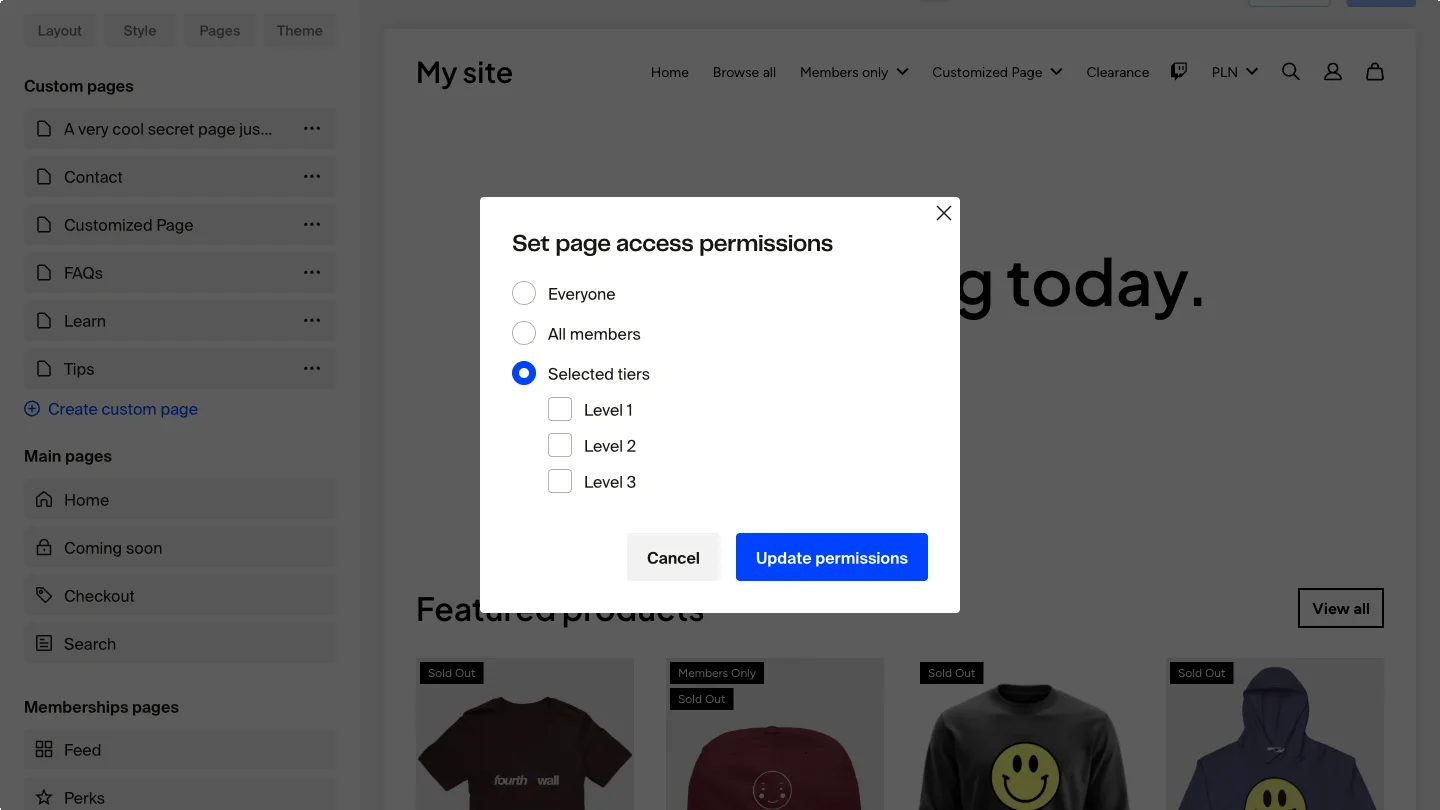
Only members on the selected tiers will be able to view the page content. Members on other tiers, and non-members, will see the locked paywall state.
Use tier-level access to create escalating levels of exclusive content. For example, reserve a "Behind the Scenes" page for your highest tier while keeping a "Community Resources" page open to all members.
What non-members see
When a non-member visits a locked page, they see a paywall screen instead of the page content. This locked state includes a prompt to sign up for your membership, giving visitors a clear path to join.
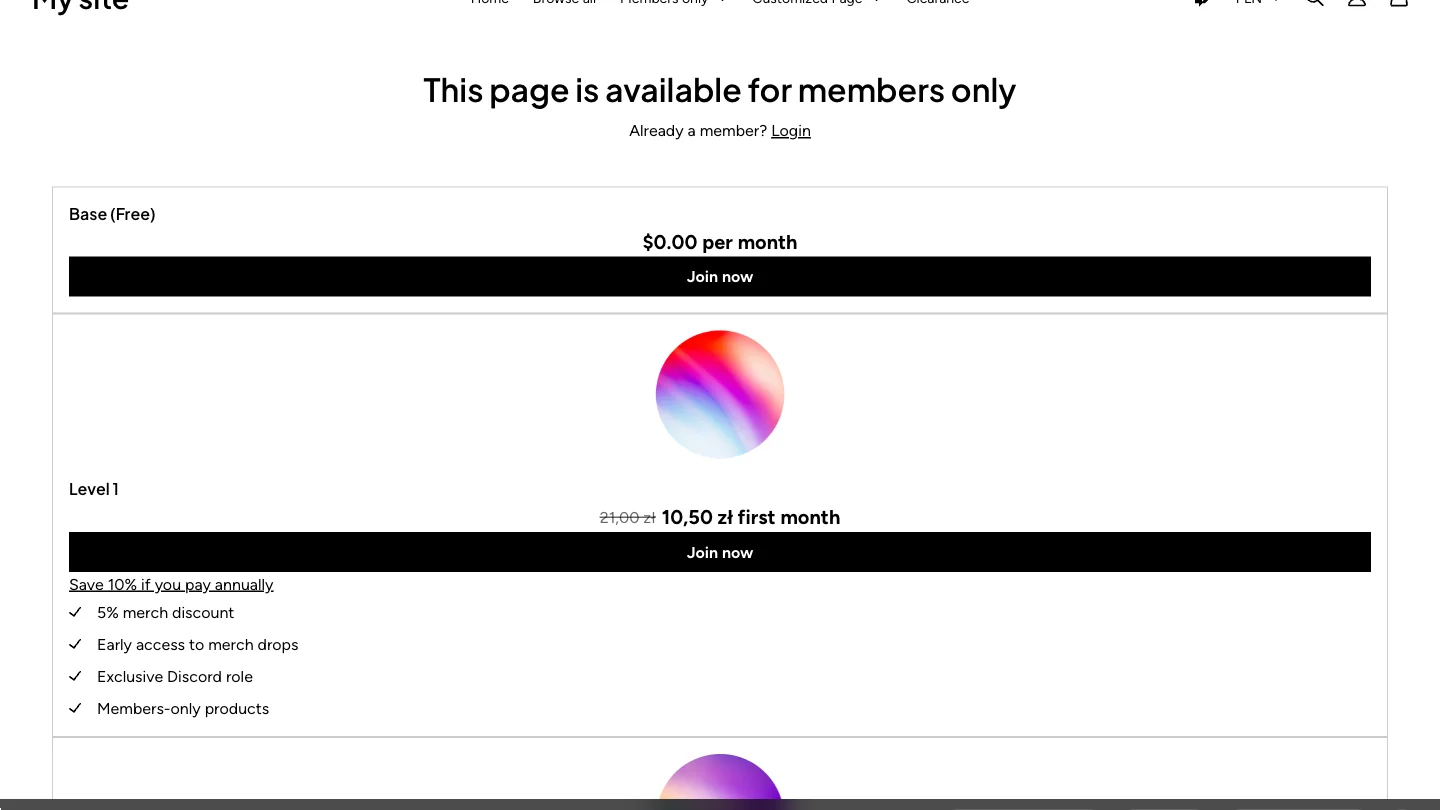
Members who are signed in and belong to an eligible tier see the full page content with all its sections.
Build your locked page
Locked pages support all the same sections and content blocks as regular pages. You can add text, images, videos, embedded content, and any other section type available in the site builder.
There are no restrictions on what you can include. Design your locked page the same way you would any other page on your site, then enable the Members only toggle to gate it.
The members-only setting only controls who can view the page. It does not affect how the page appears in your site editor. You'll always see the full page content while editing.
Remove members-only access
To make a locked page public again:
- Go to Site design > Pages.
- Select the locked page.
- Open the page settings panel.
- Disable the Members only toggle.
- Click Save.
The page will be visible to all visitors immediately.
Frequently asked questions
Can I lock any page on my site?
Yes. The members-only toggle is available in the page settings for any page, including custom pages you create.
Do locked pages show up in my site navigation?
Yes. Locked pages still appear in your menus and navigation. Non-members can click through to the page, but they see the paywall screen instead of the content.
Can I use locked pages together with members-only products?
Yes. Locked pages and members-only products work independently. You can use both to create a layered exclusive experience for your members. For more on members-only products, see Set members-only products and perks.
What happens if I change a member's tier and they had access to a locked page?
If you move a member to a tier that no longer has access to a specific locked page, they will see the paywall screen the next time they visit that page.
If you have any questions, do not hesitate to contact us at support@fourthwall.com.