Share members-only audio content on Spotify
Updated February 12, 2025
As an official Spotify partner, Fourthwall makes it easier than ever to share your exclusive audio content with your fans on Spotify. Whether you’re looking to enhance your existing podcast with members-only episodes or create a brand-new podcast, this integration helps you expand your reach and attract new members. In this guide, we’ll walk you through the simple steps to get started and make your exclusive content discoverable on Spotify.
How to sync your audio with Spotify
- Within your Fourthwall dashboard, navigate to Apps and choose the “Members-only audio on Spotify” app
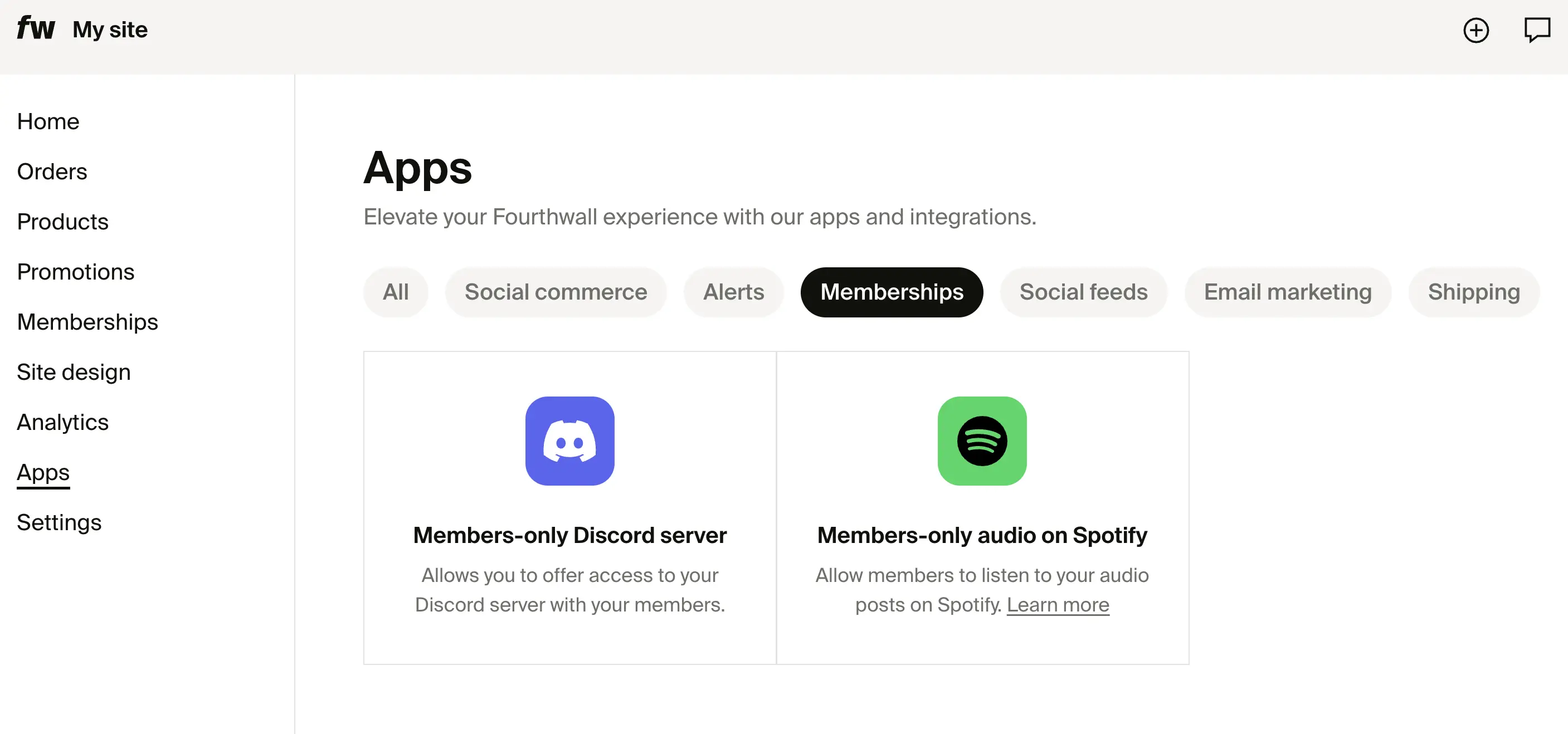
- Once inside the Spotify app page, click “Add members-only audio to Spotify”:

Once you click "Add members-only audio to Spotify", a modal window will show up where you can choose from two options:
- Add to your existing podcast, Select this option if you already have a podcast (not hosted with Spotify) with free episodes and want to integrate your members-only content in your Fourthwall membership directly on Spotify.
- Create a new podcast, Select this option if you have a podcast hosted on Spotify or to create a brand new podcast on Spotify that you can share with your members to listen to your exclusive content. Alternatively, you can use Fourthwall to power your podcast on Spotify in general - both free and members-only audio.
Warning: If your podcast is hosted with Spotify for Creators, you must select the "Create a new podcast" option to create a members-only podcast. The "Add to your existing podcast" option does not work for podcasts hosted with Spotify for Creators. For that option to work, your podcast must be hosted by external platforms (such as Acast) in order to add members-only episodes directly to your podcast using this integration method.
Depending on which path you choose, please refer to the correct section below.
Add to your existing podcast
If you select "Add to your existing podcast" option, the modal window will ask for your existing Spotify podcast URL:

- Once you add your Spotify podcast URL, our system will load your podcast data:

Note: the process will create a new, separate podcast on Spotify, even if the end goal is to integrate it with your existing podcast. So, to distinguish the two, it’s best to slightly adjust the name (e.g., with an extra suffix like “- Members only”). You can change those at any time later on as well.
- If podcast details are correct, you can continue by clicking the “Continue” button, and your podcast will be created on our platform (but not yet synced with Spotify):

If you’d like to change the podcast details, just click the “...” in the top right corner and you’ll be able to adjust the title, description, image, categories, etc.
- To publish your audio to Spotify, just follow the steps you see there under the “Add members-only audio to this podcast” heading.
3.1 - In the first step, you can define whether you want to include all of your audio posts on Fourthwall or just those with a specific tag (e.g., if you only want to publish your bonus content but not regular episodes). Once you have it defined, just click the “Sync podcast to Spotify” button, and the syncing process will begin:

The syncing process may take up to an hour. Once it’s all set, you’ll be presented with the following banner that also includes a link to your new Spotify podcast:

3.2 - As a next step, you need to log in to your Spotify for Creators account (the same one your main podcast is under) and claim your newly created podcast account right there. To do so, within your Spotify account, click the small circle account icon in the top right of the page and select “Add a new show”:

There, select “Find an existing show” option:

Then select that your podcast is hosted “Somewhere else”:

Copy the RSS link from step number 5 and paste it into the “RSS feed link” and click "Next" to continue with the claim process:

In the next step, you’ll be asked to confirm the podcast you’re claiming and then Spotify will ask you for a verification code sent to the podcast owner’s email - by default, we just take the email address of the Super admin on your Fourthwall account but you can always change it by editing the podcast details (“...” -> Edit podcast details). Once you claim your podcast, it will show up in the “Your shows” section of the sidebar.
To integrate your members-only episodes with your existing podcast, it’s important your main (free) podcast is also claimed on this particular Spotify account. You can do it the exact same way as above but using data provided by your main podcast platform.
3.3 - Once both podcasts are claimed, within your Spotify dashboard, select your main podcast from the “Your shows” menu on the left and click "Settings":

Scroll down to the “Sync your feeds” section, click “Learn more”:

And then “Get started”:

Then, choose your newly created members-only podcast as the “Paid feed” while your main podcast will be pre-selected as the “Main feed,” and click “Next”:

On the next screen, you’ll be able to define member benefits - you’ll be free to change them later on:

In the last step, Spotify will seek episode pairs between your main & paid feed:

The pairing works based on the title, and Spotify will simply hide the free version of the episode (in favor of the extended, ad-free one) so verified members are not presented with redundant content. Once you review episode pairs, you can finalize the setup.
Once these steps are done, you’ll see the synced status under your “Episodes” tab in your Spotify dashboard, where you can also configure episode pairs later on:

And on Spotify, your customers will start seeing locked content among your free content, as in the following example with I Could Murder a Podcast:

Create a new podcast
If you select the "Create a new podcast" option, you can create a brand new podcast and distribute your audio on Spotify with a couple of simple steps.
- In the modal window, select the “Create a new podcast” option:

-
A new podcast form will appear, asking you to provide the cover artwork, title, description, author, email, and category. The email will not be shared publicly anywhere, but it is critical for claiming the podcast on Spotify and getting additional statistics data (like views, subscribers, etc.).
-
Once you fill out all the data, just click “Continue,” and you’ll be presented with the single podcast view:

If you’d like to change the podcast details, just click the “...” in the top right corner and you’ll be able to adjust the title, description, image, categories, etc.
- To publish your audio to Spotify, click the “Sync podcast to Spotify” button. By default, it will sync all of your audio posts. However, the “Sync only audio posts with specific tags to Spotify” option allows you to control that.
Once “Sync podcast to Spotify” is clicked, the syncing process will begin and may take up to an hour. After the sync is complete, you’ll be presented with a “Synced to Spotify” note along with a link to your podcast on Spotify:

Now, your audio is fully synced with Spotify, and you can share the link with your fans!
How to stop syncing your audio with Spotify
To stop syncing audio with Spotify, just edit selected podcast within your Spotify app page on your Fourthwall dashboard, where you have two options:
- Click “Disconnect” in the “Synced to Spotify” section. This will stop syncing your podcast to Spotify, but your podcast settings will remain on your website, so you can always reconnect later.
- Click “...” -> “Remove podcast”, this will disconnect your podcast (as the option above) and remove your podcast settings from the site.
How can my customers listen to my audio posts on Spotify?
Depending on the type of setup you choose, access to members-only audio will be slightly different - the sections below cover the differences.
- Integrate with your existing podcast, If you integrate with your existing podcast, your members-only content will be displayed directly on your main Spotify podcast page in the form of locked episodes and a special banner displayed at the top.
- Create a new podcast, With this option, your members-only audio will be available directly on your newly created podcast, which you can share with your fans and discover directly on Spotify.
Following is an example of an integrated podcast using the “Synced Feeds” feature; however, the “Get access” buttons will show up in both setups:
Once your customers click the “Get access” button, they’ll be taken to a page where Spotify asks them to connect their Spotify account with your website:

Once approved with the “Link Account” action, they’ll be redirected to your Fourthwall site, where they’ll have the option to log in (if they’re already an existing member) or buy a subscription. Once logged in, they’ll be redirected to the list of your podcasts where they can access members-only episodes:

FAQ
-
How can my customers disconnect their Spotify accounts from my website?
-
All they need to do is log in to their membership account, navigate to Profile / Apps tab, and click “Disconnect” next to the Spotify
-
My customers report they can’t see locked episodes on my podcast, but I can.
-
Please make sure your customers are logged in to their Spotify account. Spotify won’t display paid content unless their site visitor is logged in.
-
Is there any additional fee that Spotify charges for subscriptions purchased this way?
-
No, there are no additional fees.