Launch memberships
Updated April 25, 2026
Posts, promotions, and other best practices for a successful membership launch
So you've created your first tier(s), added perks, and placed Memberships on your homepage. You're almost ready to take your community engagement to the next level. This guide walks you through creating content, setting up promotions, and enabling discounts so you can build hype and launch with impact.
Create content
There's no requirement to create content as part of your membership offering, but having at least one post is a great way to make members feel welcome and ensure a quality experience. It's good to know the basics, whether you plan to regularly share exclusive posts, videos, and audio with your members, or you're taking a more passive approach.
Add a welcome post
A welcome post is displayed to new members when they join a tier. This message is displayed at the top of the Members' Feed for 24 hours, can be dismissed at any time, and is always accessible from the customers' Perks tab.

To configure a welcome post, go to Memberships > Settings > Welcome post and select:
- Don't use welcome post – members won't see a welcome message
- Use the same welcome post for each tier – the same welcome post will be displayed for all members
- Use different welcome posts per tier – tailor your welcome message for each tier
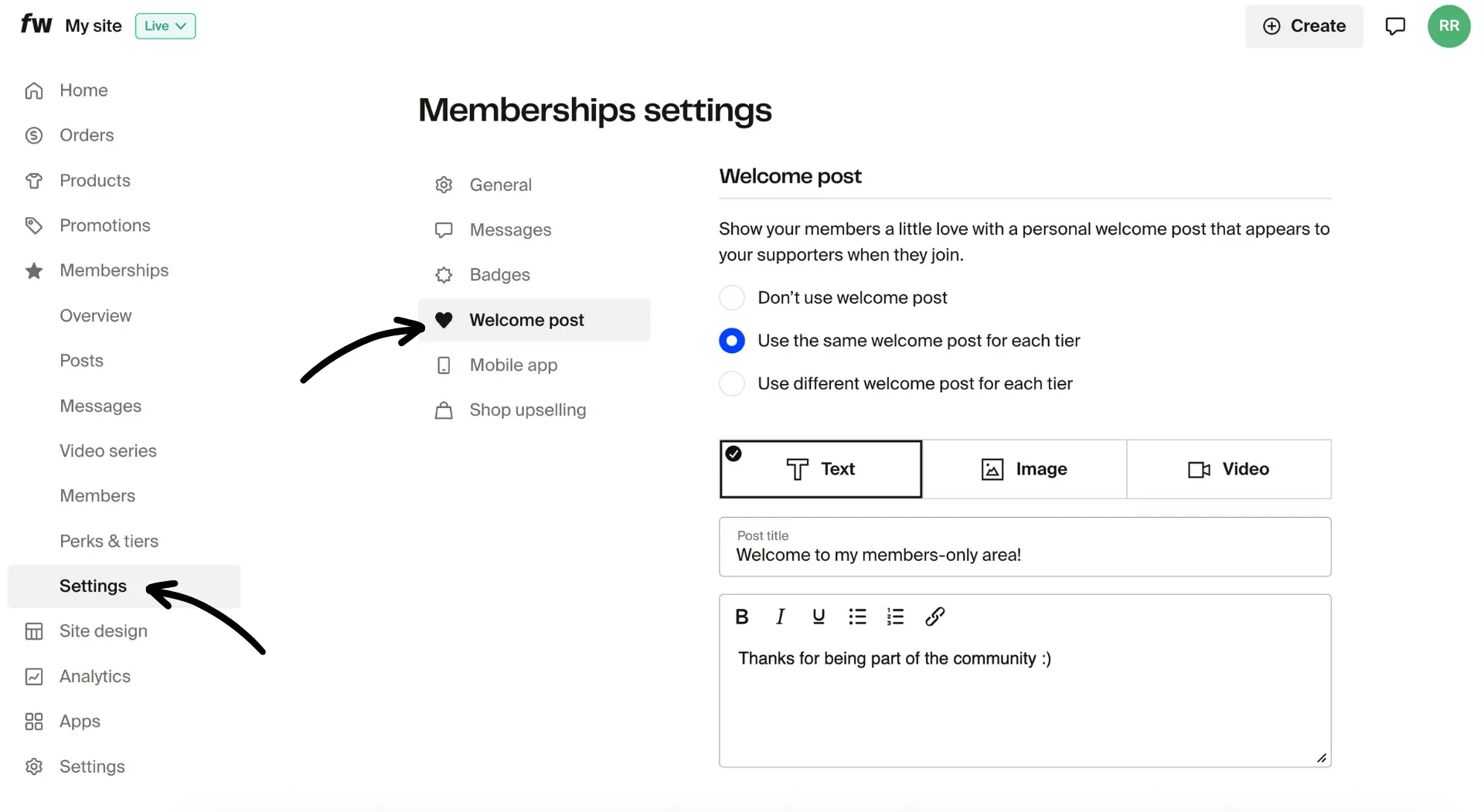
If you choose to create a welcome post, a content modal will appear, allowing you to choose from three post types:
When creating a welcome post, you can choose from three formats:
- Text – a written text post
- Image – a graphic or visual post
- Video – a personal video message
Once you're done, click Save to publish your post.
Create members-only posts
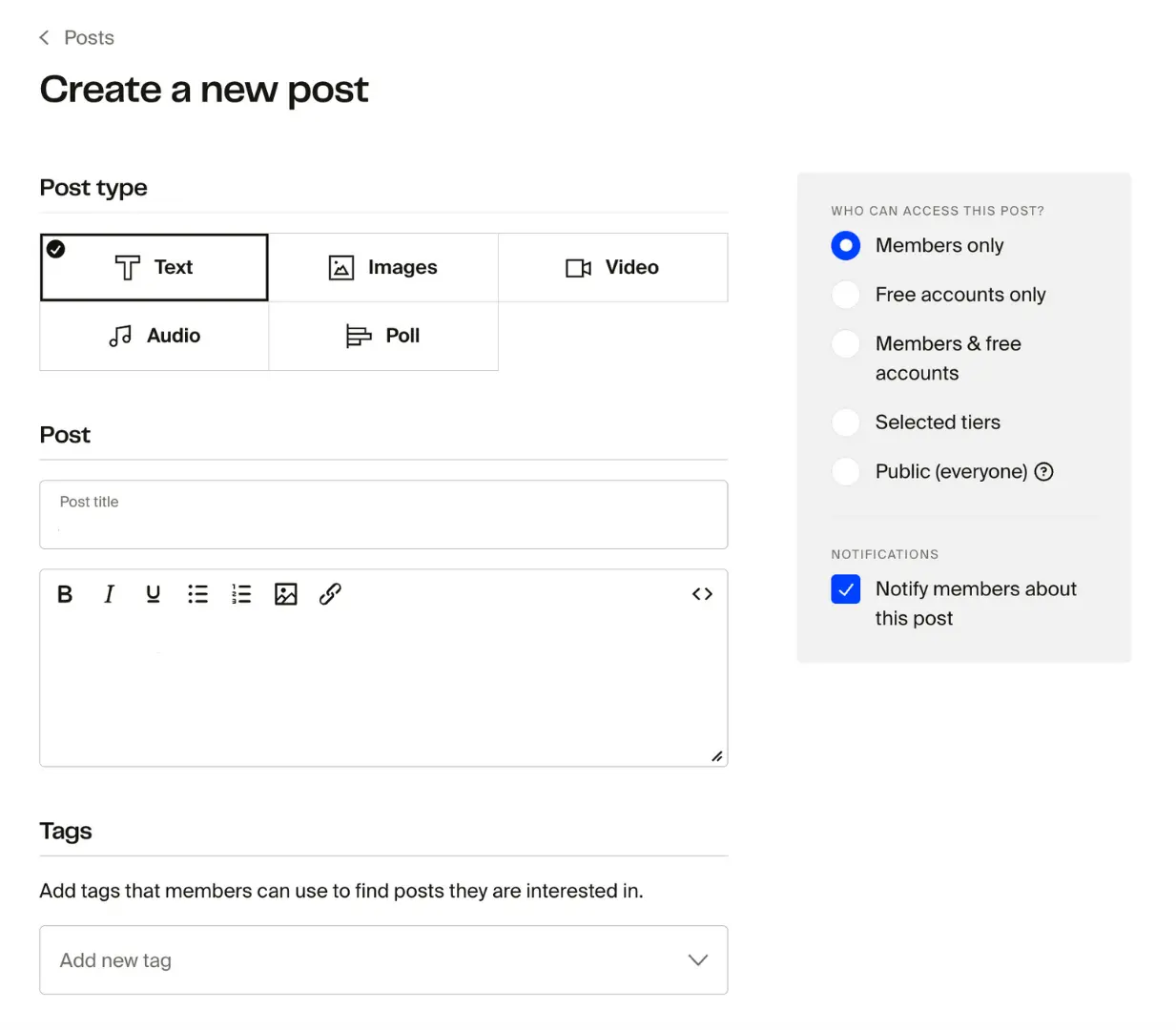
To share content with members, go to Memberships > Posts and select Create new post. You can add text, images, video, audio, or polls. Each post includes options for:
- Title and description – make your post clear and engaging
- Tags – organize content by theme or topic
- Permissions (WHO CAN ACCESS THIS POST?) – control who sees your post. Options include Members only, Members & Free accounts, Free accounts only, Selected tiers, and Public (visible to everyone, including non-members)
- Notifications – decide if members should be alerted about your post
Manage video series
Video series let you group related video and livestream posts into a playlist-style collection for your members. You can create and manage series directly from Memberships > Series.
From the series view, you can:
- View all videos in a series at a glance
- Add videos to a series by clicking Add video and selecting from your existing posts
- Delete videos from a series by selecting a video and removing it
Video reordering within a series is planned but not yet available. Videos currently display in the order they were added.
For a detailed walkthrough on creating video and livestream posts, see Memberships: Posts.
Create promotions
Enable annual subscriptions
Annual subscriptions encourage long-term support and give you a predictable revenue stream.
To enable, go to Memberships > Settings > General, check Offer annual subscription, and set a discount percentage. The system automatically calculates the annual pricing.
Example:
- Monthly price: $10
- Annual discount: 10%
- Annual price: $10 × 12 months × 90% = $108
Members will then see both monthly and annual options at checkout.
Enable subscription discounts
Want to boost signups at launch? Offer one-time discounts for new members.
-
Click the gear icon and select Edit tier next to the tier you want to discount

-
Check Offer one-time discount
-
Set discount amounts for monthly and annual membership
-
(Optional) Choose Make this offer time-limited to set start and end dates
This strategy is especially effective during launch or seasonal promotions.
Display public member count
You can show your total member count on the tiers view of your membership page. This acts as social proof and can encourage new customers to join.
To enable this:
- Go to Memberships > Settings > General.
- Find the Public member count option.
- Toggle it on.
The member count is hidden by default. When enabled, visitors see the total number of active members displayed on your tiers page.
Ready for launch
Once your content and promotions are in place, it's time to announce your Memberships to the world. Share the news across your homepage, shop, and social channels to build excitement. The more you highlight the value of your tiers and perks, the stronger your launch momentum will be.
Still have questions? Check out our Memberships FAQ.