Memberships: Posts
Updated August 18, 2026
Create and manage posts for your membership audience
Membership posts let you share updates, media, and interactive content with members, free users, or the public. This article guides you on how to create a post, the available post types, and who can access them.
Step 1: Create a new membership post
From your Fourthwall dashboard:
- Go to Memberships > Posts.
- Click Create new post.
You'll be taken to the Create a new post page, where you can choose the type of content you want to publish.
Step 2: Choose a post type
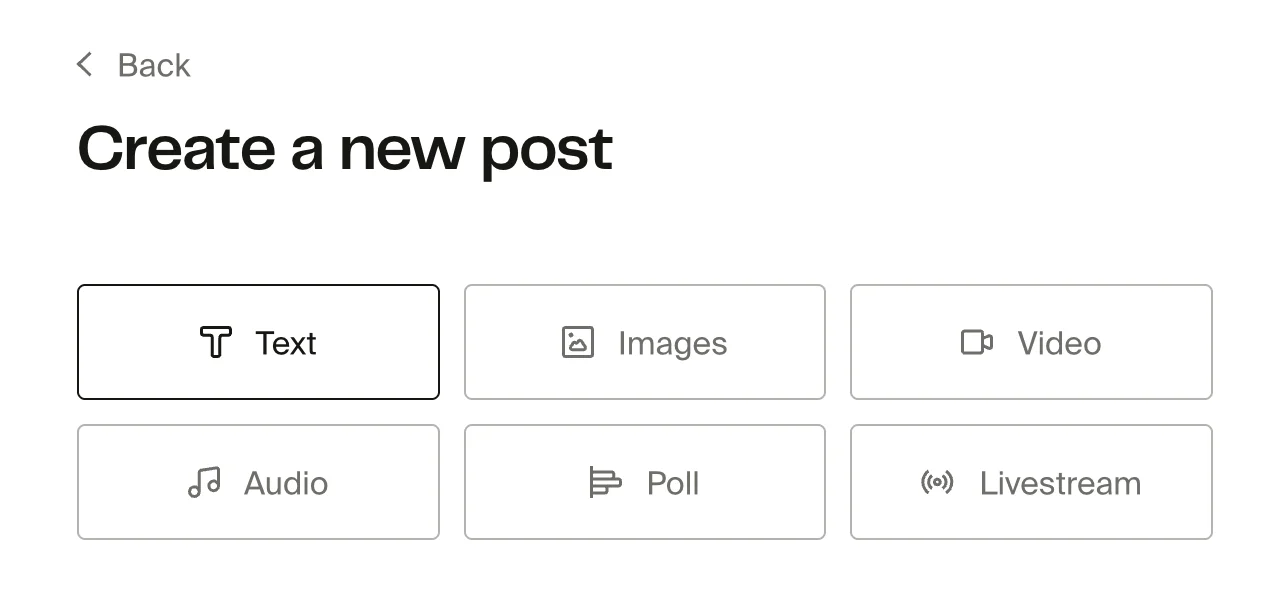
What you can add and configure depends on the post type you select.
Step 3: Configure your post
Configure your post by adding a title, description, and tags, then adjust any options specific to the post type you selected.
Text
Use text posts for written updates, announcements, or longer-form messages to your audience. Text posts support rich formatting, allowing you to structure content clearly and include embedded images and links directly within the body of the post.
Sample post:

Image
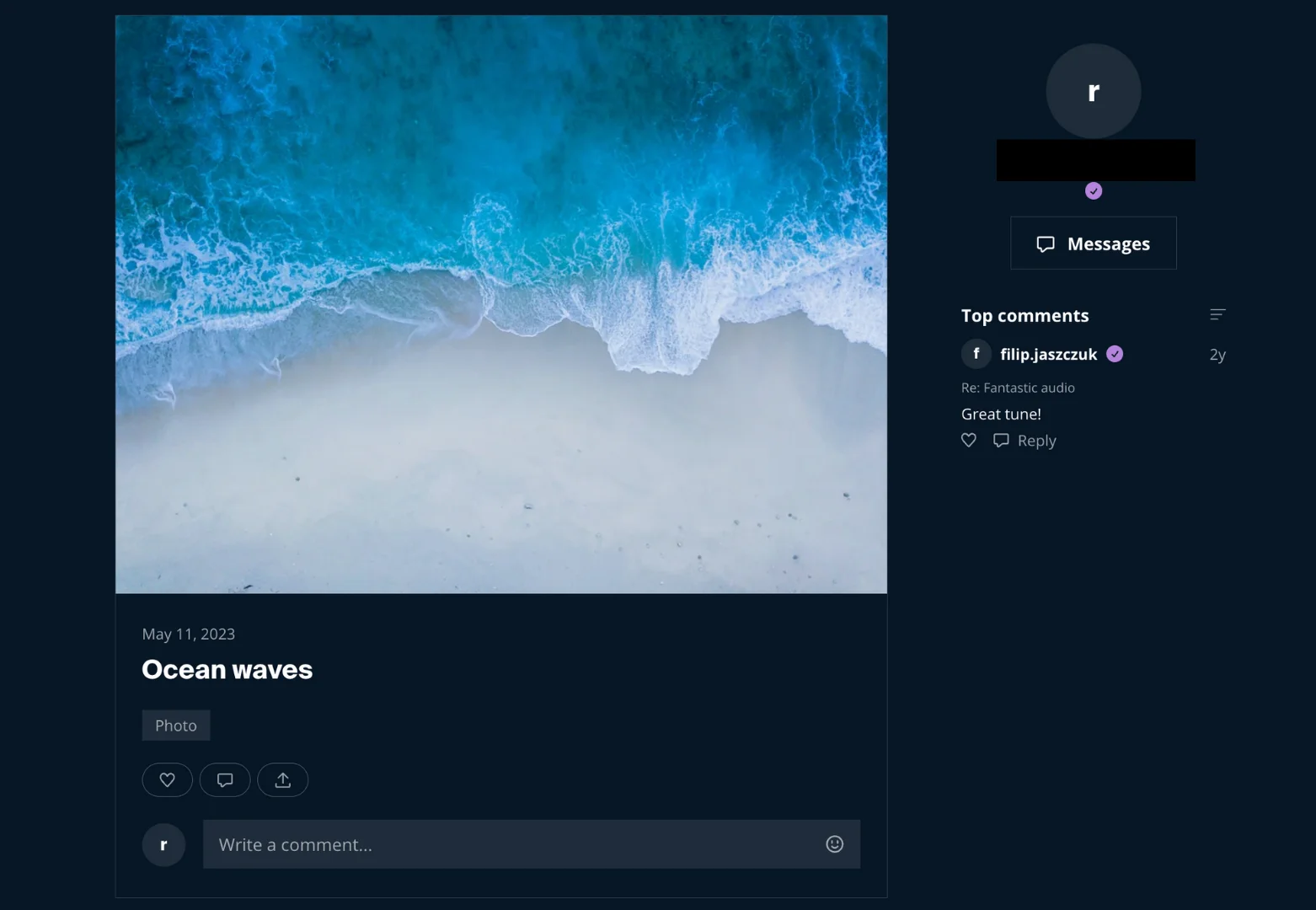
You can use image posts to share one or more visuals with your audience. You can upload images by dragging and dropping files or browsing from your device, making this ideal for product previews, announcements, or simple visual posts.
Sample post:
Video (Upload or Embed)
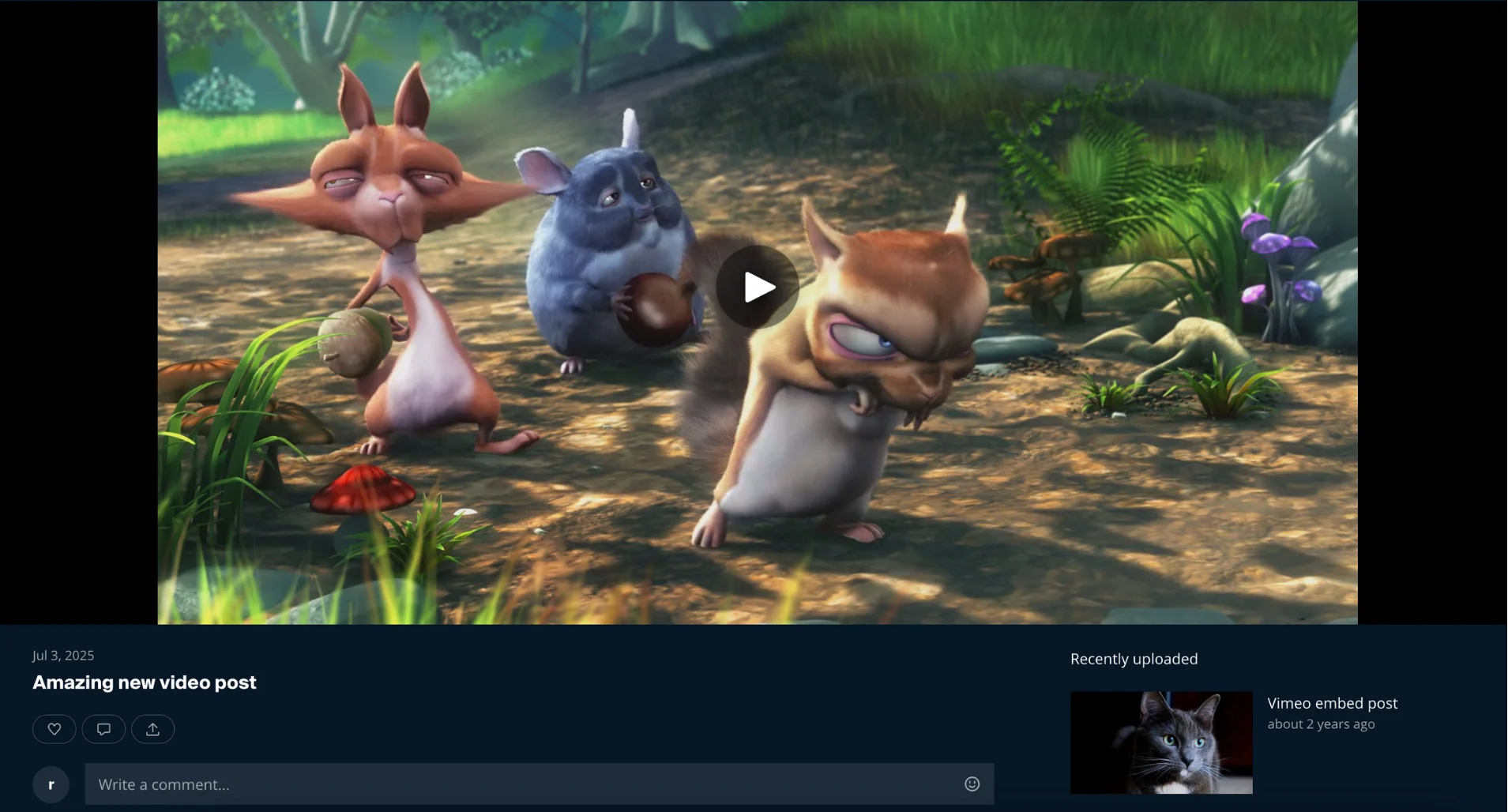
Use video posts to share recorded video content. You can upload a video file directly or embed a video using a supported URL. Embedded videos currently support YouTube, Vimeo, and Streamable. You can also organize videos by adding them to an existing video series or creating one during setup.
Direct video uploads are handled through Mux, a professional video hosting service, so they aren't subject to the file size limits that apply to digital product uploads. Uploading directly gives your members an ad-free, in-page player. If you prefer to host elsewhere, upload your video to one of these platforms and embed it using the URL. Here's what each platform offers:
- YouTube - Set the video to Unlisted if you don't want it publicly discoverable. Only people with the link (your members) can watch it.
- Vimeo - Supports privacy controls and does not show ads on embedded videos. This makes Vimeo the best option if you offer ad-free video content to your members.
- Streamable - A lightweight option for shorter clips and quick uploads.
Sample post:
Audio
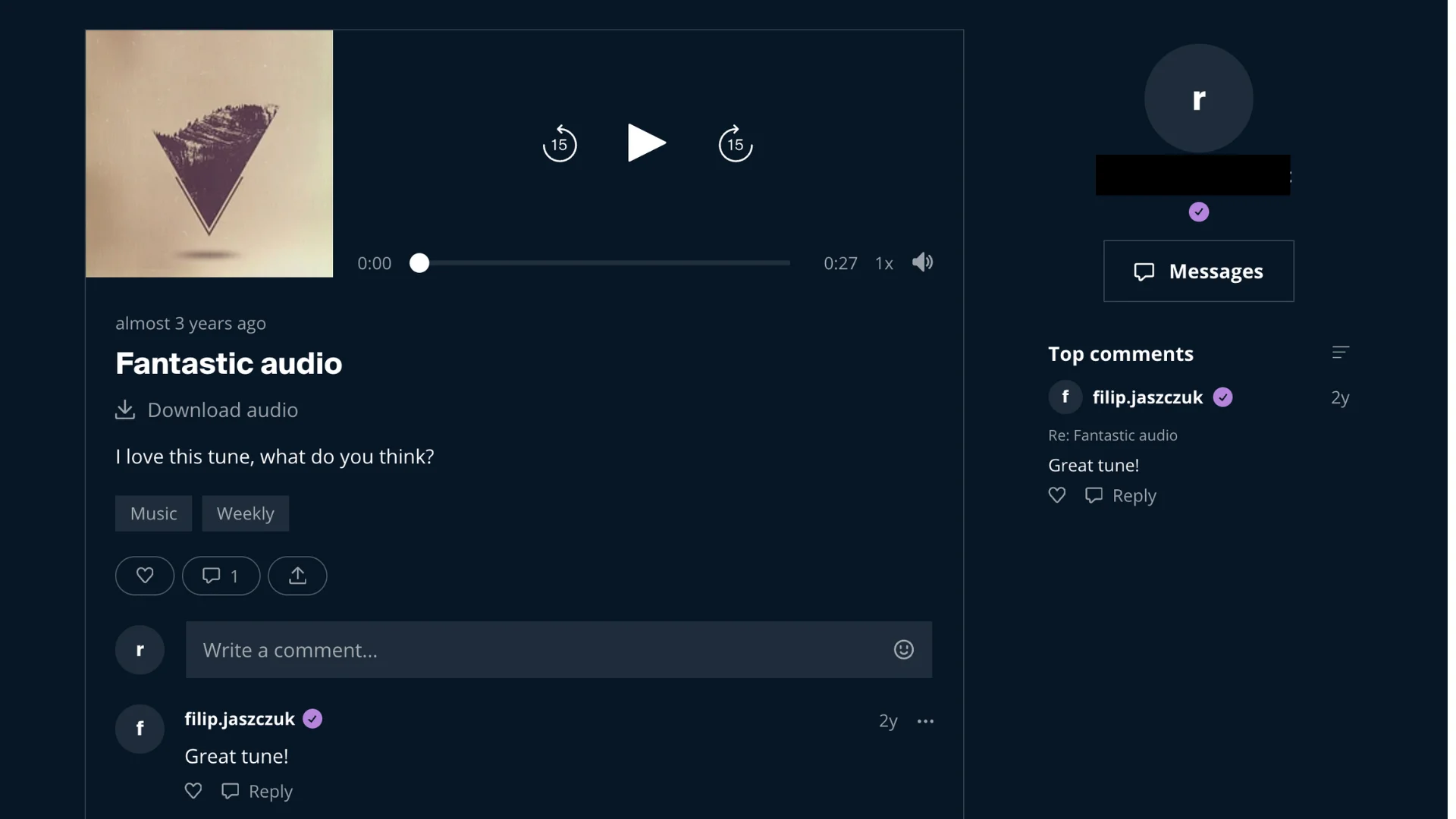
Use audio posts for podcasts, voice updates, or other audio-only content. You can upload an audio file and optionally include a cover image or thumbnail to visually represent the episode or recording.
Sample post:
Poll
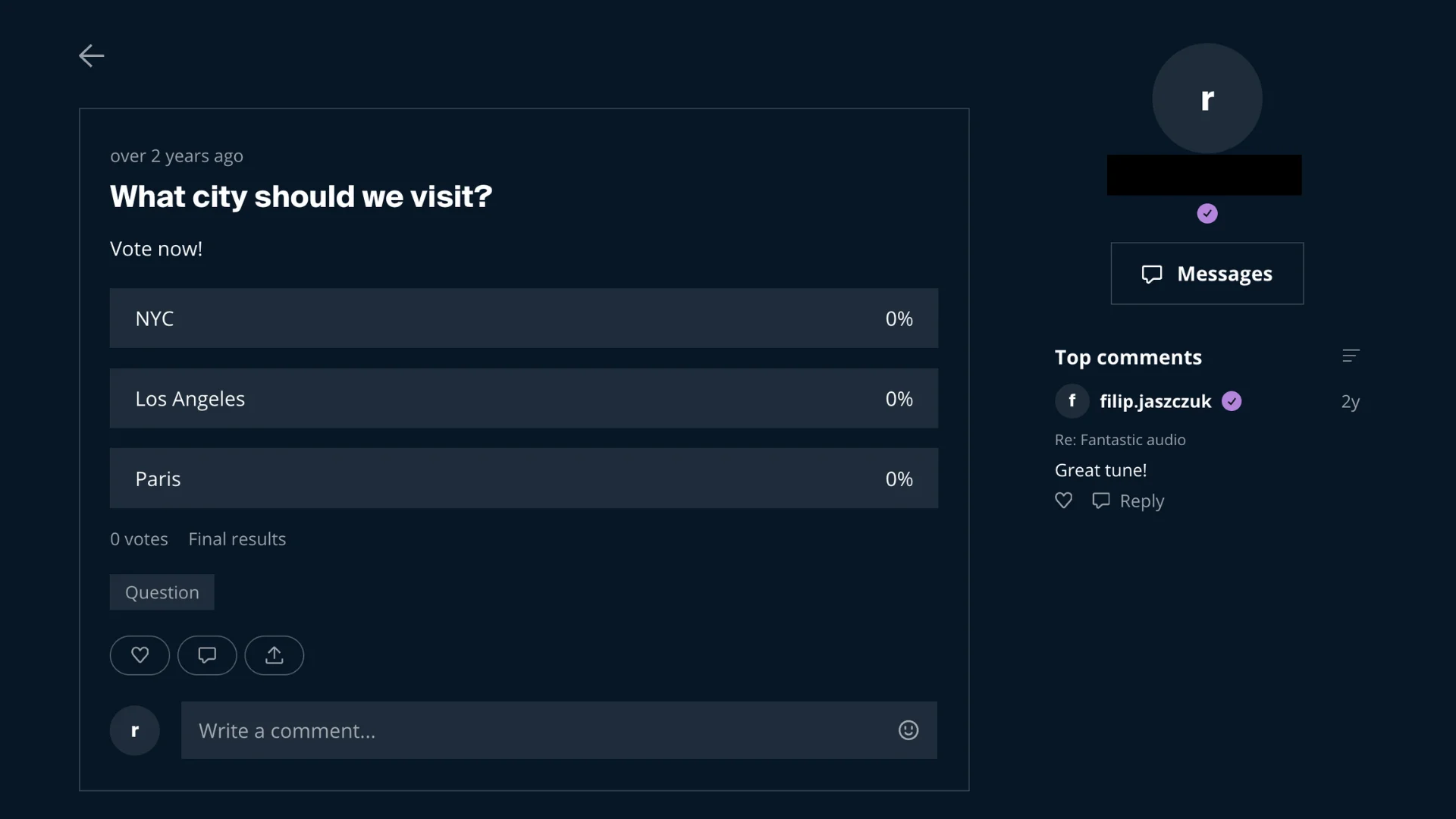
Use poll posts to gather feedback or opinions from your audience. You can create multiple answer options and set how long the poll stays open using a configurable duration.
Sample post:
Livestream
Use livestream posts to broadcast live content to your audience. You can connect your streaming software using either RTMPS or SRT, upload a custom thumbnail, and optionally group livestreams into a video series for easier organization.
Fourthwall enables livestreaming per account. Until it's turned on for your account, the Livestream option won't appear in the post type selector. To request access, contact Fourthwall support.
Sample post:

Step 4: Set post access permissions
Once you're done with setting up your post, on the right-hand panel, choose who can access this post:
- Members only
- Free accounts only
- Members and free accounts
- Selected tiers
- Public (anyone, including non-members)
The Public option makes a post readable by anyone who visits your shop, including people who have never signed up for your membership. Public posts let you run a general-purpose blog right inside Fourthwall. Share announcements, behind-the-scenes updates, or news you want everyone to see, while keeping other posts locked to members or specific tiers. You can mix public and members-only posts freely in the same feed.
You can enable Notify members about this post to send notifications when the post goes live.
Step 5: Publish or schedule the post
At the top of the page, you can:
- Go live now to publish immediately
- Use the calendar icon to schedule the post for a future date and time
Once published or scheduled, the post appears in your memberships feed based on the access rules you selected. Every post, public or members-only, lives at the /memberships feed URL on your storefront (for example, your-shop.com/memberships). This is the single feed where all of your posts are listed.
Viewing comments on your posts
Comments on membership posts are visible on the public post page on your live storefront, not in the admin dashboard. To read and respond to comments left by your members:
- Go to your shop's storefront (your public site URL).
- Navigate to your memberships feed by visiting the Memberships page on your site.
- Find the post you want to check and click on it to open the full post page.
- Scroll down to see the comment section below the post content.
You can reply to comments directly on this page. Your replies appear with a creator badge next to your name, so members can easily tell which comments come from you.
Bookmark your memberships feed URL for quick access. The feed lists all your published posts in order, making it easy to find the one you need.
Surface public posts as a standalone blog
Public posts can act as a free blog for your shop. All posts live at the /memberships feed URL on your storefront, so you can point supporters there directly or rework that feed to read like a blog. You have a few options:
- Add a navigation link to the
/membershipsfeed. Go to Site Design > Layout, select Header or Footer, and click Edit menu. Add a menu link that points to/membershipsso visitors can reach your posts from anywhere on your site. For step-by-step help, see Edit menus and dropdowns. - Rename the navigation label. The link does not have to say "Memberships." Name it something that reads like a blog, such as Blog or Updates, so casual visitors understand they will find articles and news there.
- Customize the feed page layout. Open the Memberships feed page in Site Design > Layout to adjust how the feed looks: add or reorder sections, set a header image, and style the page to match the rest of your site.
Feature recent posts on other pages with custom HTML
You can link to or highlight your latest posts from any page on your site using a Custom HTML section. Add the section in Site Design > Layout, then paste in your own HTML to build a "Latest posts" block, a button that links to your /memberships feed, or links to individual public posts.
To copy the URL for a specific post, open it on your live storefront and copy the link from your browser's address bar. Post URLs include unique identifiers, so always copy the real URL rather than guessing it. For more on custom HTML, see Add custom HTML, CSS, and third-party scripts to your Fourthwall site.
Membership posts and the Storefront API
The Fourthwall Storefront API does NOT expose membership posts. You cannot fetch posts programmatically through the Storefront API or any other public endpoint. There is no way to pull post content, comments, or feed data into a custom frontend or external site through an API.
If you build a custom storefront with the Storefront API, your posts still live only at the /memberships feed on your Fourthwall-hosted storefront. To surface them elsewhere, link out to the /memberships feed or to individual public post URLs.
FAQ
Why aren't links clickable when members leave comments on posts?
Links shared by members in comments are displayed as plain text and are not clickable. This is intentional and helps to minimize spam and misuse. Currently, other members can copy and paste the link from the comment to access it. Alternatively, you can encourage members to include relevant information from the link directly in their comments if it's not too lengthy. This way, the relevant details are readily available to everyone.
Is there a file size limit for video posts?
No. Direct video uploads for membership posts go through Mux, a professional video hosting service, so they don't have the file size limits that apply to digital product uploads (25 MB on free plans, 1 GB on paid plans). Those digital product limits are a separate feature and don't apply to membership video posts. If you'd rather host your video elsewhere, you can embed a YouTube, Vimeo, or Streamable URL into the embed field when creating a video post instead. To keep an embedded video private, use YouTube's Unlisted setting or Vimeo's built-in privacy controls. Vimeo embeds also don't show ads, making it a good choice for members-only video content.
Can I view comments on my posts from the admin dashboard?
No. The admin dashboard does not have a "View comments" feature for membership posts. To see comments, visit the post on your live storefront. Open your shop's public URL, go to your memberships feed, and click on the post. All member comments and your replies appear on the public post page.
How do I find the public URL for a specific membership post?
The easiest way is to start from your storefront's memberships feed. Visit your public shop URL and navigate to the Memberships page. Your posts are listed in the feed in chronological order. Click on any post to open it, and the URL in your browser's address bar is the direct link to that post. Avoid guessing URL structures manually, as post URLs include unique identifiers that aren't predictable from the post title alone.
Are my comments visually distinguished from member comments?
Yes. When you reply to comments on your own posts, your name displays with a creator badge (a label next to your name). This badge makes it clear to members that the comment comes from you, the creator, rather than from another member.
Can I unpublish or revert a published membership post to draft?
No. Once a post is published, it cannot be reverted to draft. To remove a post from your feed, delete it using the three-dot menu on the post. This permanently removes the post and its content. Tier unpublishing is a separate feature that hides a tier from new subscribers but does not apply to individual posts.
Can I edit a published post?
Yes, you can edit a published post's content. Open the post from Memberships > Posts and make your changes. However, you cannot change its status back to draft.