Cancel or refund a member's subscription
Updated September 30, 2026
Manage membership cancellations, refunds, and payment methods directly from your dashboard
You can cancel subscriptions, issue full or partial refunds, and remove payment methods for any member right from the Fourthwall dashboard. Here's how each option works.
Note: The cancel and refund steps on this page apply to paid memberships only. Free members do not have a subscription, so there is nothing to cancel or refund. See the FAQ below for details.
Note: If you're looking to cancel or refund a merch order instead, go to How to cancel and refund an order?
Cancel vs Refund: What's the difference?
Canceling a subscription
- Ends the subscription, either immediately or at the end of the current billing cycle.
- During cancellation, you can choose:
- Full refund
- Prorated refund
- Custom refund amount
- No refund, available both to creators and via member self-serve
Refunding a subscription
- Issues a refund for a specific past transaction but does not cancel the subscription.
- The member will continue to renew unless you cancel the subscription separately.
Canceling a member's subscription
To cancel a subscription:
-
Within your Fourthwall dashboard, go to Memberships > Members.
-
Search for the member you wish to cancel the subscription for, and click on their name to see more details.
-
Click the three dots in the top-right corner and select Cancel subscription.

A cancellation modal will appear with the following options:
-
When do you want to cancel this subscription?
- Remove access immediately
- Remove access at the end of cycle
-
Do you want to issue a refund for this subscription?
- Full refund
- Prorated refund
- Custom amount
- No refund

- Choose the cancellation reason, and if you want to issue a refund.
Important notes:
- During cancellation, you can only refund the latest subscription payment.
- To refund earlier payments, complete the cancellation first, then issue additional refunds separately.
- Click Confirm cancellation (or Confirm cancellation and refund $XX) to complete the cancellation process. Once processed, this cannot be undone. The member must resubscribe to regain access.
What you'll see after cancellation
- Immediate cancellation: Member badge updates to "Former member"
- End-of-cycle cancellation: Badge updates to "Expiring member"
Note: Members can cancel their own subscription and select No refund directly through their account. This allows creators to avoid the need for manual cancellation if a member simply wishes to end their subscription without receiving a refund.
Refunding a member's subscription
- Inside the member details, click the three dots in the top-right corner and select Issue a refund.
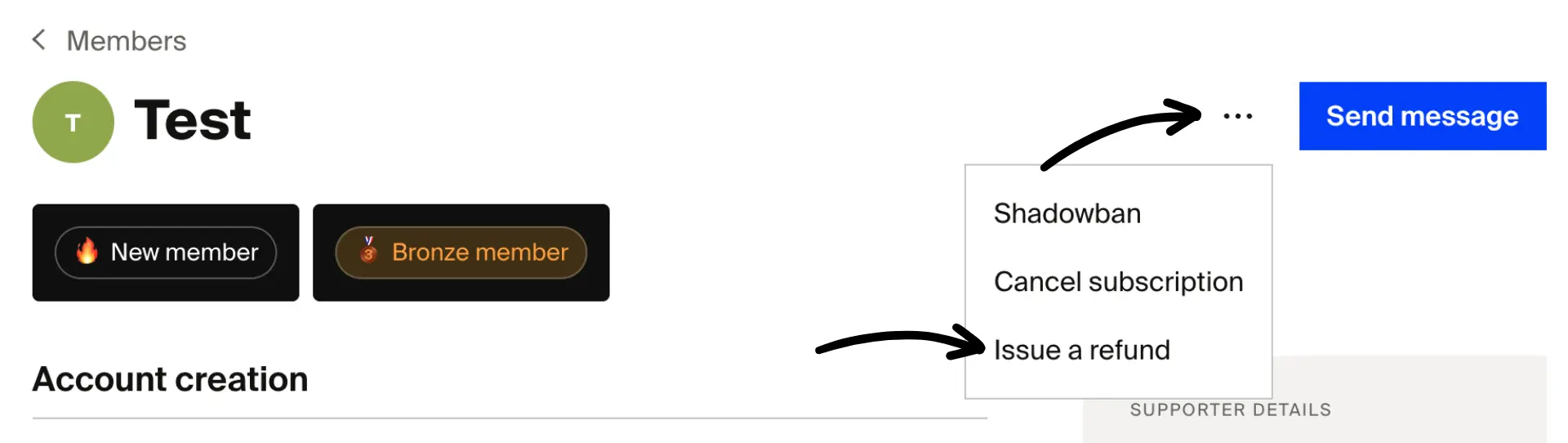
The refund modal will appear.
- Choose the transaction to refund and the refund type
Select a transaction to refund
You can pick the most recent or any prior subscription payment. Refunds are processed one transaction at a time.
Tip: The member detail page now shows a member's full payment history, including amounts, under the payment history tab, which is especially useful when a member pays a custom amount above the tier minimum. The refund modal lets you pick the specific transaction to refund. No charge or change is made until you click Refund, so you can close the modal at any point without affecting the subscription.
Full or partial refund?
- Full refund
- Prorated refund
- Custom amount

- Click Refund $X to confirm. Please remember that this action is irreversible.
Removing a member's payment method
If a member's payment method needs to be removed (for example, after repeated failed charges or at the member's request), you can do this from the member's billing tab.
-
Within your Fourthwall dashboard, go to Memberships > Members.
-
Search for the member and click on their name to open their details.
-
Click the Billing tab.
-
Click Remove payment method.
Note: Removing a payment method does not cancel the subscription. The member's next renewal will fail unless they add a new payment method. If you want to end the subscription entirely, cancel it separately using the steps above.
FAQ
Can I cancel or remove a free member?
Free members do not have a subscription, so there is nothing to cancel or refund. The cancel and refund options in the dashboard apply only to paid membership subscriptions.
You can't remove free members from the dashboard. See the next question for how to have an account removed.
Can a member's account be deleted?
Yes, but only Fourthwall can fully remove a member account, free or paid. You can't remove accounts from the dashboard, and members can't delete their own account on your website.
- A member wants their account removed. Point them to your shop's support email to request removal.
- You want to remove accounts. Contact support directly, especially for a larger batch of accounts.
Unsubscribing from notification emails doesn't remove an account. It only stops the emails.