Export product lists from Fourthwall
Updated October 30, 2026
Clarification on CSV exports and available alternatives
Your dashboard offers CSV downloads for orders, unshipped self-fulfilled items and analytics reports. Each one covers different data, and none of these three is a full product catalog file. For product names, descriptions and prices, use your shop's product feed.
Which CSV download has product information?
Fourthwall's dashboard CSV downloads each hold a different kind of data:
- Orders export: Order-level customer details, addresses and totals. It doesn't include per-item product names, Stock Keeping Units (SKUs) or quantities.
- Unshipped orders CSV (
OrdersToShip.csv): Item names, SKUs, quantities and shipping details for self-fulfilled items you still need to ship. It lists only what's left to ship, so it isn't a record of past orders or a full product list. - Analytics report export: The data from the report you choose. For example, Top products by units sold is a sales summary per product, with units sold and order counts. It doesn't include product descriptions or listing settings.
Export orders
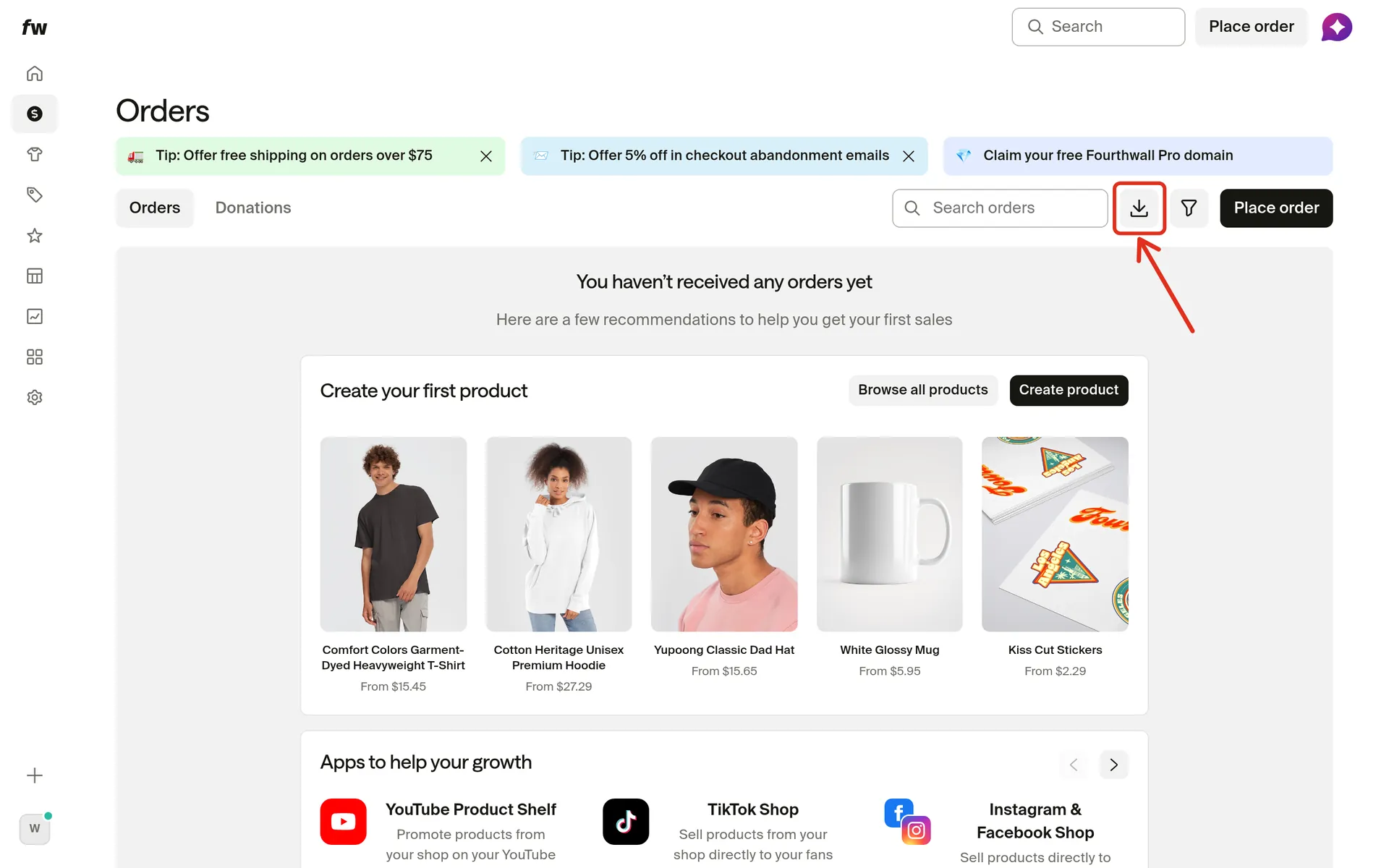
The Orders export downloads order-level customer details, addresses and totals. Fourthwall may ask you to confirm by email before the file downloads.
- Go to Orders.
- Click Export orders, the download icon beside Search orders.
Download unshipped orders
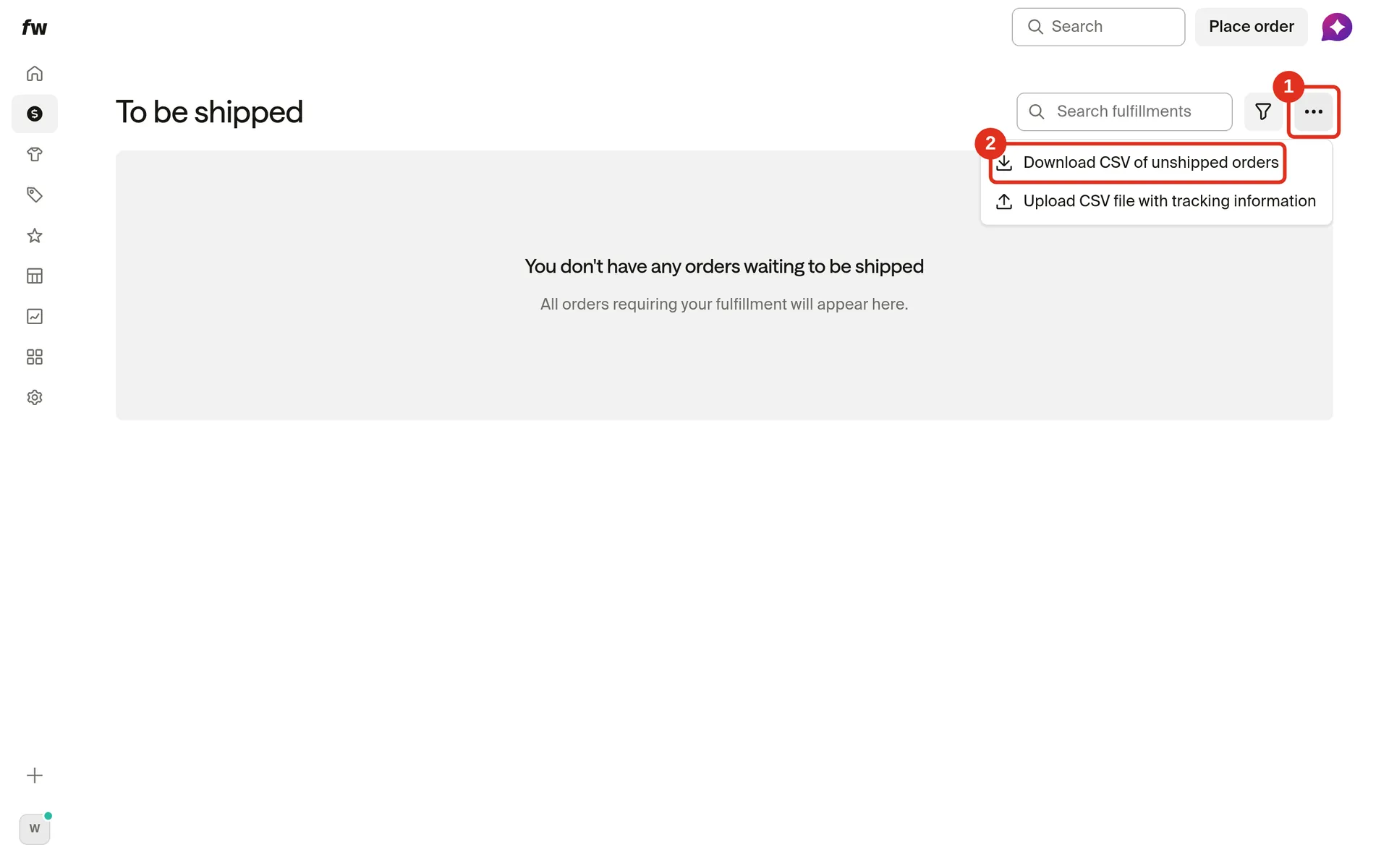
The unshipped orders CSV (OrdersToShip.csv) lists the self-fulfilled items you still need to ship, with item names, SKUs and quantities. Fourthwall may ask you to confirm by email before the file downloads.
-
Go to Orders > To be shipped.
-
Open Options (the three-dot menu) and click Download CSV of unshipped orders.
Export an analytics report
Analytics reports download as CSV files with the data from the report you choose. Top products by units sold, for example, exports a sales summary per product.
- Go to Analytics > Reports.
- Choose Top products by units sold or another report.
- Click Export.
Workarounds
If you need your product information for external platforms (like Pinterest or Facebook catalogs), here are a few ways to get it:
-
Manual export: From your Products page, copy your product names, prices, and URLs into a spreadsheet.
-
Use your shop's product feed: An XML file at your shop's address followed by
/.well-known/merchant-center/rss.xmllists up to 1,000 of your public products, with names, descriptions, variants, SKUs, prices and links. See Does Fourthwall provide a Google Product Feed URL? -
Request support assistance - In some cases, Support can generate a spreadsheet of your product details upon request. This file may include:
- Product name
- Descriptions
- Variants (sizes, colors, etc.)
- Pricing
- Archived or hidden products (clearly marked)
To request this, contact Support with:
- The shop URL
- A description of the data you need
- The purpose (e.g., migration, backup, POS integration, etc.)
Frequently asked questions
Does Fourthwall provide a Google Product Feed URL?
Yes, every Fourthwall shop has a public product feed in Google Merchant Center format (an XML file). The feed URL is your shop's address followed by /.well-known/merchant-center/rss.xml, for example https://yourshop.fourthwall.com/.well-known/merchant-center/rss.xml, or https://yourdomain.com/.well-known/merchant-center/rss.xml with a custom domain.
The feed lists up to 1,000 of your shop's public products, one entry per variant, with the title, description, price, availability and product link. Each entry also includes the variant's SKU (as mpn) and, where the variant has them, its color and size. Hidden, archived and members-only products, bundles and gift cards aren't included. The feed stays empty while your shop isn't live, for example in Coming Soon mode or while password-protected.
The feed includes only one image per product variant: the variant's first image (image_link). Additional gallery images aren't included; there's no additional_image_link.
Feed prices are in your shop's base currency, the currency your product prices are set in (USD for nearly all shops), even when local currencies are turned on for your site. The feed has no currency option, so you can't get a feed in EUR or other currencies. Local currencies for your site are set under Settings > Checkout; see Multi-currency settings.
For EU targeting, Merchant Center's currency conversion is on by default and shows converted prices when the target country uses another currency. Google asks you to show the price in its original currency clearly on your landing pages and site. Google's language requirements still apply; see selling in multiple countries.
Can I use Google Merchant Center to list my Fourthwall products on Google Shopping?
Yes, Google Shopping can list your Fourthwall products through your own Google Merchant Center account and your shop's feed URL. You don't need a CSV or Google sheet of your catalog for this. In Merchant Center, add a product source, choose Add products from a file > Enter a link to your file, and paste your shop's feed URL. Google fetches the feed every 24 hours by default, but a fetch doesn't mean Google approves or lists your products. For Google's steps, see Google's guide to adding products from a file.
Merchant Center also asks you to verify and claim your website. If Google gives you a meta tag or DNS record to add, How do I verify my Fourthwall site with Google Search Console? shows where each one goes. Google lets only one Merchant Center account claim a website, so claiming your custom domain in your own account can conflict with the Merchant Center integration Fourthwall manages for the YouTube Product Shelf. If that happens, see Releasing a previous GMC domain claim.
Can I log in to or get access to the Merchant Center account for my YouTube Product Shelf?
No, you don't have access to the Google Merchant Center account Fourthwall manages for the YouTube Product Shelf, and Fourthwall doesn't give creators access to it. When you connect the YouTube Product Shelf, Fourthwall manages the Google Merchant Center integration and sends your products to Google automatically. You don't need your own Merchant Center account or the product feed for YouTube.
Check product status in Apps > YouTube Product Shelf in your Fourthwall dashboard.
If a Resolve link opens Merchant Center setup or asks for a store or website verification code, don't create or claim another Merchant Center account for YouTube. The same applies if Google says you don't have access. Follow YouTube Product Shelf Troubleshooting instead.
Does the product feed include shipping rates or return policies?
No, your shop's product feed doesn't send shipping rates or return policies to Google. The feed includes shipping weight, but no shipping costs, handling or transit times, return policies or target countries. Adding it to your own Merchant Center doesn't sync your checkout shipping rates into that account. The feed is an XML file, not a Google sheet or worksheet from Fourthwall, so you set shipping and returns in Merchant Center itself.
The feed, the dashboard CSV exports and Fourthwall's documented developer API don't provide a table of checkout shipping rates by product and destination.
How much shipping costs for your customers shows how to check a product's shipping cost for a single item. Checkout calculates shipping for each cart and address, so order quantity and destination change the total.
How do I set up shipping and returns for Google Shopping?
Shipping and returns for Google Shopping, including free listings, are set in your own Merchant Center account, under Shipping and returns.
- Shipping policies: Add shipping policies for the countries and products you sell to, with handling and transit times. Compare their costs and delivery estimates with your shop's checkout for the same products and countries, and don't assume shipping is free. If you can't closely match the shipping costs at checkout, Google allows you to overestimate your shipping costs. The shipping charged at checkout must never be more than the shipping cost you give Google.
- Return policies: Go to Return policies > Add return policy. Use your shop's actual return policy URL and settings that match your website. Google reviews return policies, so check their Status there.
For Google's requirements, see its help on shipping settings, checkout and return policies. To check what your customers pay for shipping and where on-demand products ship, see How much shipping costs for your customers and Countries Fourthwall ships to for on-demand products.
Can I use shipping rate tables, shipping labels or product-level shipping with my product feed?
Yes, a Merchant Center supplemental data source can add shipping_label or other attributes to your feed's products without changing the feed. Rate tables work with your shop's product feed, but you enter the rates yourself.
- Rate tables: A shipping policy for all your products can use a rate table based on price, weight or number of items, or on destination in some countries, including the US. The feed includes shipping weight, but it doesn't fill a rate table with your checkout shipping costs.
- Shipping labels: A shipping policy for a group of products needs a
shipping_labelattribute on those products before you set it up. - Product-level shipping: Shipping for a single product uses the
shippingattribute.
Your shop's product feed has neither shipping_label nor shipping, so adding it unchanged doesn't supply them.
A supplemental data source matches products by id, which is each variant's ID in Fourthwall's feed. The IDs must match exactly. A new variant gets its own id, so add a row for it if you want it labelled. A supplemental source can't add products.
To show the supplemental sources tab, turn on Advanced data source management under Settings > Add-ons in Merchant Center. Use the same feed label as your primary source. See Google's help on supplemental data sources and shipping settings.
Why does Google Search Console warn about shippingDetails or hasMerchantReturnPolicy?
Google Search Console's shippingDetails and hasMerchantReturnPolicy warnings are about the structured data on your shop's product pages, not your product feed. Shipping and return policies in Merchant Center aren't a guaranteed way to clear them. For what Fourthwall's product pages include, see How SEO works for your Fourthwall shop.
What is Found by Google in Merchant Center?
Found by Google is how Merchant Center finds products by discovering your shop's product pages and reading their structured data. It's separate from the product feed you add by link and from the Merchant Center integration Fourthwall manages for YouTube.
If Merchant Center shows your products in unexpected countries or currencies, or some products are missing:
- Check which source each product comes from.
- Compare the product's price, currency and availability with its product page.
- Check that source's countries and your Merchant Center shipping settings for those countries.
For Google's details, see its help on Found by Google and selling in multiple countries.
When should I contact support about Google Merchant Center?
Email support@fourthwall.com about Google Merchant Center if you see any of these:
- A product disapproval that YouTube Product Shelf Troubleshooting doesn't clear
- An account-wide restriction, such as misrepresentation
- A website claim or access error
- Blocked crawling
- A Safe Browsing warning
Include your shop URL, the affected product URLs and the exact error message. For blocked crawling, check the Search Console troubleshooting checklist first.