Edit your site policies in Fourthwall
Updated September 7, 2026
Access and customize your Fourthwall site policy pages including privacy policy, terms of service, returns, and contact info
Your Fourthwall site comes with built in policy pages to help you cover the essentials without the legal headache. Instead of manually uploading templates, everything now lives directly inside your dashboard with editable content blocks you can tailor to your brand or legal requirements.
These pages include:
- Contact
- Privacy Policy
- Returns & FAQ
- Terms of Service
Each page starts with a standard template drafted for general use. While Fourthwall cannot provide legal advice, these built-in templates provide a strong baseline that you can customize if needed.
Once you customize the standard template, it will no longer update automatically when Fourthwall makes changes to the standard template.
Access your policy pages
-
In your Fourthwall dashboard, go to Site design > Layout.
-
In the dropdown at the top, choose Policies.
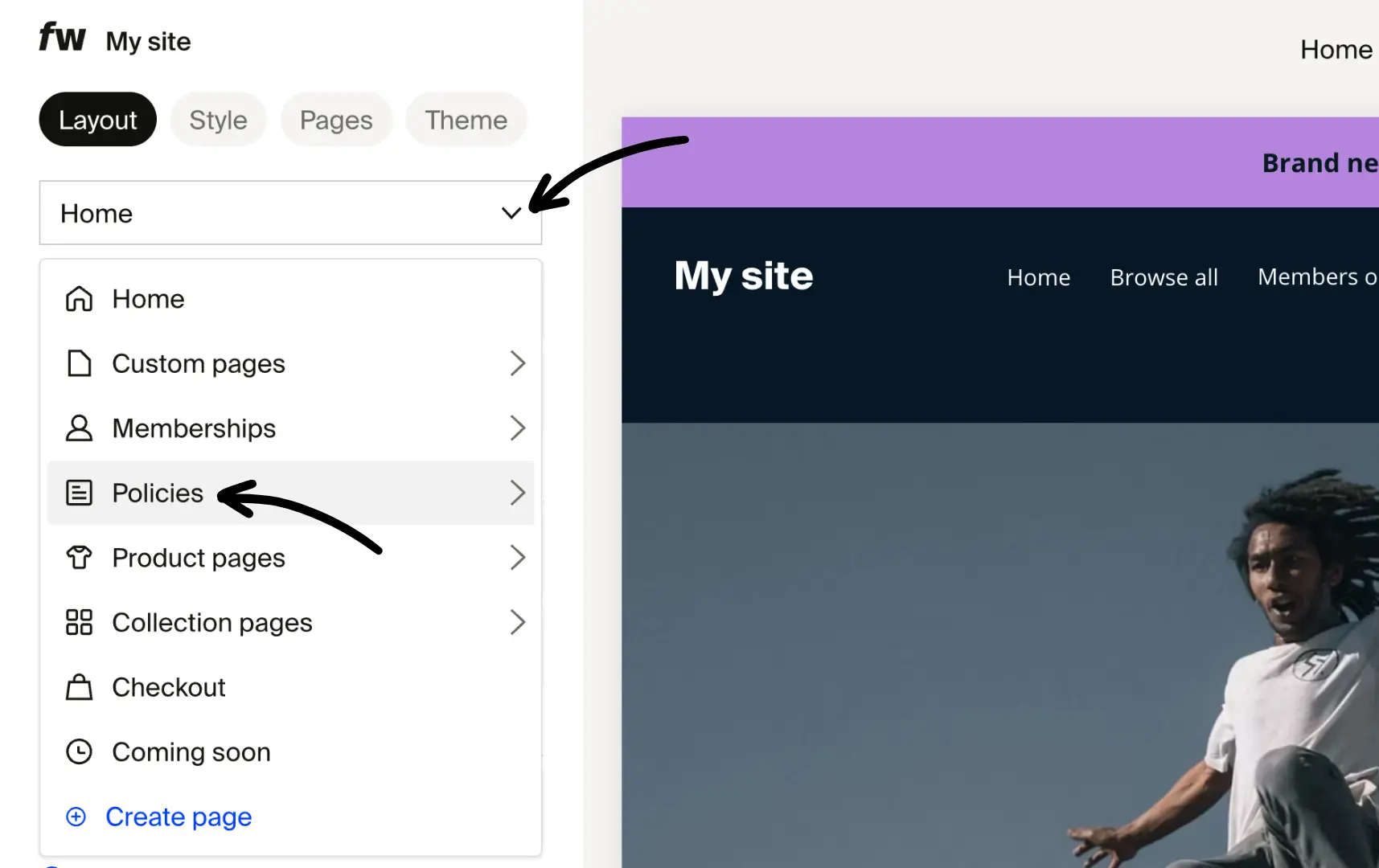
- Select and edit any of these four pages: Contact, Privacy Policy, Returns and FAQ, and Terms of Service.
Edit the content
Once you select a specific policy page:
- Click on Customize this page to enter the edit mode.

- Hover over the policy to update and click Edit section.
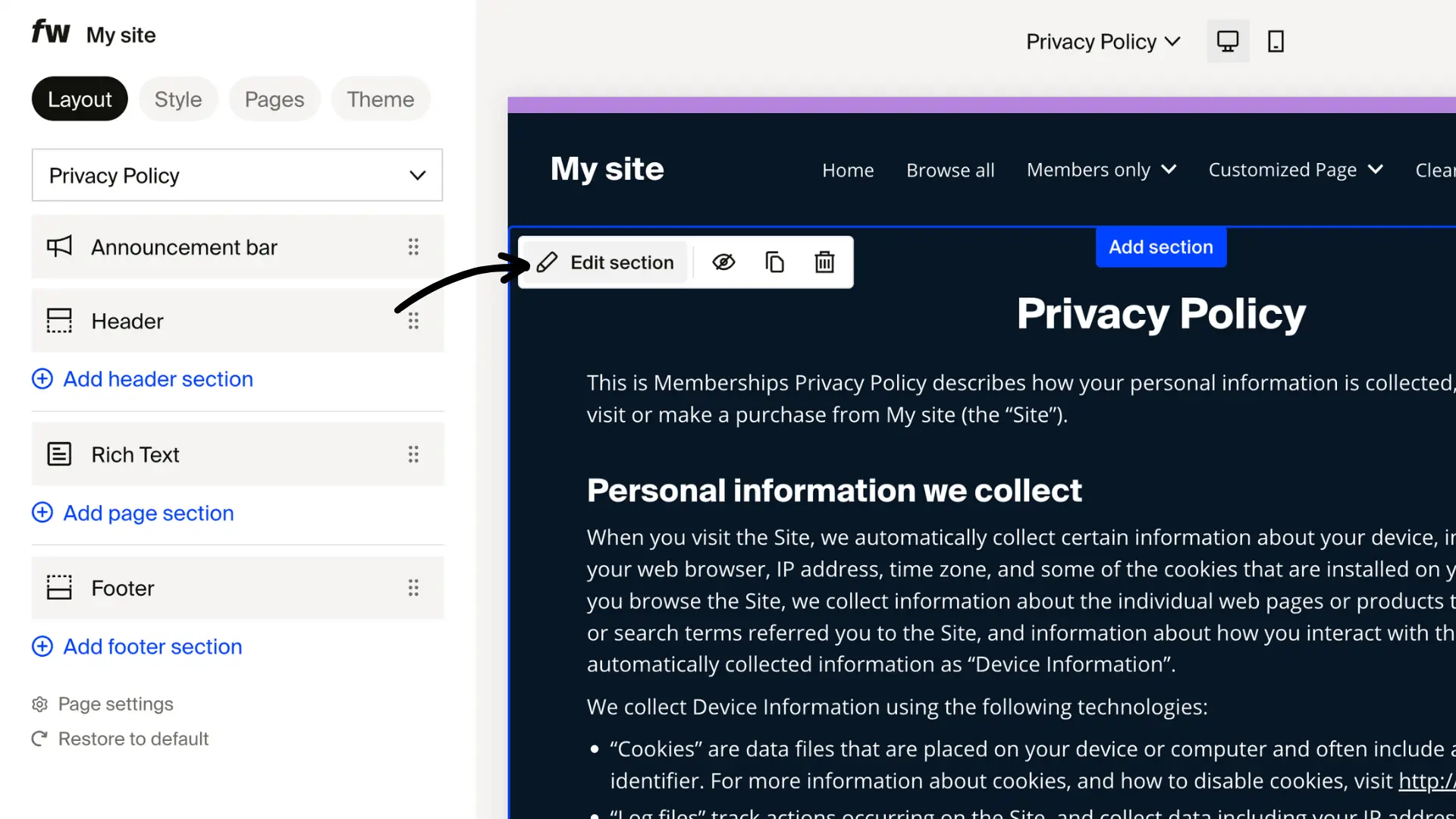
- Edit the text. Keep an eye out for dynamic placeholders like
{{ shop_name }}or{{ shop_email }}

These updates automatically if you change your shop name or email in Settings.
This makes maintenance easier since you don't need to manually update your policies when your shop details change.
Notes:
- If you need specialized legal language, you can overwrite any text in these pages.
- You can consult a lawyer and paste your custom terms directly into the editor.
Contact page missing from the Pages list
On some shops, the Contact page does not appear under Policies and support pages in the Pages tab of the site designer, even though the other three pages (Privacy Policy, Returns & FAQ, Terms of Service) are listed.
The Contact form is still live regardless. Supporters can reach it directly at <your-shop>/contact, and any messages submitted there continue to land in your inbox.
To give supporters a visible way to find the page, add a link to it from your header or footer menu:
- Option A: Use a relative path. In the header or footer menu editor, click Add menu link, set the URL to
/contact, name it "Contact", and save. - Option B: Use the full shop URL. In the header or footer menu editor, click Add menu link, paste the full URL
https://<your-shop>.fourthwall.com/contactinto the URL field, name it "Contact", and save.
Either option produces a working menu entry that opens the live Contact page.