Create Products with Adobe Express
Updated May 17, 2026
Turn any design in Adobe Express into Fourthwall merch without leaving the canvas
The Fourthwall add-on for Adobe Express lets you take a design you've already made — a logo, illustration, or layout — and put it on real products. Pick something on your canvas, choose a Fourthwall product, preview the mockup, and publish it to your shop. Fourthwall handles printing, fulfillment, and shipping.
How the Adobe Express add-on works
The add-on is a panel that runs inside Adobe Express. It walks you through three steps — Artwork › Product › Preview — shown along the top of the panel so you always know where you are.
- Your design stays in Adobe Express. The add-on captures whatever you've selected on the canvas and prints exactly that.
- Products come from Fourthwall's catalog. Browse the same on-demand products you'd find in your Fourthwall dashboard.
- Signing in is optional. Without signing in, the add-on hands your design off to the Fourthwall product editor in your browser. Sign in and you can publish straight to your shop from the panel.
Step 1: Add the Fourthwall add-on to Adobe Express
In Adobe Express, open the Add-ons panel from the left sidebar and search for Fourthwall. Add it to open the Fourthwall panel.
The panel opens on the Artwork step. You can use it right away — signing in to Fourthwall is optional and covered in a later step.
Step 2: Select your artwork on the canvas
On your Adobe Express canvas, click the design you want to turn into merch. The panel shows Your artwork — a preview of exactly what will be printed.
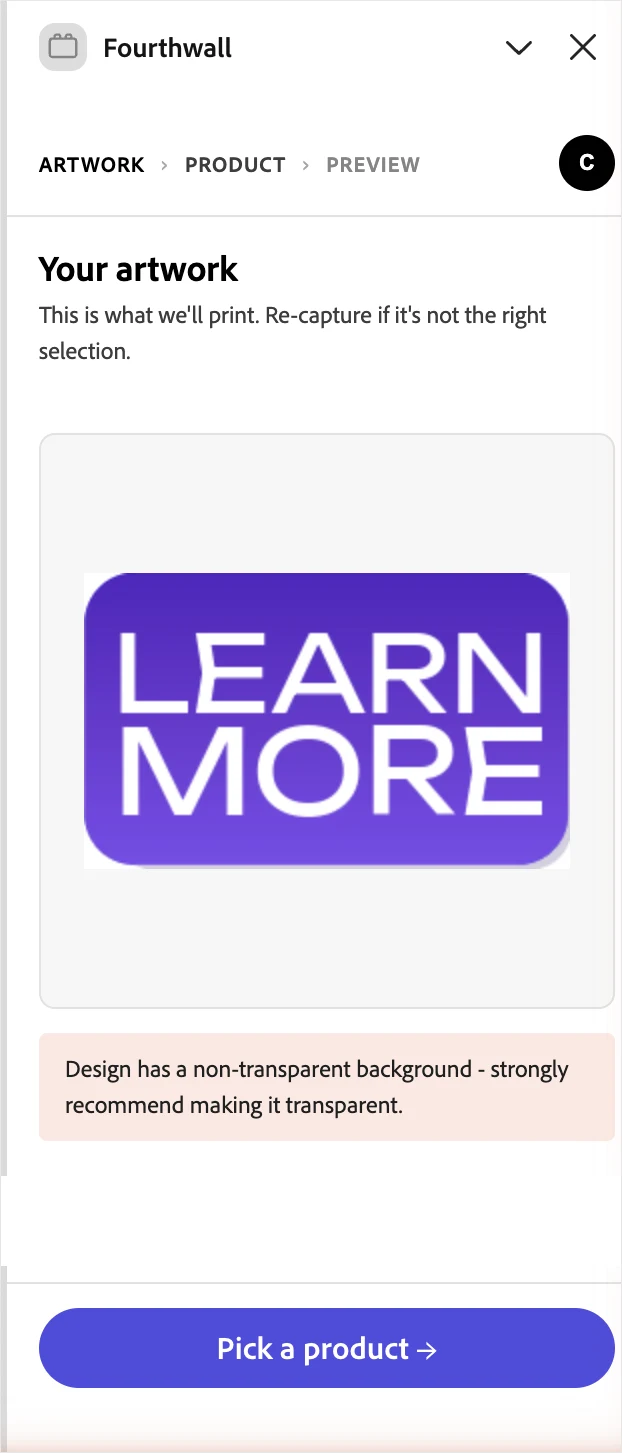
If the panel shows the wrong thing — or nothing — select the right element on the canvas and click Refresh selection.
Print works best on a transparent design. If your artwork sits on a solid background, the panel warns you that the background will be printed too. Remove or hide the background in Adobe Express so only your artwork lands on the product.
When the preview looks right, click Pick a product →.
Step 3: Pick a Fourthwall product
Browse Fourthwall's product catalog right in the panel. Filter by category, search for a specific item, and sort the results by popularity, newest, or price.

Click a product to select it, then click Generate preview →.
Step 4: Preview your design on the product
The add-on renders your design onto the product so you can see the finished mockup before you commit.
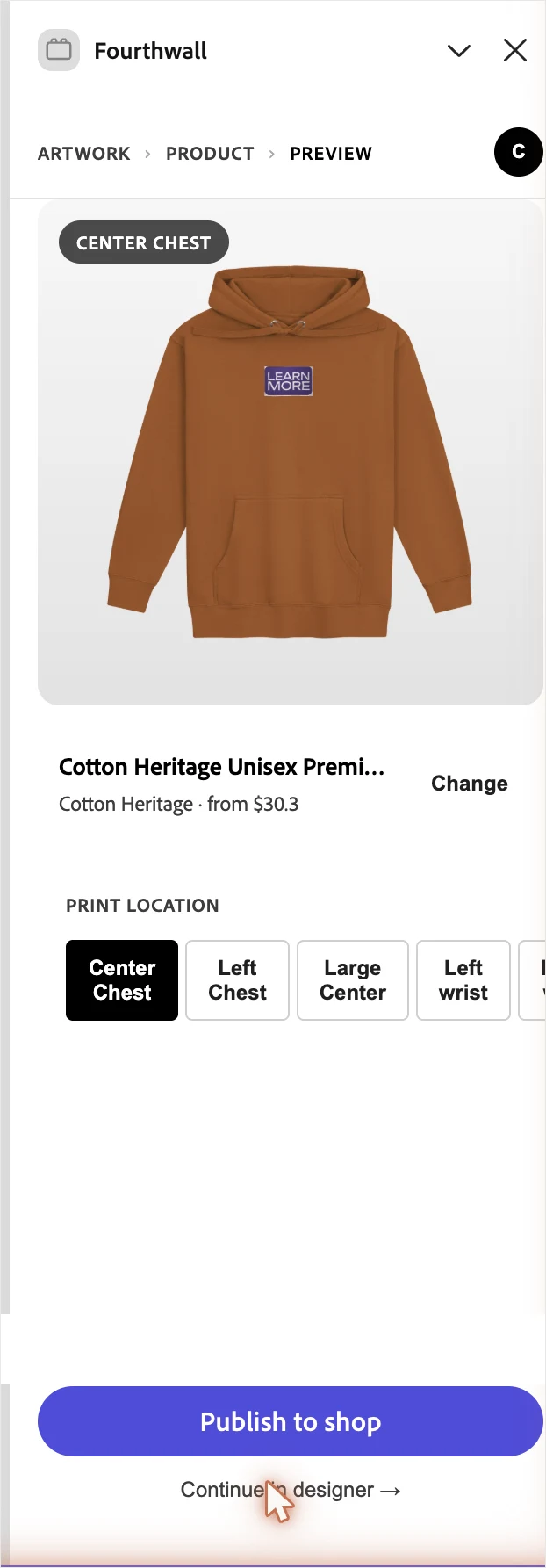
If the product supports more than one print area (for example front and back), use the print-location picker to switch between them — the mockup re-renders for each. To try a different product, click Change on the product row or Cancel and pick a different product.
Step 5: Publish your design
What happens next depends on whether you're signed in to Fourthwall.
Without signing in: continue in the designer
Click Continue in designer →. Fourthwall opens the product editor in your browser with your design already placed, so you can finish customizing and publish it there.

If your browser blocks the pop-up, the panel shows the link so you can open the designer manually. Allow pop-ups for Adobe Express to skip this step next time.
Signed in: publish straight to your shop
When you're signed in to Fourthwall, click Publish to shop. The add-on creates the product in your shop as a draft — no trip to the browser required. You'll see a confirmation with the finished mockup.

Click Open in shop admin ↗ to review the new draft product in your Fourthwall dashboard, set pricing, and make it live. Click Design another product to start over with a new design.
Products created from the add-on always land in your shop as drafts. They won't appear to supporters until you review and publish them from your Fourthwall dashboard.
Sign in to your Fourthwall account (optional)
Signing in unlocks publishing straight to your shop and lets the add-on use your shop's products. Click the account control in the panel header and approve the Fourthwall sign-in window that opens. Once connected, the header shows your account, and the Publish to shop option appears on the preview step.
To disconnect, open the same account control in the panel header and choose to sign out. You can still use the add-on as a guest after disconnecting.
Frequently asked questions
Do I need a Fourthwall account to use the add-on?
No. You can capture a design, pick a product, and preview the mockup without signing in. The add-on then hands your design to the Fourthwall product editor in your browser, where you can create an account or sign in to finish. Signing in inside the add-on just lets you skip that hand-off and publish directly.
Do products I publish go live automatically?
No. Products created from the add-on are saved as drafts in your shop. Review them in your Fourthwall dashboard — set pricing, adjust details, and publish — before supporters can see them.
My design has a background. Will it print?
Yes. The add-on prints exactly what's selected on the canvas, including a solid or colored background. The panel warns you when it detects one. Remove or hide the background in Adobe Express so only your artwork is printed.
The panel says "Select something on your canvas." What do I do?
The add-on hasn't detected a selection. Click the design element on your Adobe Express canvas, then click Refresh selection in the panel.
Why didn't the designer open when I clicked "Continue in designer"?
Your browser likely blocked the pop-up. The panel shows the designer link so you can open it manually. Allow pop-ups for Adobe Express to avoid this next time.
Which products can I use?
The add-on shows Fourthwall's on-demand product catalog. If the catalog can't be reached, the panel shows a smaller curated set so you can still preview your design.
Where do I edit pricing and product details?
In your Fourthwall dashboard. The add-on creates the product; you set pricing, descriptions, and other details — and publish it — from the product's page in your shop admin.
If you have any questions, do not hesitate to contact us at support@fourthwall.com.