TikTok Shop Setup
Updated July 29, 2026
Connect your Fourthwall products to TikTok Shop so fans can purchase directly from your TikTok feed
TikTok Shop now allows you to link products directly in your TikTok feed, making it easier for customers to purchase from your shop.
TikTok Shop requirements
Fourthwall supports TikTok Shop sellers in the United States only, who sign up at seller-us.tiktok.com.
Is your TikTok account outside the US? The integration is not available to you yet. TikTok's non-US seller registration asks for a warehouse or expedition center in your own region, and Fourthwall does not have a European (or other non-US) address to give you for that field. Do not enter a Fourthwall US address in a non-US registration flow. See Can I use TikTok Shop if my TikTok account is outside the US?
Other requirements:
- Products that ship within 3 days or less (only on-demand products are allowed; Fourthwall filters this for you)
Please note: To activate TikTok Shop, TikTok requires changing your account to a business account. This means that any creator-specific features or programs may not apply to your account.
Things to know before you start
- DO NOT update your products directly on TikTok Shop Seller Center. Only update them on your Fourthwall dashboard.
- Only on-demand products via the Fourthwall catalog or ones sold via a Fourthwall-managed fulfillment center are available to sell on the TikTok shop at the moment. This is due to strict requirements on TikTok's end that products must ship in 3 days or less to keep your TikTok account in good standing.
- As orders come in through TikTok, they get automatically synced into your Fourthwall shop. Once they ship, we automatically update the TikTok order, so the shipping notification email goes out.
- TikTok Shops orders entire revenue is paid by TikTok to you directly. Because of that, you will see TikTok Shop orders as negative in your Fourthwall dashboard. This is for the product and shipping costs for that order. Learn more: TikTok Shop - Finance and Payout FAQs
- TikTok does not share customers' email addresses when they place an order via TikTok. All communication is run by TikTok based on the updates we provide (i.e., shipping notification, order canceled, etc)
Setting up TikTok Shop
To make setting up a TikTok Shop with your Fourthwall site easy, we broke it down into four main steps. We'll go through it step by step, making it as easy as possible!
Step 1. Sign up for TikTok Shop
- To start setting up your TikTok Shop, first, go to your TikTok account on your desktop.
- In the right side menu, click the three dots below your profile icon > Business Suite > Activity & support > TikTok Shop, and click Sign up now.
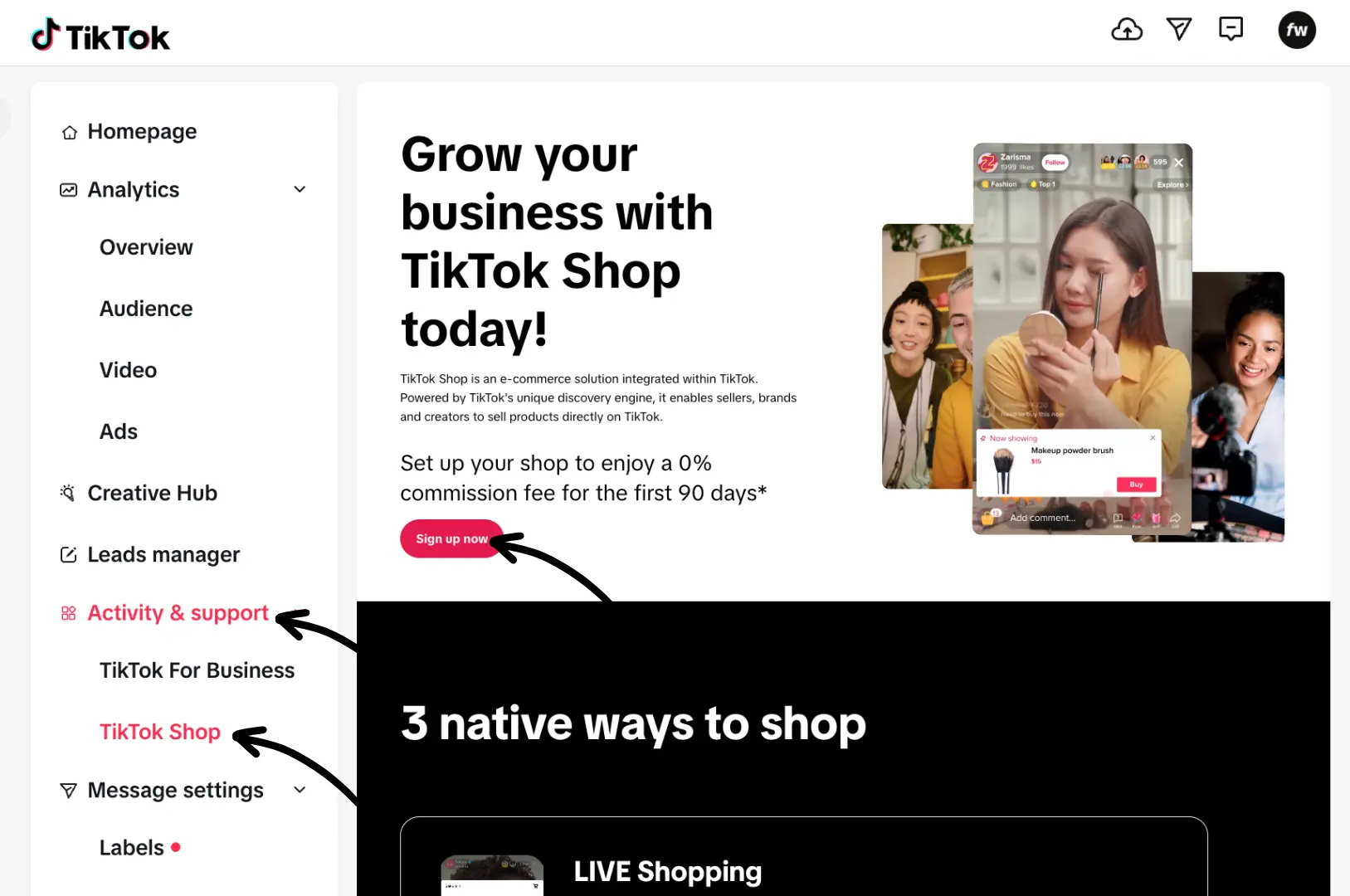
- This will take you to the TikTok Shop landing page. There, you want to click on Continue with TikTok and enter the details to log in to your TikTok account you want to sync with TikTok Shop.
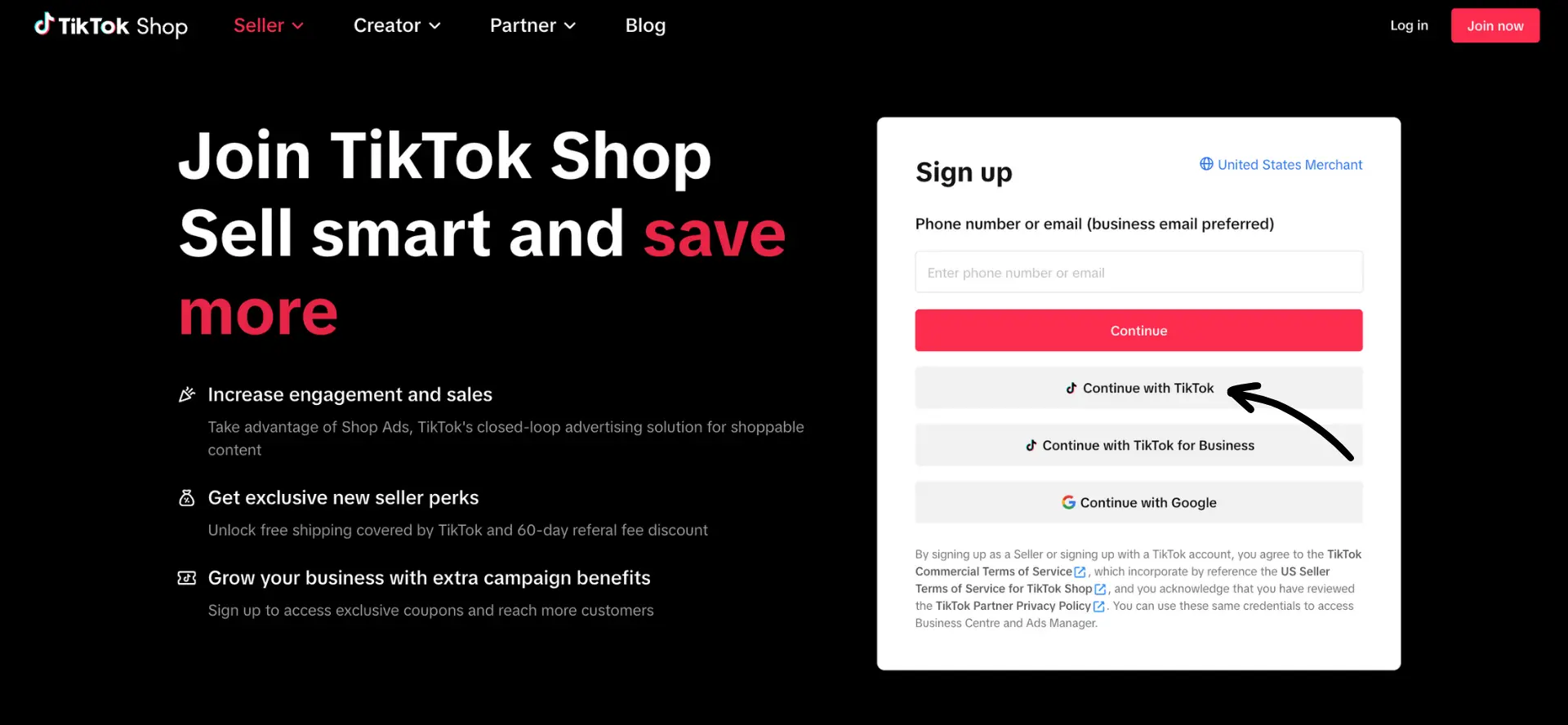
- Next, you will see a screen to authorize TikTok Shop to access your TikTok account. There, you want to click Authorize to continue.
- You will be taken to your personal details if you do business as an individual. Enter your business details:
- Individual sellers: upload ID (passport/driver's license), home address, legal name.
- Entity sellers: enter legal business name, EIN, beneficial owners, business address. A company representative still needs to provide personal info.
- At Privacy & Security, select No for the third-party question (Fourthwall is not considered third-party).
Note: Later in the process, you will enter the details you want for tax reporting purposes.

- Once you have filled out all the necessary information and gone through the privacy and security section, you will enter the Shop information. There are a few steps to do here before hitting submit:
- Select your shop name to be the same as your TikTok username (default) or create a new name for your TikTok shop. Keep in mind that this shop name will be public.
- Updating the primary product or service. For this, you want to input "Menswear & Underwear" or "Womenswear & Underwear" - up to your preference. This is just for tracking by TikTok.
- Secure signup - you want to enter a phone number to receive a verification code that you will enter here before clicking Submit to continue the process

Once you click Submit, this will take you back to the TikTok Shop dashboard home. You will see that "Register your business" will show as Pending there. That is expected, and the status should be updated within 48 hours. You can continue the process in the meantime.
Step 2. Add your tax information
- Once back in your TikTok Shop dashboard home, scroll down to find "Add tax information" and click the green Add tax information button.

- This will take you to the tax information step, where you will enter all the information requested for tax reporting purposes. You can review the automatically generated W9 to confirm all your information before clicking the Submit button to complete adding your tax information.

- Once you click Submit, it will prompt you to certify that the tax information you entered is accurate, and then it will drop back into the TikTok Shop dashboard home. Next is setting up shipping.
Step 3. Setting up shipping rates
- Within the TikTok dashboard home, go to "Add shipping and return addresses." Click No to use a different address than the one you entered during account setup.
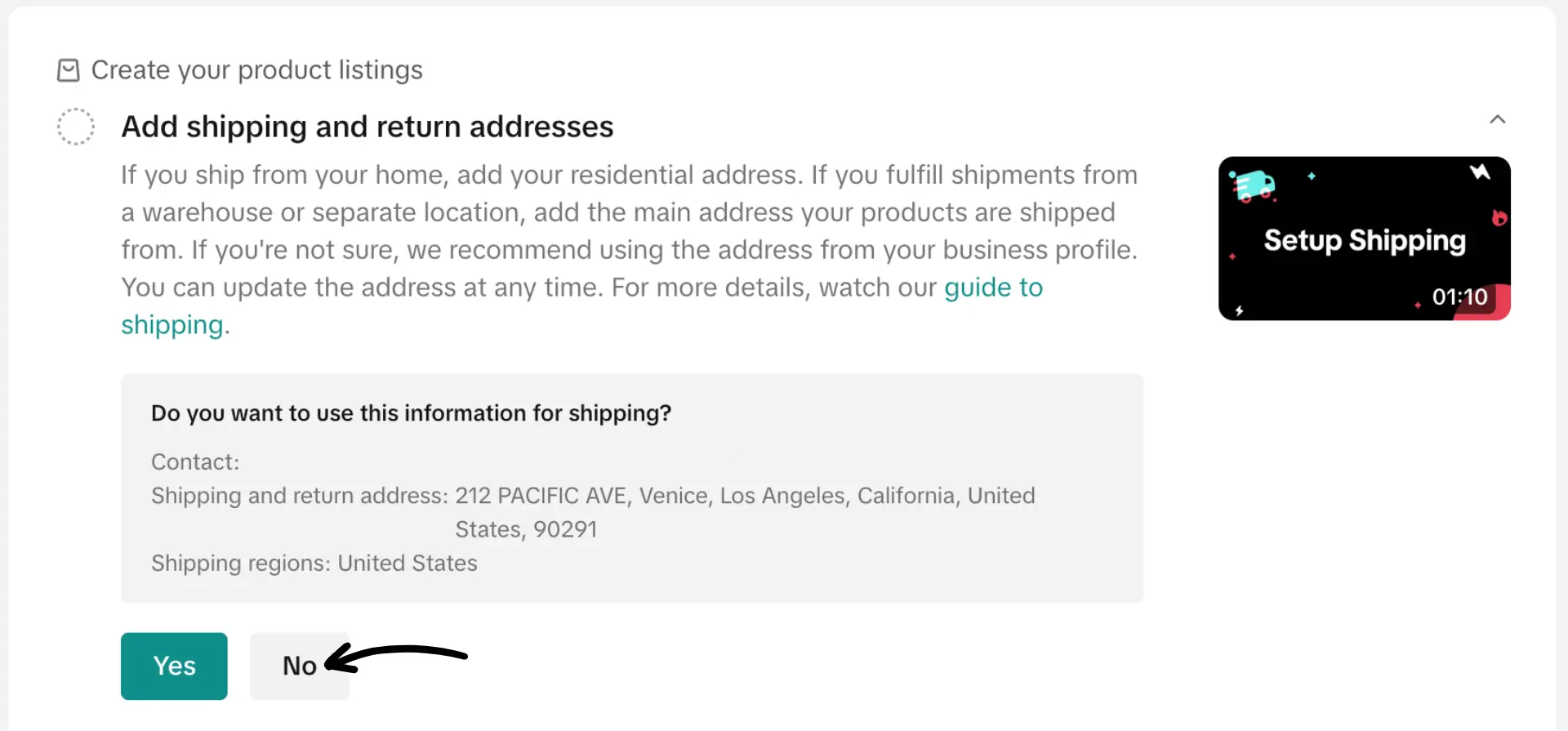
- A screen will pop up to enter your Shipping and returns information. Here, you want to enter the following information before clicking Submit:
- Contact Person = Fourthwall
- Phone Number = 818-351-7181
- Address = 11201 Ed Brown Road, Charlotte, NC 28273
- Keep the checkbox selected on "Set as return address"

- After hitting Submit on the ship from address section, a pop-up will appear showing that the shipping information has been added. There, you want to click on Edit settings.

- This will take you to the Fulfillment Settings page. Click on Switch option found on the right of where it says TikTok shipping.

- Two options will appear. You want to click where it says View Shipping templates.

- This will take you to the Shipping template page. Click on the button on the top right that says Create and then Create a new template > Confirm. This will take you to the template creation page.
Step 4: Creating a Shipping template
There are two options when creating shipping templates: Free shipping (item price includes shipping) or Regular shipping.
- Free shipping (recommended) - later in the process, when connecting your Fourthwall products, you will have the option to increase the item sale price to cover shipping costs and be able to offer "free shipping" on TikTok. This helps rank your products higher on TikTok, which is important for discovery. Learn more about why we recommend this here.
- Regular shipping - if you prefer to have shipping shown separately, you will want to follow this flow and set up a rate table. This will mean your product will not show as "free shipping" hurting promotion ranking by TikTok.
Free shipping template steps
- On the template creation page, you want to enter some basic information like template name and shipping. The template name must be "Fourthwall Shipping" or "Fourthwall". This is required for proper setup. This template name is not visible to any of your customers.
- You also want to select US Pickup Warehouse from the dropdown menu as your warehouse. If you previously set up multiple warehouses, make sure you select the correct warehouse with the shipping from address shown in Step 3.

- Next, you want to scroll down in the shipping template to where it shows "Standard Shipping" and $0.00 as the flat rate and click Submit.

- After submitting your shipping template, it should look like the image below. You can continue here.

Regular shipping template steps
- On the template creation page, you want to enter some basic information, like template name and shipping. The template name must be "Fourthwall Shipping" or "Fourthwall". This is required for proper setup. This template name is not visible to any of your customers.
- You also want to select "US Pickup Warehouse" from the dropdown menu as your warehouse. If you previously set up multiple warehouses, make sure you select the correct warehouse with the shipping from address shown in Step 3.
- Next, you want to scroll down in the shipping template to where it shows "Standard Shipping" and click where it says use Price conditions to open weight range options.
- In the weight range options, you need to enter the values as shown in the table below. You will need to click + Price conditions to add another row for the range inputs.
| From (lbs) | To (lbs) | Cost |
|---|---|---|
| 0 | 0.5 | $4.89 |
| 0.5 | 1 | $8.18 |
| 1 | 1.5 | $12.05 |
| 1.5 | 2 | $13.05 |
| 2 | 2.5 | $15.26 |
| 2.5 | 3.5 | $16.26 |
| 3.5 | $21.56 |
- Once you input all the ranges with the data from the table above, it should look like the image below. After confirming the ranges are correct, click Submit.

Note: This is the only shipping setting you need to enter - no need to worry about any other shipping settings. Keep Economy and Express Shipping unselected.
- After setting up your shipping template, you need to go back to the Fulfillment Settings page. Click on Switch option found on the right of where it says TikTok shipping.
- Two options will appear. Select Seller shipping > OK to change the preferred shipping option to Seller Shipping.
- Next, we'll need to update the warehouse name. To do this, you can go here to the warehouse settings and click edit on the warehouse called "US Pickup Warehouse". Once there, update the warehouse name to be "Fourthwall" instead and click Save.
The warehouse name must be exactly Fourthwall or Fourthwall Shipping. The integration will not sync orders correctly if the name does not match.

Step 5. Connect your TikTok Shop to Fourthwall
Finally, you're ready to connect to Fourthwall products.
- Now, let's connect your Fourthwall products. Within your Fourthwall dashboard, you want to go to Apps and click on TikTok Shop.

- Within the TikTok shop configuration page, you want to click Connect.

- Then, it will show an Install page where you will select the duration (Unlimited) and enter your contact email address (this is private and not available to the public). After you have entered that information, you want to check the box to confirm the information and then click Confirm to install.

- Next is where you authorize Fourthwall to have access to your TikTok Shop. You want to click Authorize once the button turns green. After you authorize, it will take a few seconds to take you back to the Fourthwall dashboard TikTok Shop configuration page.

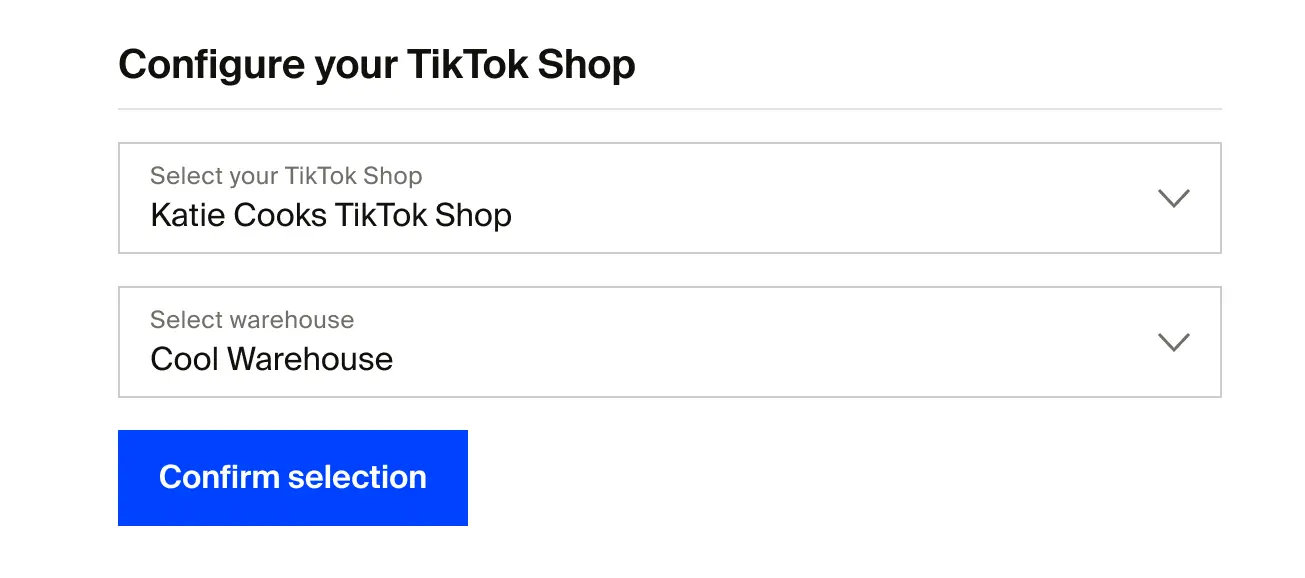
- The TikTok Shop configuration page should now show as "Connected." If it does not, refresh it. Once it does, you will see the option to configure your TikTok Shop, with a dropdown menu to select your TikTok Shop account.
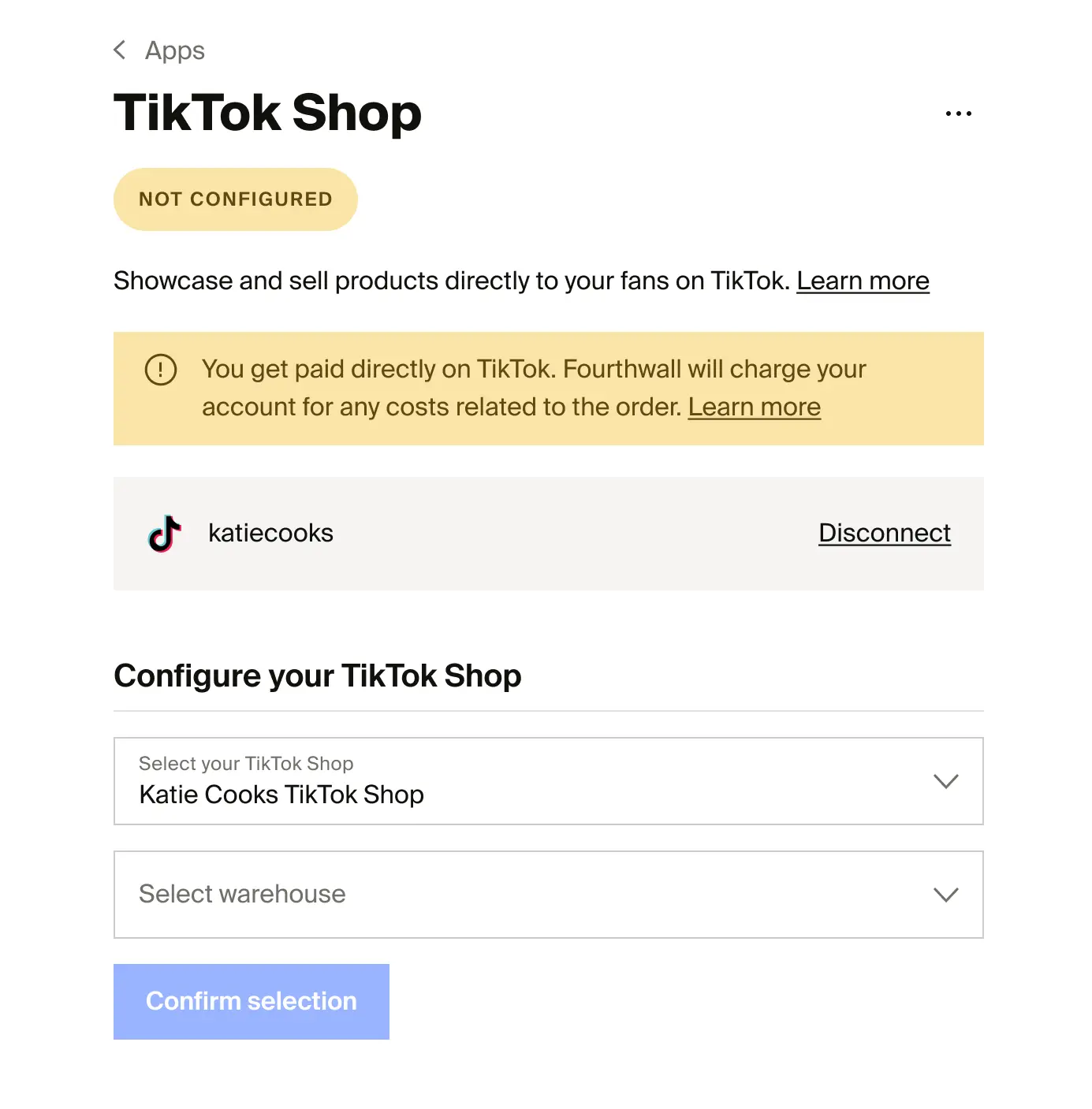
- Next is selecting your TikTok warehouse. There should only be one warehouse unless you have previously set up multiple warehouses. In that case, make sure to select the correct one with the address shown in Step 3.
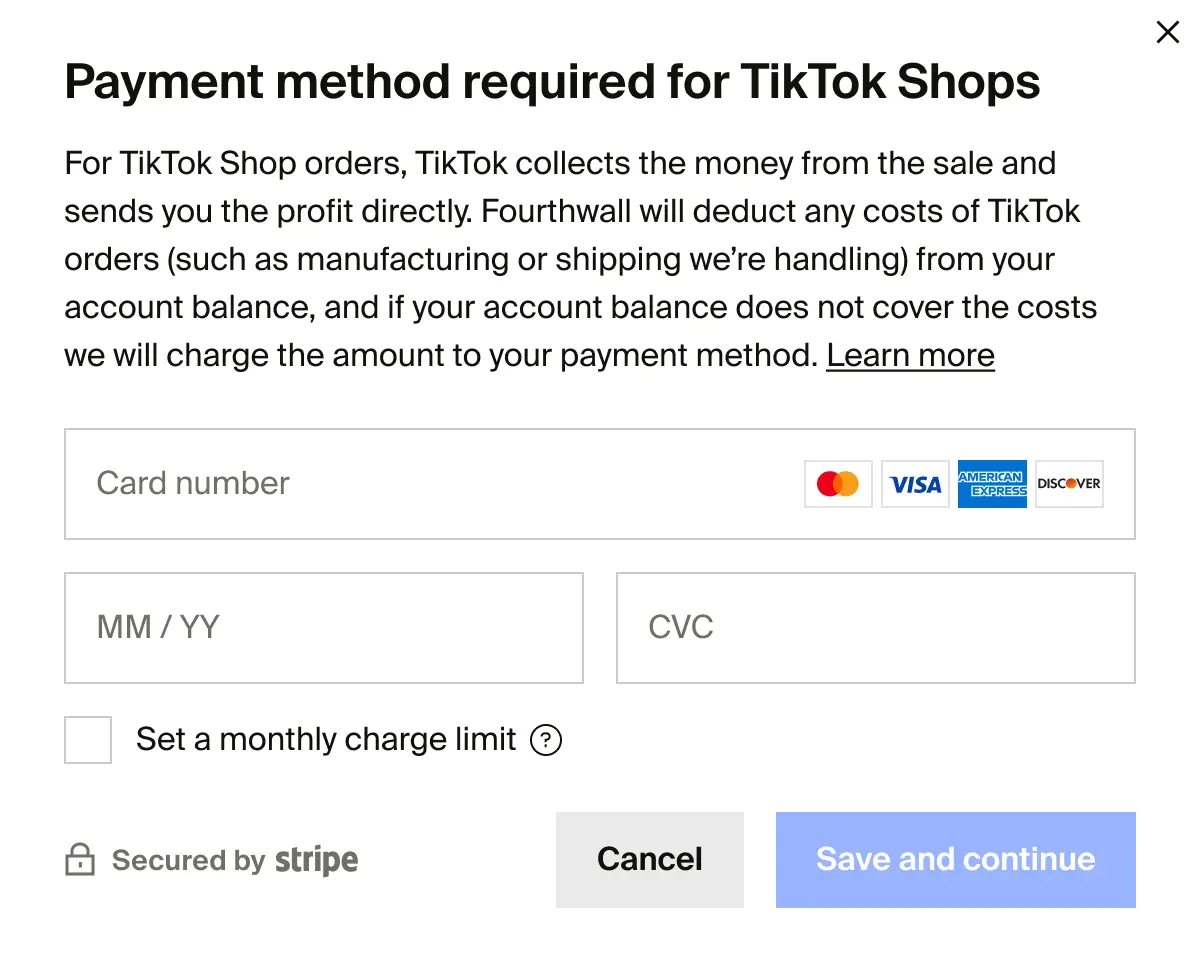
- Here, you may be prompted to enter a credit card if you don't have one set up already. This is because TikTok will pay you directly for your orders (as opposed to getting paid from Fourthwall) - learn more here. Fourthwall will charge your card to cover the cost of manufacturing & shipping your orders if your shop balance does not cover these costs. You can set a charge limit to avoid any unexpected overages. Should you hit this charge limit, your TikTok shop order will be automatically canceled until the limit resets.
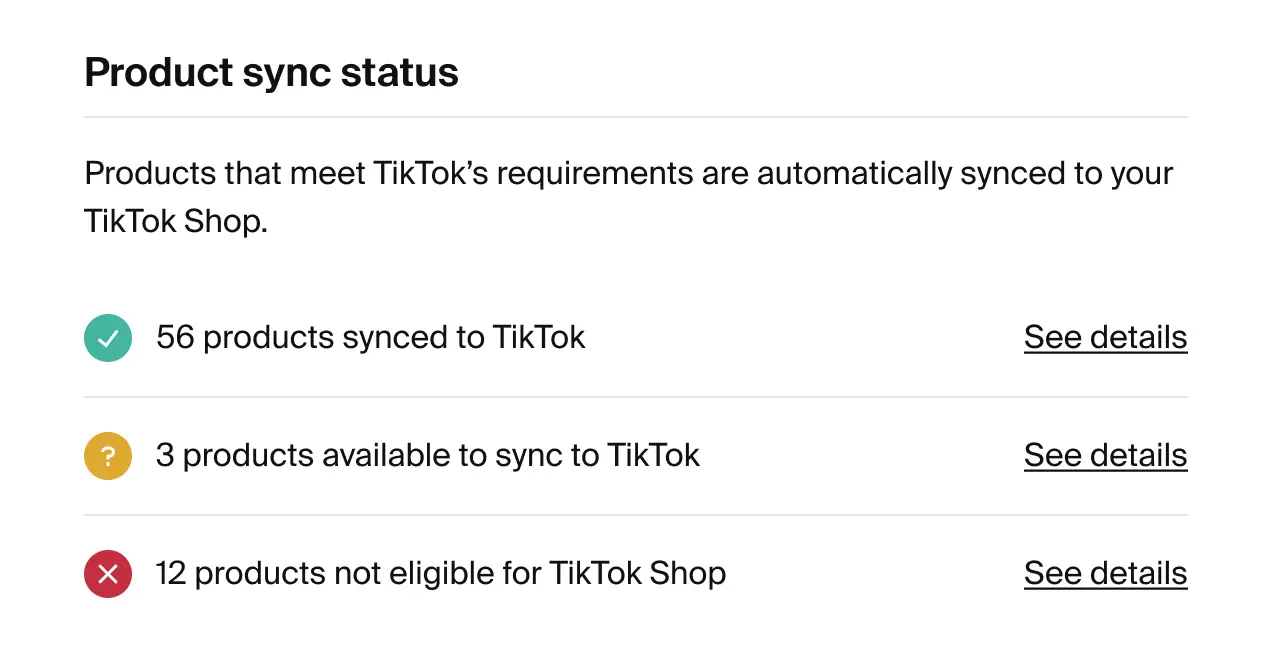
- Once that is all done, all eligible TikTok products listed as "Public" on Fourthwall will automatically sync to your TikTok Shop. You can refresh this page after pushing them to see the latest status of the sync process.
- If you selected Free shipping, you need to check the Increase price of my products on TikTok Shop box to make sure pricing includes shipping cost.
You can also enter an extra margin percentage to offset TikTok's platform fees, which run 6-8% higher than other channels. This price adjustment applies only to TikTok Shop and won't affect your prices elsewhere.

And that is it! You have completely connected your TikTok Shop, and your products should now appear on it.
Need more help?
Make sure to visit our other TikTok Shop article:
If you have any issues or questions about TikTok Shop, please email us at support@fourthwall.com. We'll be happy to help!