Meta Pixel
Updated May 15, 2026
The Meta Pixel is ideal for tracking visitors to your site and showing them retargeting ads across Facebook and Instagram. It is a piece of code on your website that can help you better understand the effectiveness of your Facebook advertisements and the actions people take on your site, like visiting a page or adding an item to their cart.
When should you use the Meta Pixel?
Fourthwall automatically supports the standard Pixel Events (with all relevant metadata) so you can use the Meta Pixel if you want to show retargeting ads or track user behavior like:
- Page views
- View content (Product views)
If you wish, Fourthwall also supports Facebook Conversions API, which provides more accurate tracking even when ad blockers are used. For the most complete data, we recommend using both. You can read more on how to set up Facebook Conversions API here: Connecting Facebook Conversions API to your Fourthwall Site.
This article will guide you through adding a Meta Pixel (Facebook Pixel) to your Fourthwall shop for retargeting.
Eligibility
In order to sell on Facebook Commerce surfaces as a business, your Facebook account and Page or your Instagram account must meet the following requirements:
Prerequisites
Before beginning, you'll need to log in to Facebook's Commerce Manager. If you haven't already, you'll need to create a Facebook Business account
Create a Facebook Pixel
-
Go to Meta Events Manager
-
On the left-hand menu, click on "Connect Data" above the "Overview" tab

- Select Web and click Connect
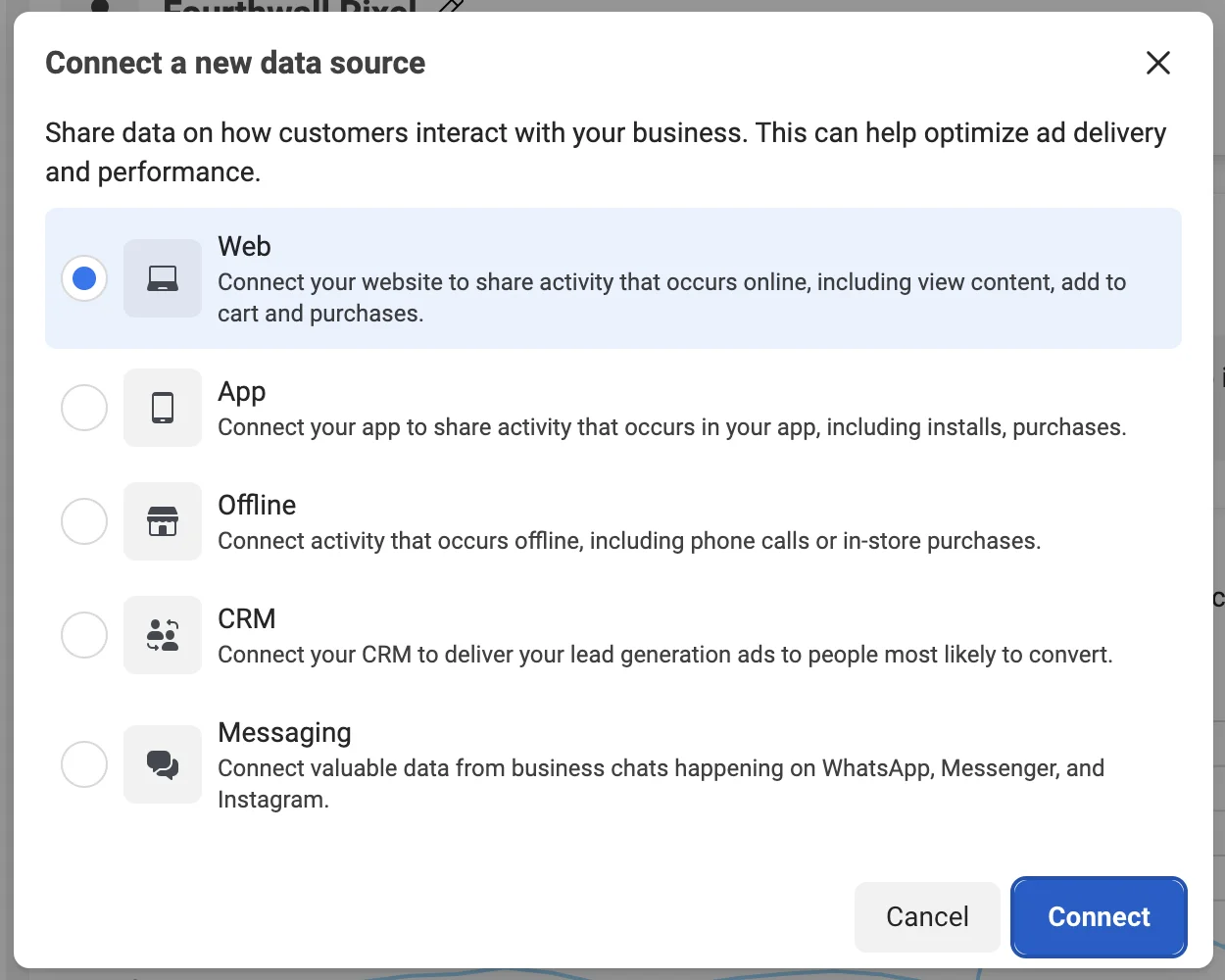
-
Enter a name for your pixel and click Create pixel. This will create a new ID that you can view in Events Manager. Your new dataset ID is the same as your new pixel ID.
-
Next, enter your website URL, and click Check, and then Next on the next screen. Your Facebook Pixel has been created but isn't connected to anything yet. Hover over the number and right-click to copy it.
-
In your Fourthwall dashboard, go to Analytics > Tracking pixels. Enter your Facebook Pixel ID in the Facebook Pixel field and click Save.

- If you wish, you can test your pixel by returning to Metas Event Manager, and within your pixel management screen, navigate to the Test event tab and scroll down to a section that says Confirm your website's events are set up correctly" and follow the steps there.

How to remove the Meta Pixel
Removing the Meta Pixel from your shop is a two-part process. First, clear the Pixel ID in Fourthwall so events stop firing. Then, disconnect Fourthwall on the Meta side so the integration no longer appears in your Business Integrations list.
Step 1: Clear the Pixel ID in Fourthwall
- In your Fourthwall dashboard, go to Analytics > Tracking pixels.
- Clear the value from the Facebook Pixel ID field.
- Click Save.
Fourthwall stops sending pixel events as soon as you save. Fourthwall does not retain the Pixel ID after you clear it, so you'll need the ID from Meta Events Manager if you want to reconnect later.
If you also have the Facebook Conversions API (CAPI) connected, the Facebook Pixel ID field is disabled while the Meta Ads app is active. Disconnect CAPI first at the Meta Conversions App, then return to Analytics > Tracking pixels to clear the Pixel ID. For details on CAPI, see Facebook Conversions API.
Step 2: Remove Fourthwall from Meta Business Integrations
Clearing the Pixel ID in Fourthwall stops events, but it does not remove Fourthwall from Meta's Business Integrations list. To fully disconnect the app on Meta's side:
- Open Meta Business Settings.
- Go to Business Integrations.
- Find Fourthwall in the list.
- Click Remove.
When to contact support
If the integration still shows as active after you complete both steps above, our team can remove it from the backend. Contact us at support@fourthwall.com with your shop name and the Pixel ID you were using.
Next Steps
If you'd like to track specific products, be sure to:
- Set of Instagram and Facebook Shopping
- Launch your own retargeting campaigns to increase conversion rates by advertising your products to customers on Meta platforms (Facebook, Instagram, etc)
We recommend using the Facebook Conversions API together with Meta Pixel for the most complete data. You can read more on how to set up Facebook Conversions API here: Connecting Facebook Conversions API to your Fourthwall Site.