StreamElements and Streamlabs Alerts
Updated April 18, 2026
Choose the right platform for your streaming alerts
Stream alerts are a fun way to engage with your fans and track their support. Fourthwall allows you to easily integrate your shop and membership with StreamElements or Streamlabs so you can display purchase events while streaming.
This integration covers product purchases and membership subscriptions only. Donations are a separate feature and do not trigger StreamElements or Streamlabs alerts.
Connect to third-party apps
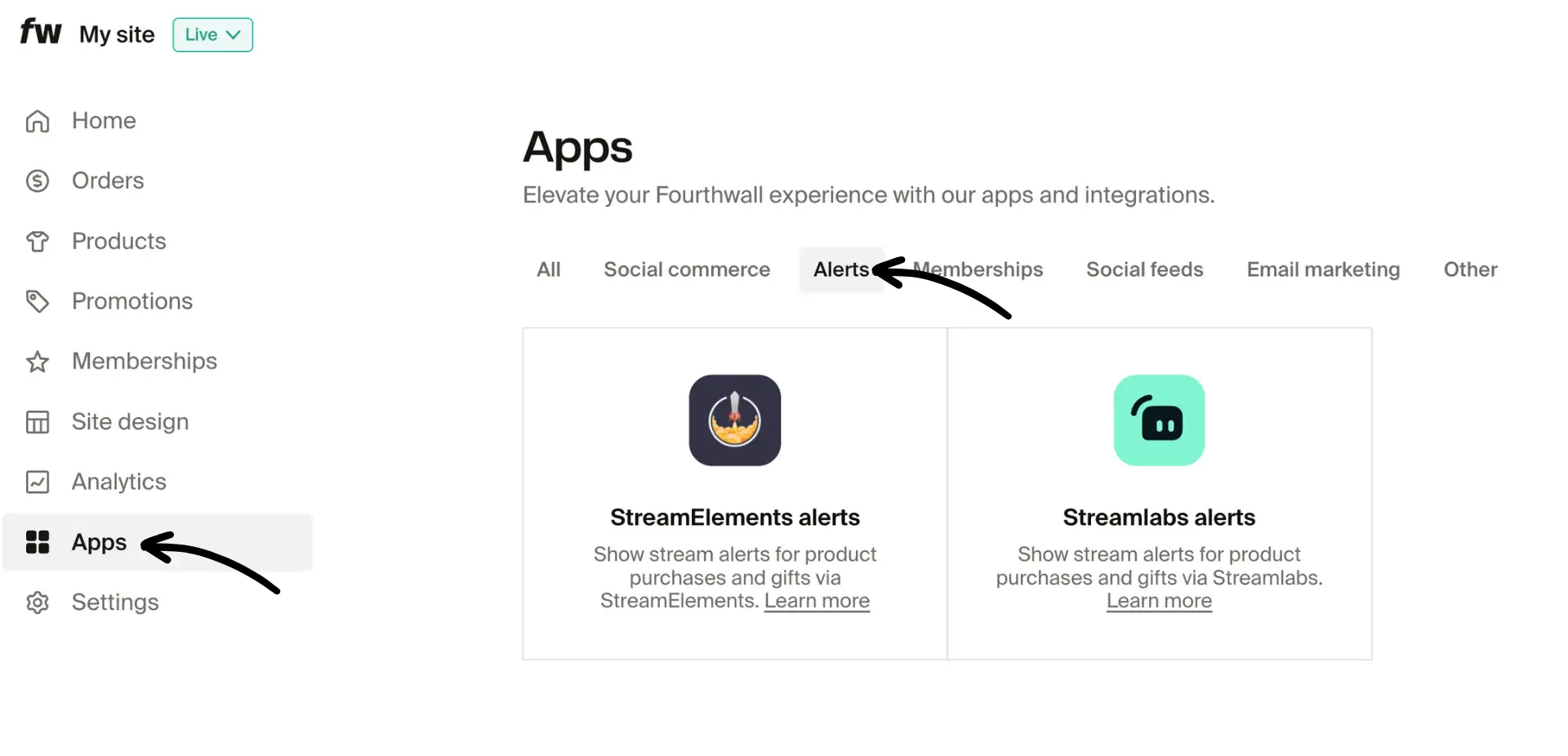
To set up stream alerts using StreamElements or Streamlabs, go to Apps > Alerts, then choose which one you want to connect.
Set up StreamElements alerts
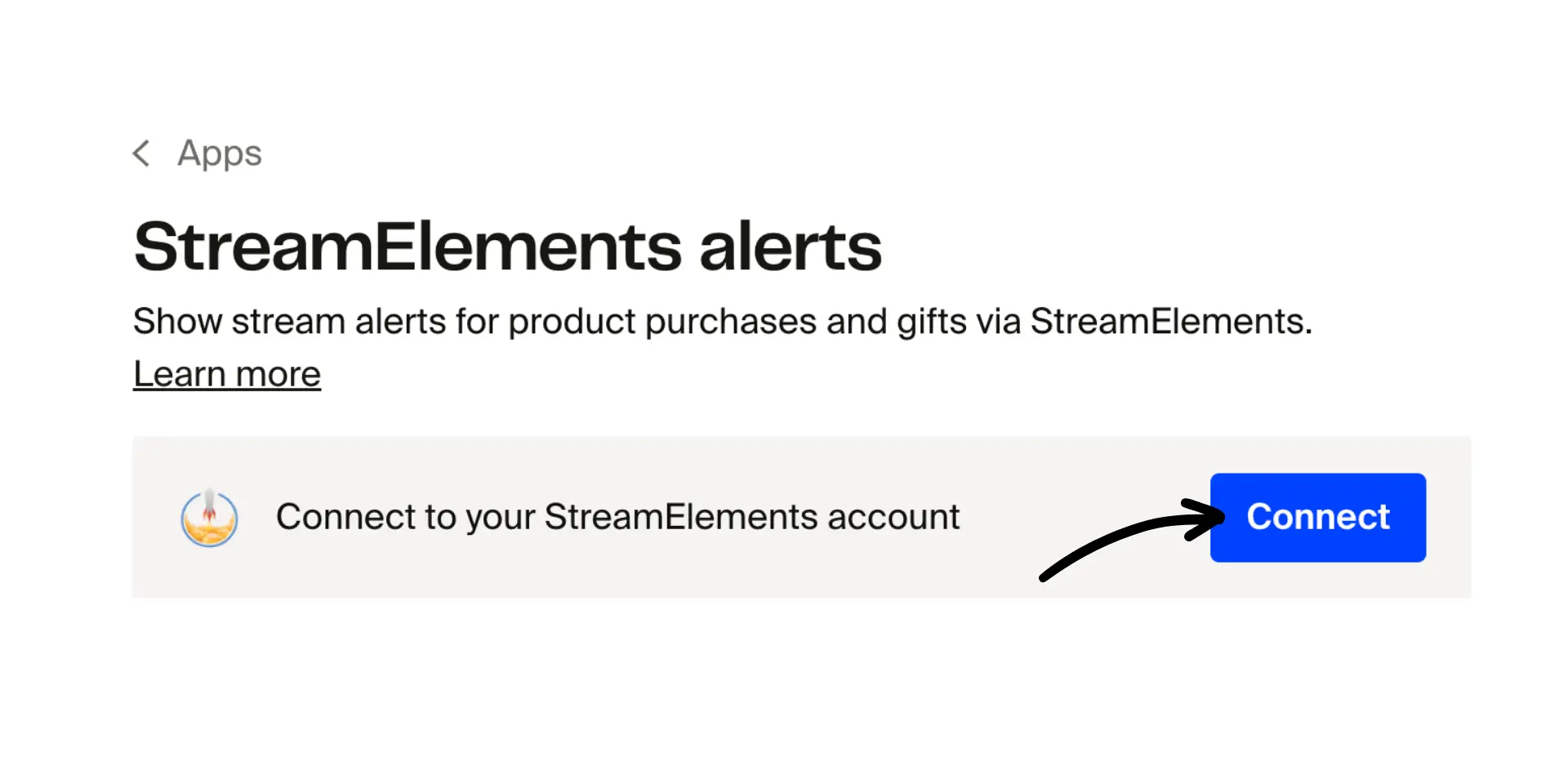
- Once you've made your selection, click on Connect in the StreamElements alerts.
-
Authorize Fourthwall to link with your StreamElements account to complete the required permissions.
-
In your StreamElements dashboard, go to Streaming tools > My overlays, then select the overlay you want to edit.
- Click the blue + icon in the lower-left corner > Alerts > AlertBox.
- Fourthwall sends alerts via the Purchase alert event type (make sure this alert type is enabled).
- Click the Settings gear to configure how it appears on your stream.
Enable text-to-speech and disable Announce action for smoother, less repetitive audio alerts.

Purchase alerts use StreamElements' default unboxing animation. To display product or membership images:
- Go to Purchase Alert Settings > Override Graphics > First Item's Image.
- If multiple items are purchased, StreamElements defaults to showing the most expensive one.
- Structure your on-screen message alert for purchases and membership subscriptions. (When structuring on-screen message and alert displays, you have these variables to use:
{name}{items}{currency}{amount})
For purchase notifications:
{name} purchased {items} and spent {currency}``{amount}!

For membership subscriptions: We provide a special "-1" amount value that allows you to create a different alert for those. Just create a new purchase alert variation with the amount set as "Variation Parameter" and "Condition" matching exactly the amount of "-1".
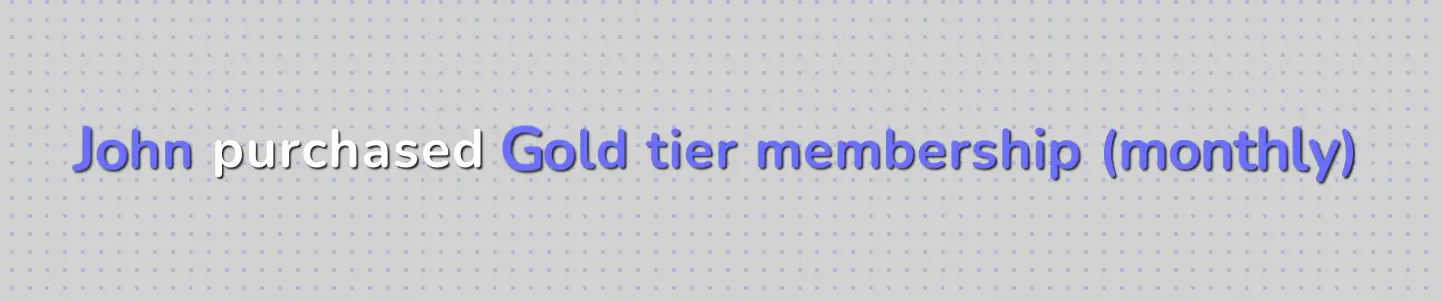
Use the "-1" amount condition to trigger a separate alert variation:
{name} purchased {items}!
- Save your overlay changes. Now you're ready to start celebrating your customers' purchases live on stream!
Set up Streamlabs alerts
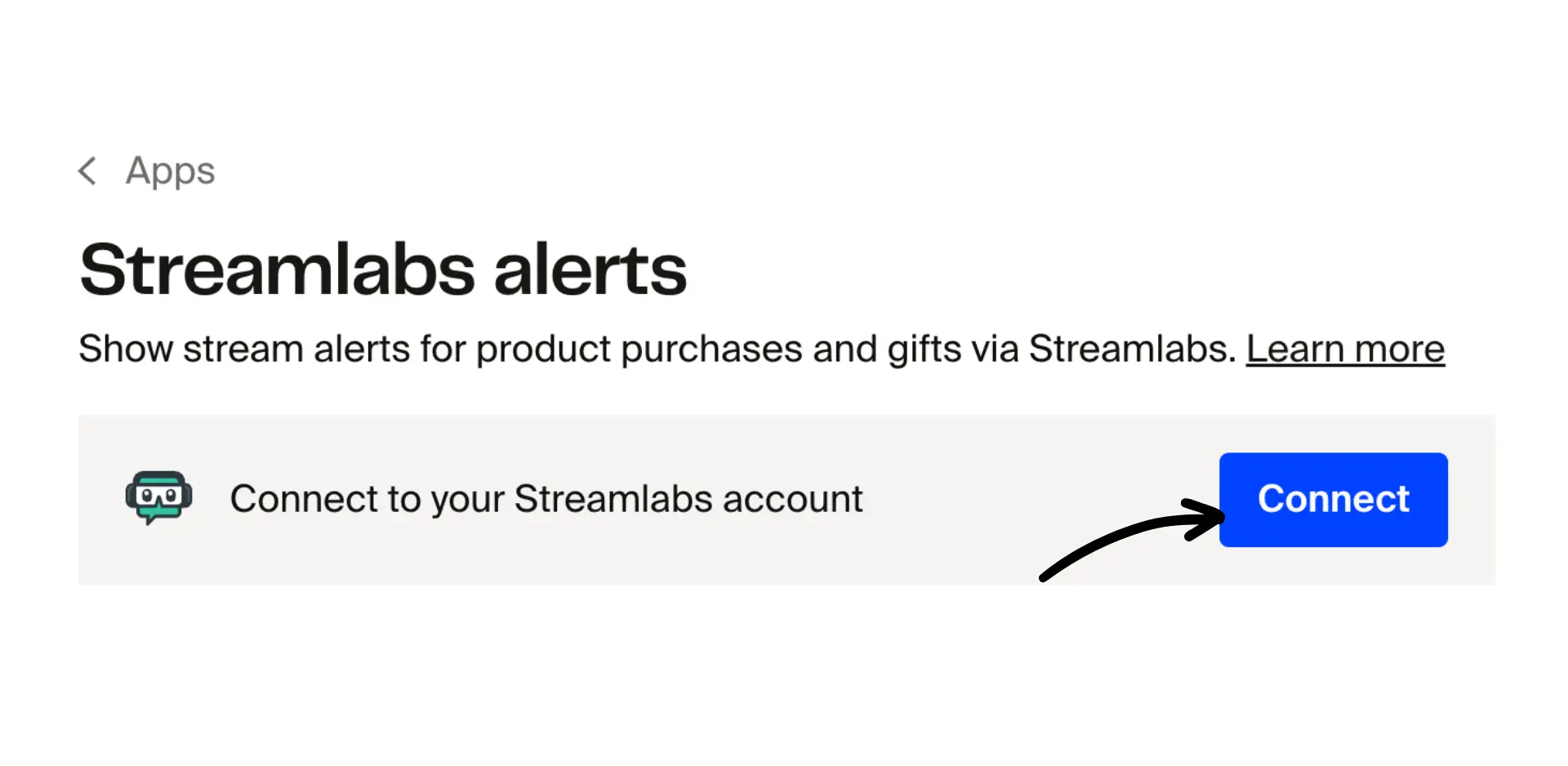
- Click Streamlabs alerts in the Apps menu, then click Connect.
-
Authorize Fourthwall to link with your Streamlabs account to complete the required permissions.
-
Next, head to your Streamlabs account to complete the process. From your dashboard, go to Essentials > Alert Box.
Streamlabs has renamed its "Donations" event type to Tips. Fourthwall now uses the Tips event to send purchase alerts.
- Open the Tips tab under Settings and ensure alerts are enabled.
- You can configure the appearance and sound of your alerts here.
- The product image will appear automatically (image customization is not supported).
- Save your settings, you're ready to stream with real-time alerts!
How to test your Stream alerts
Do the following to make sure everything's working:
-
Create a test digital product in your Fourthwall shop (name it anything, use any placeholder image).
-
Set the price to $0 to avoid charging yourself.
-
Add it to your cart and check out as usual.
-
Include a name and message during checkout to test text-to-speech. Wait about 30 seconds, and the alert should appear on your Streamlabs or StreamElements overlay.
If you've set up everything properly, you should see the order alert pop-up in Streamlabs or StreamElements overlay.
Streamlabs will not log $0 test charges in your event feed, but live purchases will appear normally.
FAQ
Do donations trigger stream alerts?
No. The Fourthwall stream alerts integration only sends alerts for product purchases and membership subscriptions. Donations are a separate feature on Fourthwall and do not trigger StreamElements or Streamlabs alerts. If you receive donations through Fourthwall, those will not appear on your stream overlay through this integration.
Having trouble? Reach out to us at support@fourthwall.com. We'll help get your alerts firing smoothly.