Store Customization: Search, Dropdowns, and Product Display
Updated June 12, 2026
Customize your shop with search, dropdown menus, and product display settings
Customers can now search your shop by product name to find items quickly. You can also add dropdown navigation menus and control how products appear on your pages.
Store search
Customers can search your shop by product name using a fuzzy name-based search. A search icon appears in your shop's header, and clicking it opens a search bar where customers can type product names.
The Search Results page (at /search) is a dedicated page in your shop that shows matching products. You can customize this page in Site Designer just like any other page, including adding and editing sections.
Enable or disable search
Search is on by default for all shops. Shops with 20 or more published offers had search turned on automatically during an initial migration.
To turn search on or off:
- Go to Site Designer in your dashboard.
- Click the search icon area in the header to access search settings.
- Toggle search on or off and click Save.
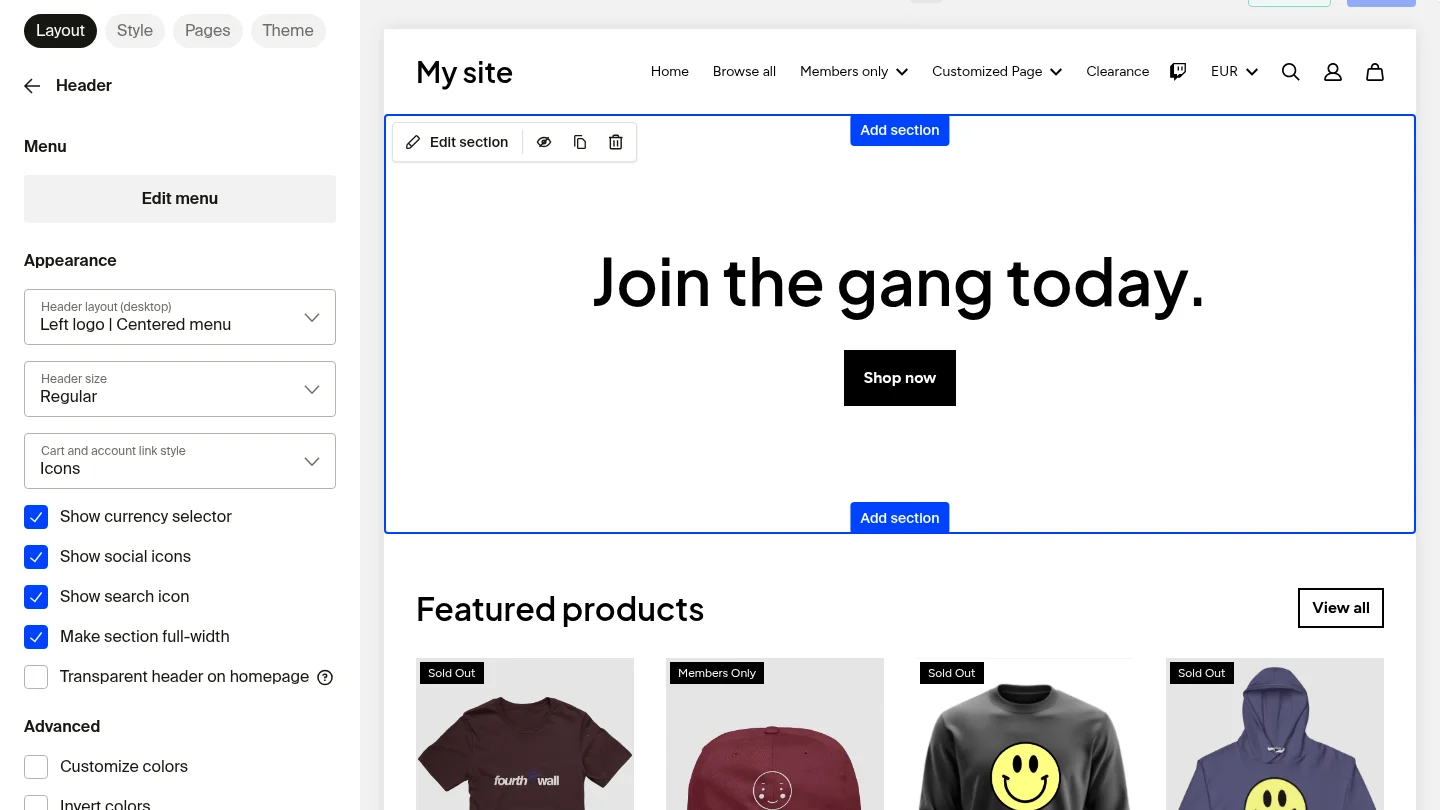
Customize the Search Results page
The Search Results page works like any other page in Site Designer. You can add, remove, and reorder sections.
- Go to Site Designer.
- Navigate to the Search Results page.
- Add or edit sections as needed and click Save.

The Search Results page URL is /search on your shop domain.
Dropdown menus
Navigation dropdowns
You can add dropdown menus to your site navigation.
-
In your Fourthwall dashboard, go to Site design > Layout.
-
Select your Header section > Edit menu.
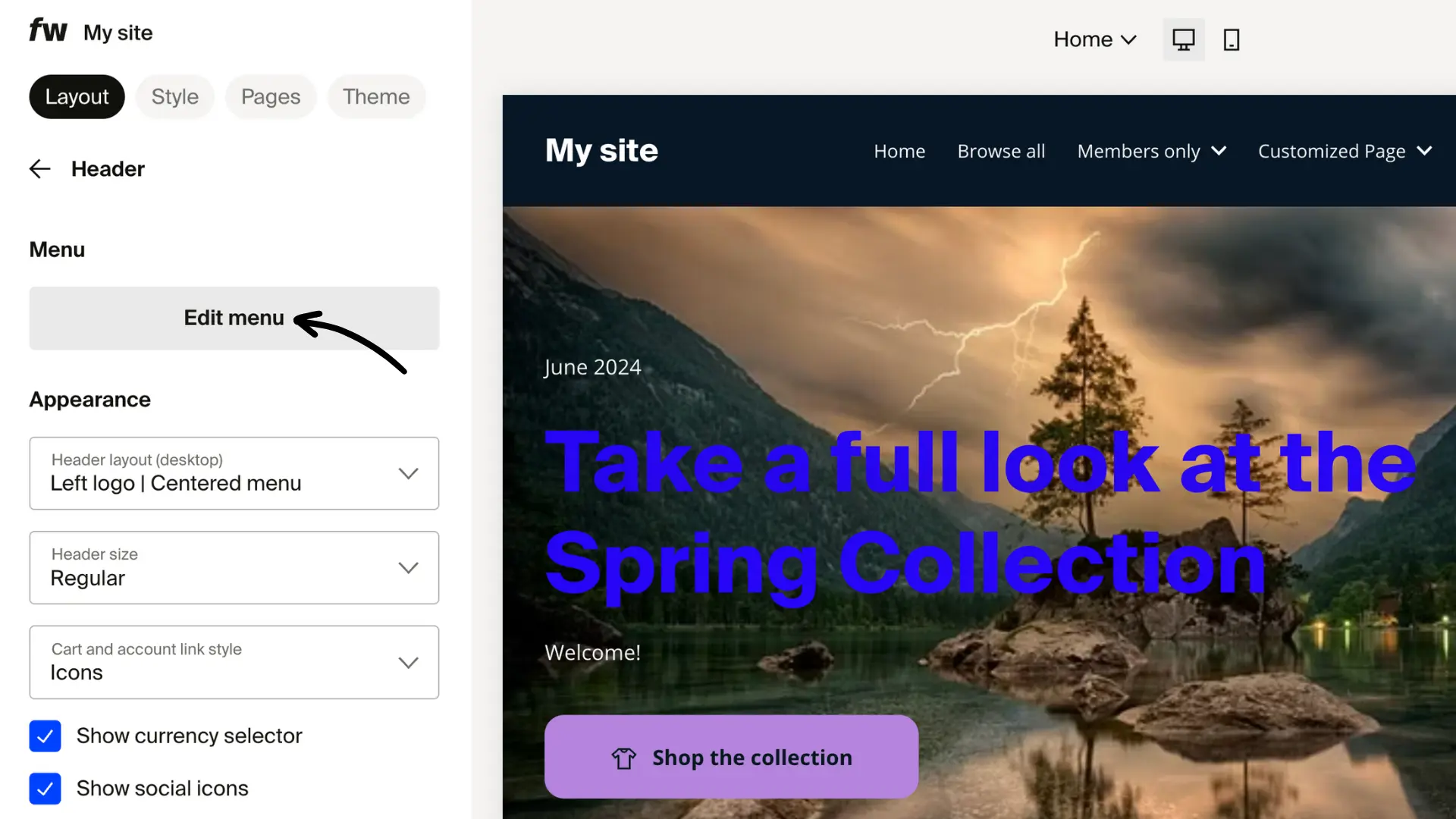
-
Edit the navigation menu and nest menu items under a parent link.
-
Click Save.
These nested items appear as a dropdown when visitors hover or click.
Other dropdowns (not supported)
Custom dropdown fields on products are not available.
Product display customization
You have several ways to adjust how products appear on your site.
Change product tile settings
-
In your dashboard, go to Site design > Style > Product card.

-
From here you can:
- Change the aspect ratio of product images.
- Adjust product tile size (affects how many products fit in a row).
- Enable or disable Show second photo on hover.
- Center products horizontally.
- Show or hide promotion badges.
- Choose All in one line as the card layout to display the product name, price, and action on a single horizontal line.
- Override the font family for product cards independently of your shop's global heading and base font settings.
- Change the product photo background color. This only applies to images with a transparent background. You can add transparency in the product designer (preview mode), but this feature is available for select products only.
Reorder products in collections
-
In your dashboard, go to Products > Collections.
-
Pick a collection to edit.
-
Rearrange products into the order you'd like them to appear and click Save.
Your site reflects this order automatically. For more on featuring collections, see this help article.